Before you start
- A Made to Spark account.
- A Pinterest account with at least one board.
-
1
Log in to the right Pinterest account
Made to Spark connects to the account you are logged in to on Pinterest. Open pinterest.com in the same browser and look at your profile picture. Is it the account your pins should go to? If not, log out and log in to the right one.
Tip: Only one Pinterest account? If you’re already logged in, go straight to step 2. If you’re not, Pinterest asks you to log in on the way. -
2
Click Connect Pinterest
In Made to Spark:
- 1 Click Integrations on the left, under Account. It opens on the Pinterest tab.
- 2 Click Connect Pinterest.
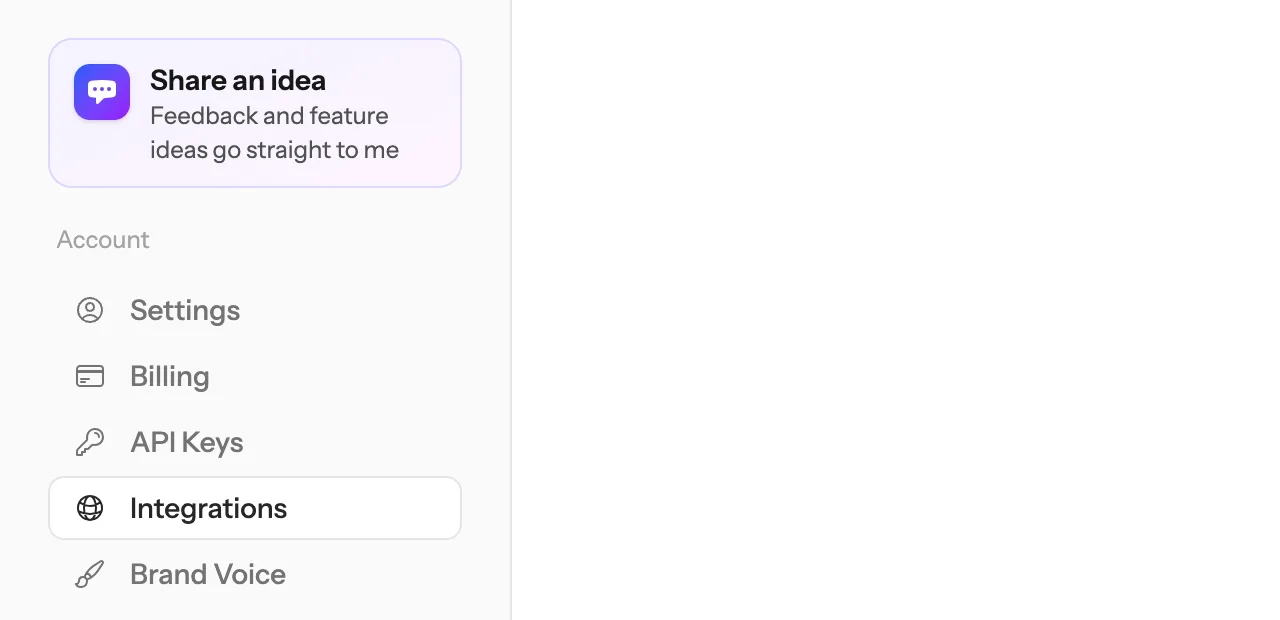 Click Integrations
Tap to enlarge
Click Integrations
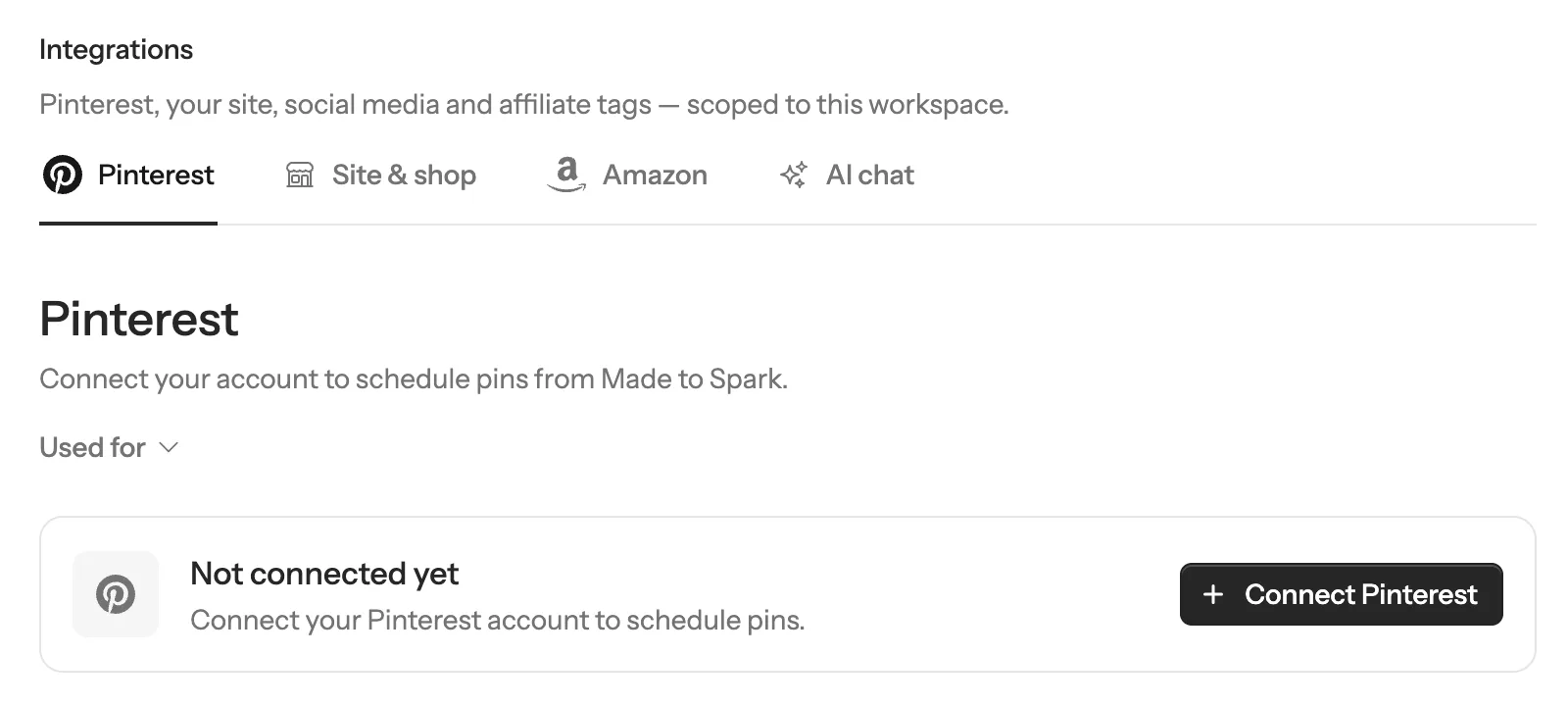 Click Connect Pinterest
Tap to enlarge
Click Connect Pinterest
Tip: Just made some pins? Click Connect Pinterest in the box next to them. It does the same and brings you straight back to your pins.
-
3
Allow access on Pinterest
Pinterest opens and asks if Made to Spark may use your account. Check that it shows the right account, then allow access. Made to Spark asks to see your profile, boards and pins, and to add pins to your boards. You log in on Pinterest itself, so Made to Spark never sees your password.
-
4
Check that it says Connected
You come back to Made to Spark, with a message that says how many boards it found. To check any time, click Integrations: you see your Pinterest name, a green Connected label and your number of boards.
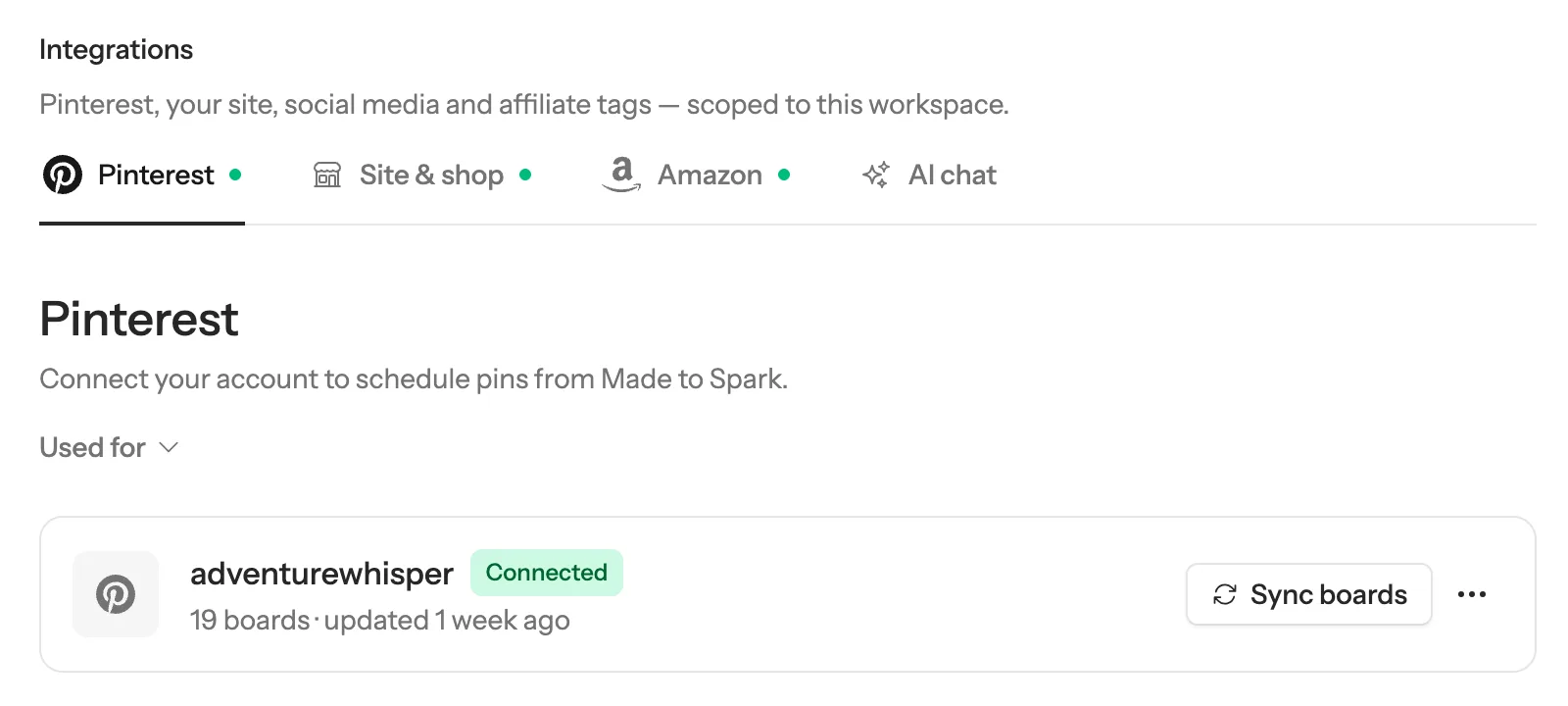 You’re connected
Tap to enlarge
You’re connected
Tip: Made a new board on Pinterest? Made to Spark picks it up by itself within a few hours. To get it now, click Sync boards.
If the connection stops working
Sometimes Pinterest ends the connection, for example when you remove Made to Spark in your Pinterest settings. Your pins pause so none are lost. Click Integrations, then Reconnect, and log in with the same Pinterest account. With a plan or the trial, your paused pins go out again, and the ones that missed their date get a new one.
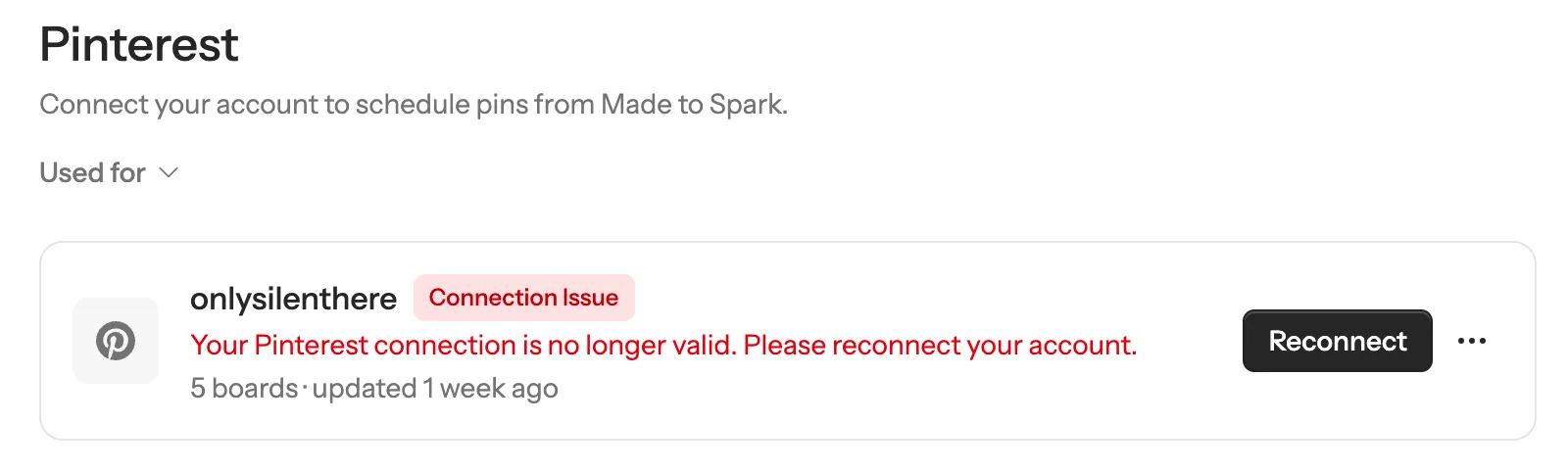 Click Reconnect
Tap to enlarge
Click Reconnect
Switch account or disconnect
Click the … button next to Sync boards. Switch account connects a different Pinterest account, and Disconnect removes the connection.
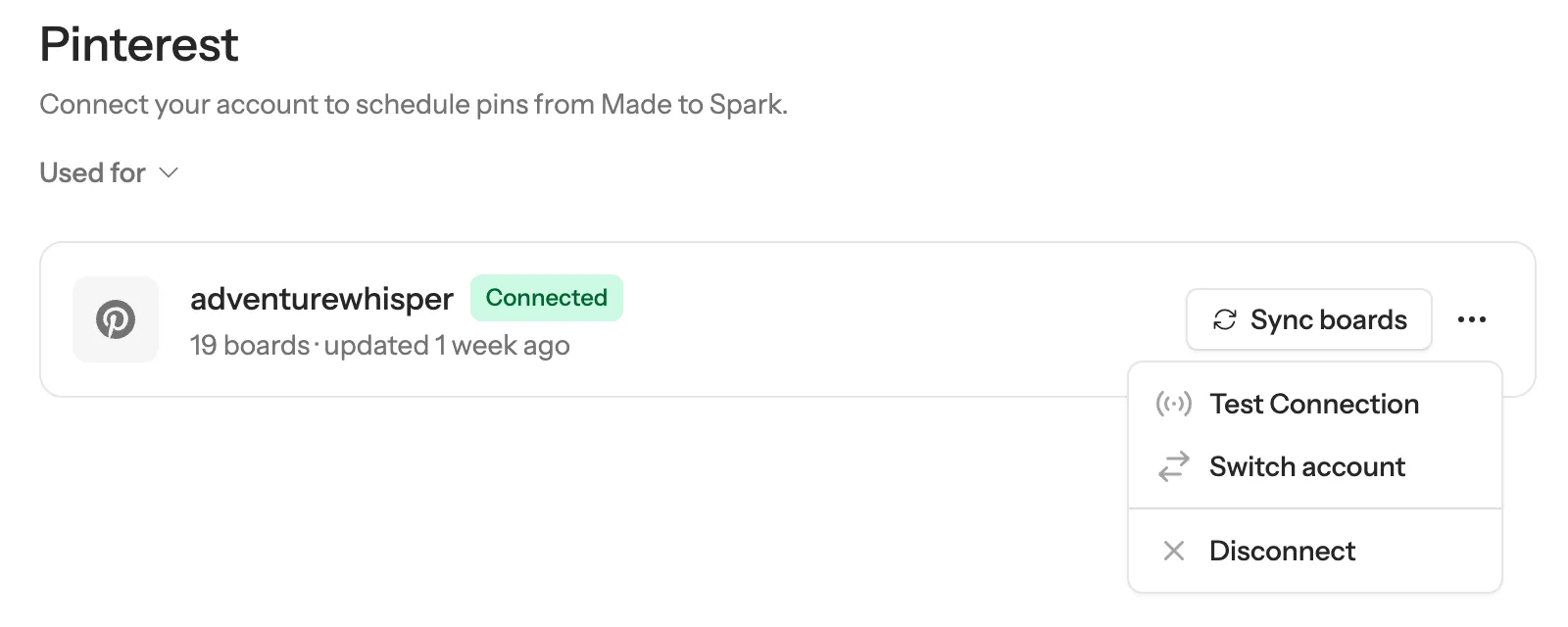 1
2
Tap to enlarge
1
2
If you have pins scheduled, you first see which account they are on. Connecting a different account pauses those pins until you pick boards on the new one, or reconnect the old one.
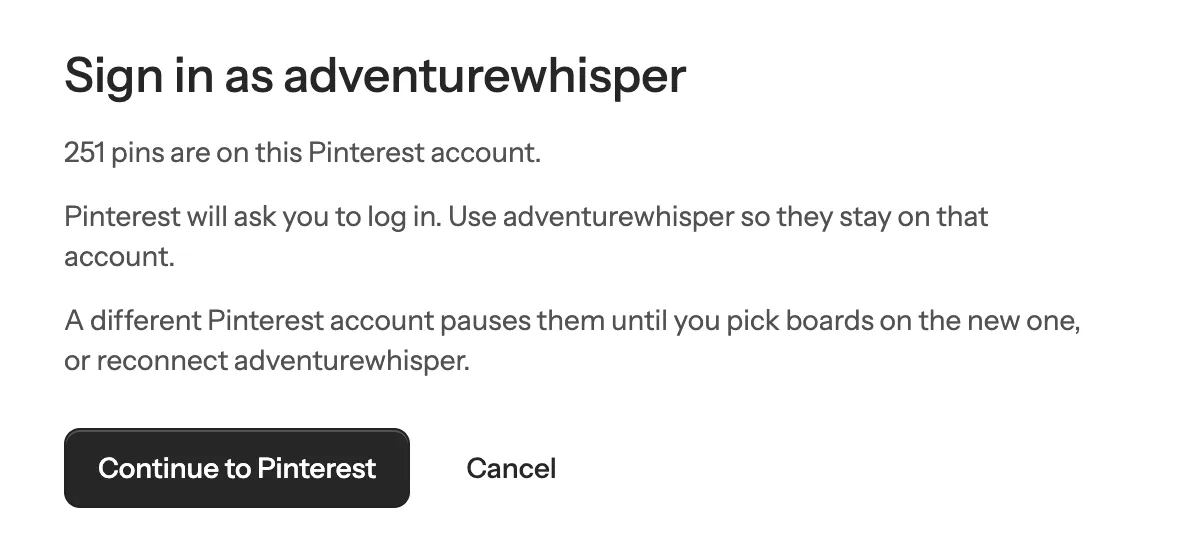 Tap to enlarge
Questions
Can I connect Pinterest without a plan?
Yes. Without a plan, your dashboard shows your Pinterest results and what to pin next. To schedule pins you need a plan or the 7-day trial.
Will Made to Spark post something as soon as I connect?
No. Connecting a new account posts nothing. Pins only go out once you schedule them, publish them, or turn on a workflow. If pins were already waiting because the connection stopped, they go out again after you reconnect, as long as you have a plan or the trial.
Does Made to Spark use the official Pinterest API?
Yes. You log in on Pinterest and allow access there. Made to Spark never asks for your Pinterest password.
Can I connect more than one Pinterest account?
Yes, if your plan has more than one workspace. Each workspace has its own Pinterest account, boards and calendar. Switch workspace at the top left, then connect the other account there.
It connected the wrong account. What now?
On pinterest.com, log out and log in to the right account. Then in Made to Spark, open Integrations, click the … button and choose Switch account.
It says no boards were found. What do I do?
Your account is connected, but a pin needs a board to go to. Create at least one board on Pinterest, then click Sync boards in Integrations.
It says required permissions are missing. What do I do?
Made to Spark needs permission to add pins to your boards. Click Connect Pinterest again and allow everything Pinterest lists.
What happens to my scheduled pins if I disconnect?
They pause. Nothing already on Pinterest is deleted. When you reconnect the same account, the paused pins go out again if you have a plan or the trial, spread over new days if their dates have passed.
Why does it say my Pinterest account already had a trial?
Each Pinterest account gets one trial. If it was used with another Made to Spark account, the trial ends here and you can pick a plan to schedule your pins.
Stuck on a step? Just reply to any email from us, or use the chat button at the bottom right.
Next guide
Schedule your pins, and post them to more than one board
From My Pins, or fill your whole Pinterest calendar in one click.