Paste a brand’s Amazon store, or a creator’s storefront, and pick products from it. Click one to make its pins, or tick several and make them all at once. Here's the whole thing, click by click, with a real store on Amazon.
Before you start
A Made to Spark account. New here? Use Create your account at the end of this guide.
To tick several products and make them at once, Bulk Pins on the Solo and Growth plans. Clicking one product works on every plan.
To schedule pins, a plan or the 7-day trial, and Pinterest connected once. Downloading the pins works without either.
1
Copy the Amazon store link
On Amazon, open any product from the brand and click Visit the Bedsure Store under its name. The brand’s store opens. Copy the link from the top of your browser. A creator’s storefront works too (amazon.com/shop/name), and so does an Idea List (amazon.com/shop/name/list/…).
Click the address bar, then pressCtrl+C(on a Mac:⌘+C)
2
Paste it into Made to Spark
Once you are signed in to Made to Spark:
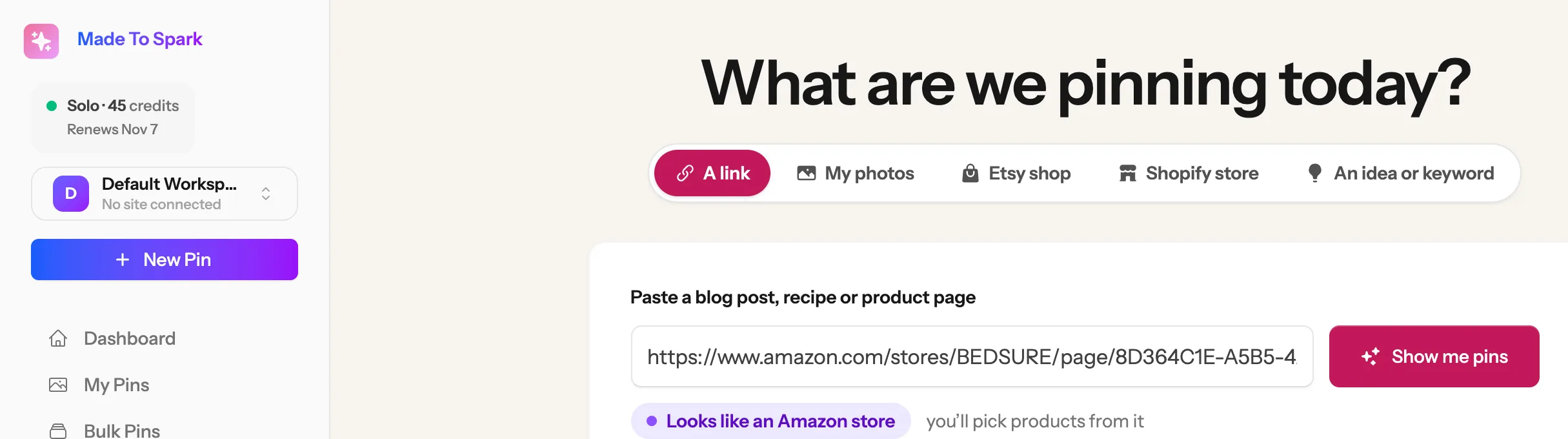
1Click New Pin on the left. On a phone or tablet, tap the menu button at the top left first.
2Paste the store link into the box.
3Under it you see “Looks like an Amazon store”. That means you get to pick products from it.
4Click Show me pins.
1234
3
Click a product to make its pins
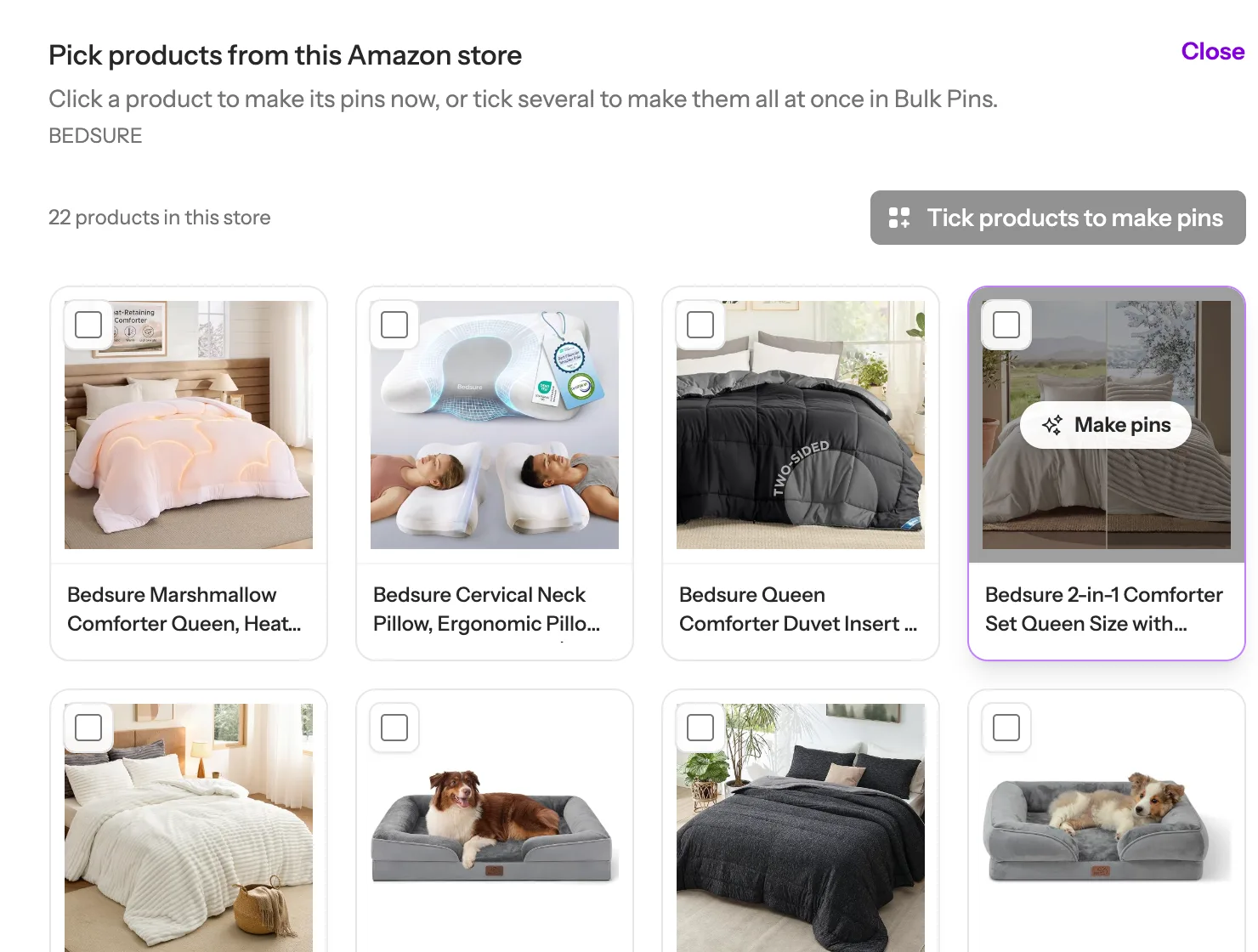
A grid of the store’s products fills in, with each product’s photo and name. It takes a few seconds, and products show up as they are found. Point at a product and Make pins shows on it (1). Click it, and the product’s own pick screen opens, just as if you had pasted that product’s link. From there, follow the guide Make pins from an Amazon product, from its step 3. Want another product after that? Click Different link at the top to come back to the store.
1
Tip: Amazon affiliate? If the store link you pasted has your ID in it (tag=yourname-20), every product you open from the store keeps it. If it has none, the ID you saved for that Amazon store is added, as with a single product.
4
Several products? Tick them
With Bulk Pins (on the Solo and Growth plans), you can make pins for many products in one go:
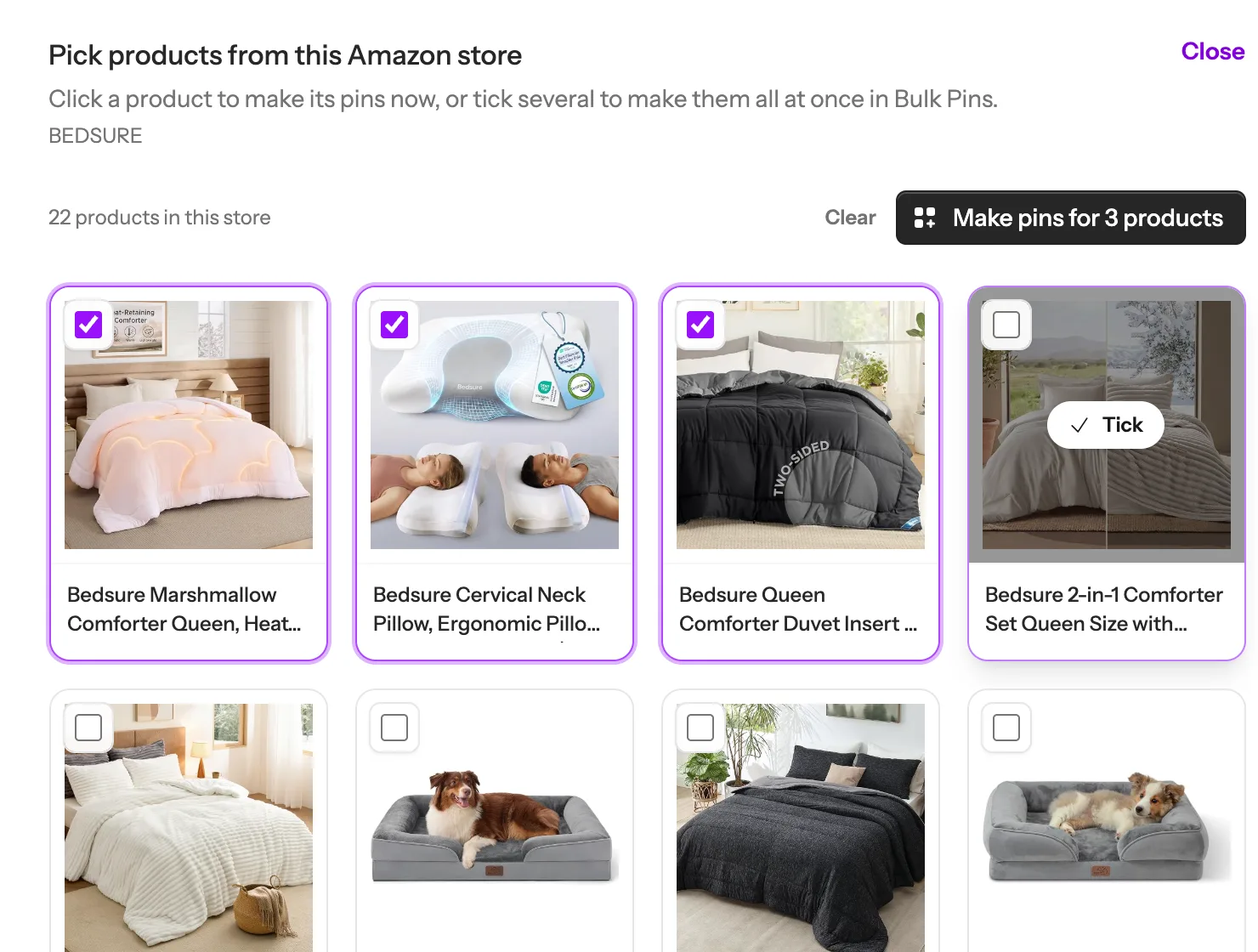
1Tick the box at the top left of each product you want. Once one is ticked, clicking a product’s photo ticks it too: it shows Tick or Untick instead of Make pins.
2Click Make pins for 3 products at the top. The button counts what you ticked. Bulk Pins takes up to 25 Amazon products at a time.
12
5
Make them in Bulk Pins
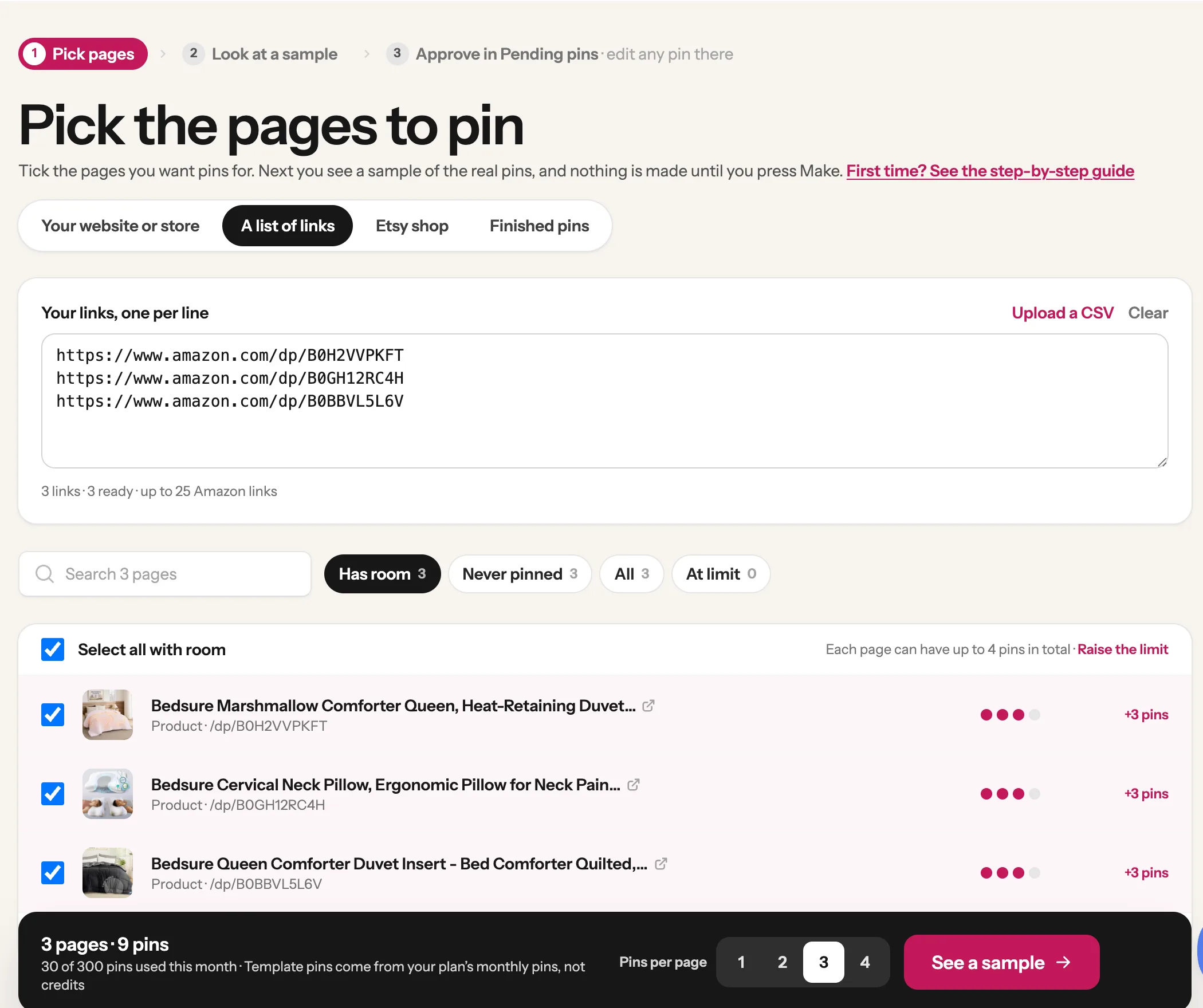
Bulk Pins opens with your products already in the list of links (1). Each one gets a line with its photo and name, ticked and ready (2). Pick how many pins each product gets, then click See a sample (3). You see real pins for one product before anything is made, and every pin waits in Pending pins for you to approve. The rest works like any bulk run: see the guide Make pins in bulk, from Look at a sample.
123
Done! Two guides take it from here
One product: its pick screen works like any Amazon product. Several: Bulk Pins shows a sample, then makes them all.
A brand’s store (amazon.com/stores/Brand/page/…) and a creator’s storefront (amazon.com/shop/name), in any Amazon country. A short store address like amazon.com/bedsure is not recognised yet: open one of the brand’s products and click Visit the Store, then copy that link.
Why don’t I see every product the brand sells?
The grid shows the products on the store page you pasted, plus a couple of the store’s other pages when that one shows only a few. Missing a product? Open that store page on Amazon and paste its link, or paste the product’s own link.
What about an Amazon Idea List?
It works the same way. Paste the list link (amazon.com/shop/name/list/…) and its products open in the grid. There is one more choice at the top, Pin the whole list: pins that show the list’s products and link to the whole list.
Can I paste a store in Bulk Pins instead?
Yes. In Bulk Pins, on A list of links, paste the store or list link. A note under the box offers Add its products: click it and, a few seconds later, the link is swapped for one line per product, all ticked. Untick the ones you don’t want. Bulk Pins takes up to 25 Amazon links at a time.
Can new products in the store get pins on their own?
Yes, with Auto Pin. Type the store or Idea List link where Auto Pin asks for your site, or, if you already use Auto Pin with your links, paste it under Amazon stores you watch on the Auto Pin page. Every day it checks the store, and each product added after that gets its own pins. The products there today show up for you to pick.
Does my affiliate ID stay on the pins?
Yes. If the store link has your ID in it, every product opened from the store keeps it. If it has none, the ID you saved for that Amazon store is added.
What if something goes wrong?
If the store can’t be read, the grid says so and offers Use the store page: pins made from the store page’s own photos, linking to the whole store. You can also paste one product’s link instead.
Stuck on a step? Just reply to any email from us, or use the chat button at the bottom right.