Before you start
- A Made to Spark plan, or the 7-day trial.
- ChatGPT, or a paid Claude plan (Pro, Max or Team). Claude Code, Cursor and other agents work too.
- Your Pinterest account connected in Made to Spark, to schedule pins. Making pins works without it.
-
1
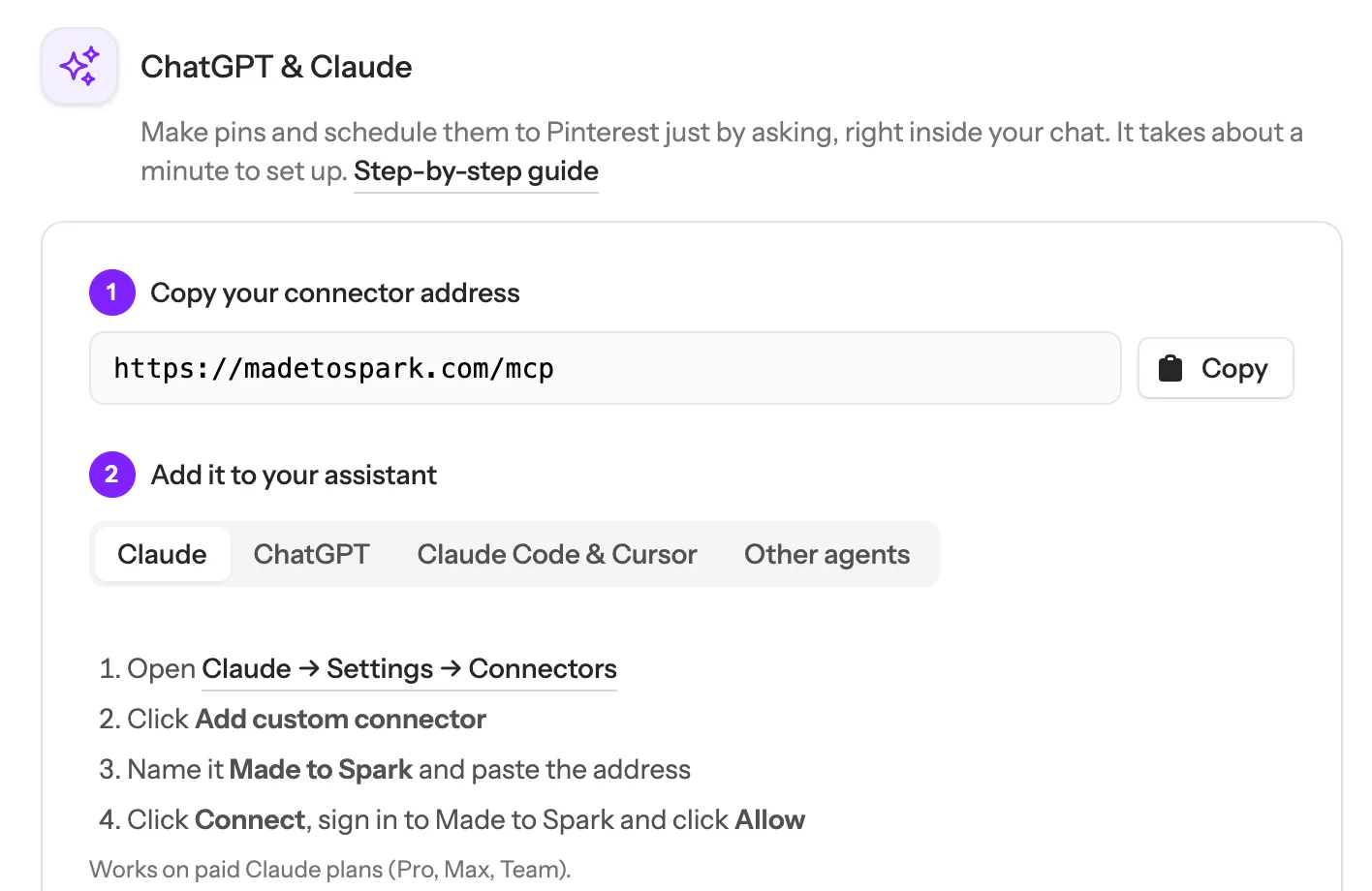
Copy your connector address
Sign in to Made to Spark, click Settings at the bottom left, then Integrations, and scroll to ChatGPT & Claude. Click Copy next to the address. It is the same for everyone: https://madetospark.com/mcp. Signing in, in the next step, is what links it to your account.
 1
Steps for each assistant
Tip: The same box lists requests you can copy, and every assistant you have connected, with a Disconnect button.
1
Steps for each assistant
Tip: The same box lists requests you can copy, and every assistant you have connected, with a Disconnect button. -
2
Add it in ChatGPT
Open ChatGPT in your browser, then:
- 1 Click Plugins in ChatGPT, then Add at the top right, then Add custom MCP server.
- 2 Name it Made to Spark, paste the address and choose OAuth.
- 3 Save. A Made to Spark window opens: sign in and click Allow.
Tip: Before it schedules anything, ChatGPT asks your permission. Choose Allow once to check every time, or Always allow. -
3
Or add it in Claude
Custom connectors work on Claude’s paid plans (Pro, Max and Team). In Claude:
- 1 Click Settings, then Connectors, then Add custom connector.
- 2 Name it Made to Spark and paste the address.
- 3 Click Connect, sign in to Made to Spark and click Allow.
- 4 Using Claude Code? Run claude mcp add --transport http made-to-spark https://madetospark.com/mcp in your terminal, then type /mcp to sign in. Cursor and other agents take the same address in their MCP settings.
Tip: Running your own script or server that can’t open a browser? Create an API key in the same Settings box (Other agents tab) and send it as a header. API keys are on paid plans. -
4
Ask for pins
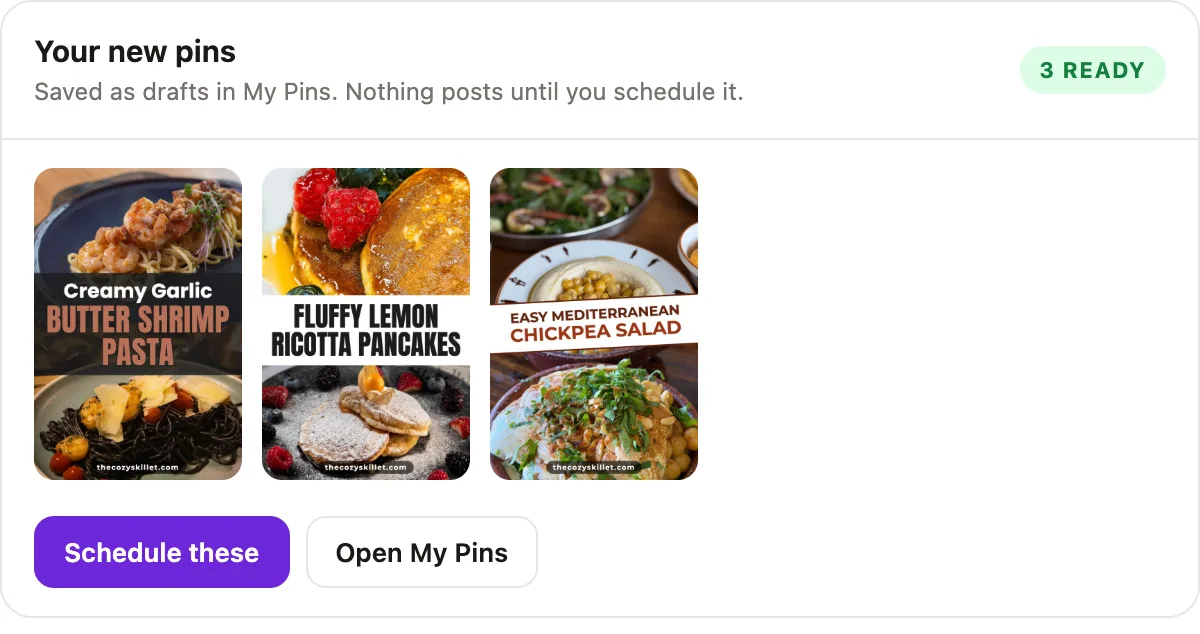
Start a new chat and name Made to Spark in your first message, for example “Using Made to Spark, make 3 pins from https://myblog.com/my-post”. In ChatGPT and Claude a small screen appears in the chat and the pins fill in by themselves in about a minute. They are made from the page’s own photos, in your brand colours, with the Pinterest title and description written.
- 1 Want different words? Ask: “Make pin 2’s title shorter” or “Show me each pin’s description”.
- 2 Etsy listings, product pages and recipes work too: “Make 5 pins from this Etsy listing”.
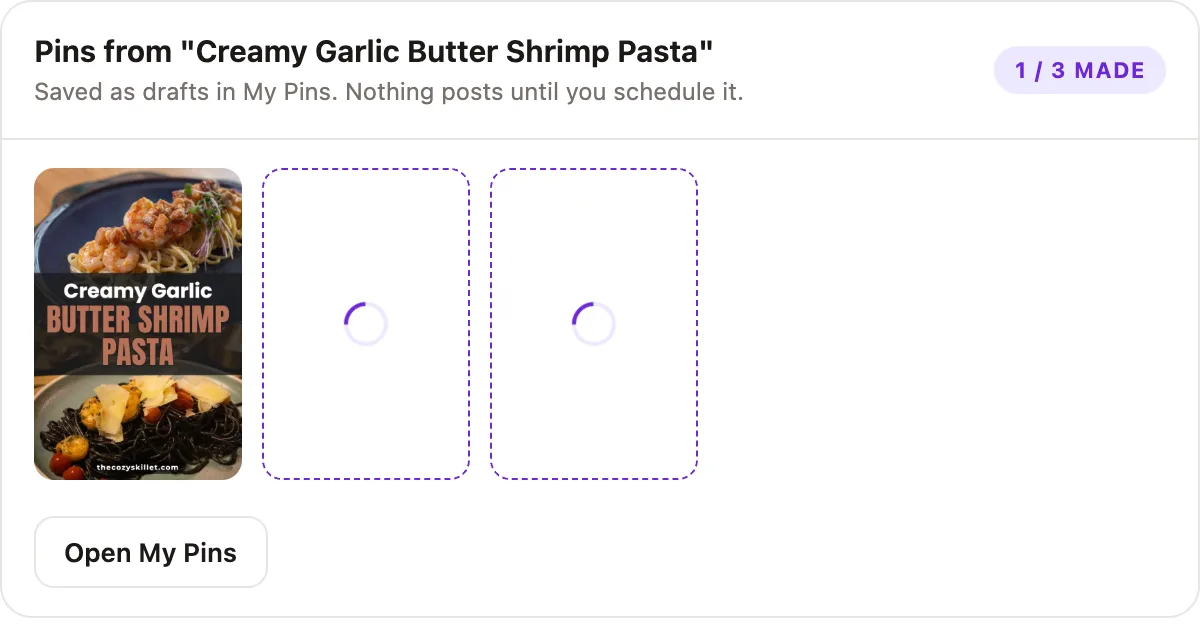 Fills in by itself
 1
Tip: New pins wait in My Pins as drafts. Nothing goes to Pinterest until you schedule it.
1
Tip: New pins wait in My Pins as drafts. Nothing goes to Pinterest until you schedule it. -
5
Schedule them
Click Schedule these under the pins, or just say “Schedule them on my Recipes board from Monday”. Not sure which board? The assistant lists your boards and suggests the closest match. A calendar screen then shows the days and times.
- 1 Pins for different posts can go out every day. Pins for the same post go out a week apart, the way Pinterest likes it.
- 2 Your daily limit (and the warm-up for a new account, if it is on) still applies. When a day is full, the assistant tells you the first day with room.
- 3 You can close the chat: Made to Spark posts the pins at their times. They are on your Pin Scheduler too, where you can move them.
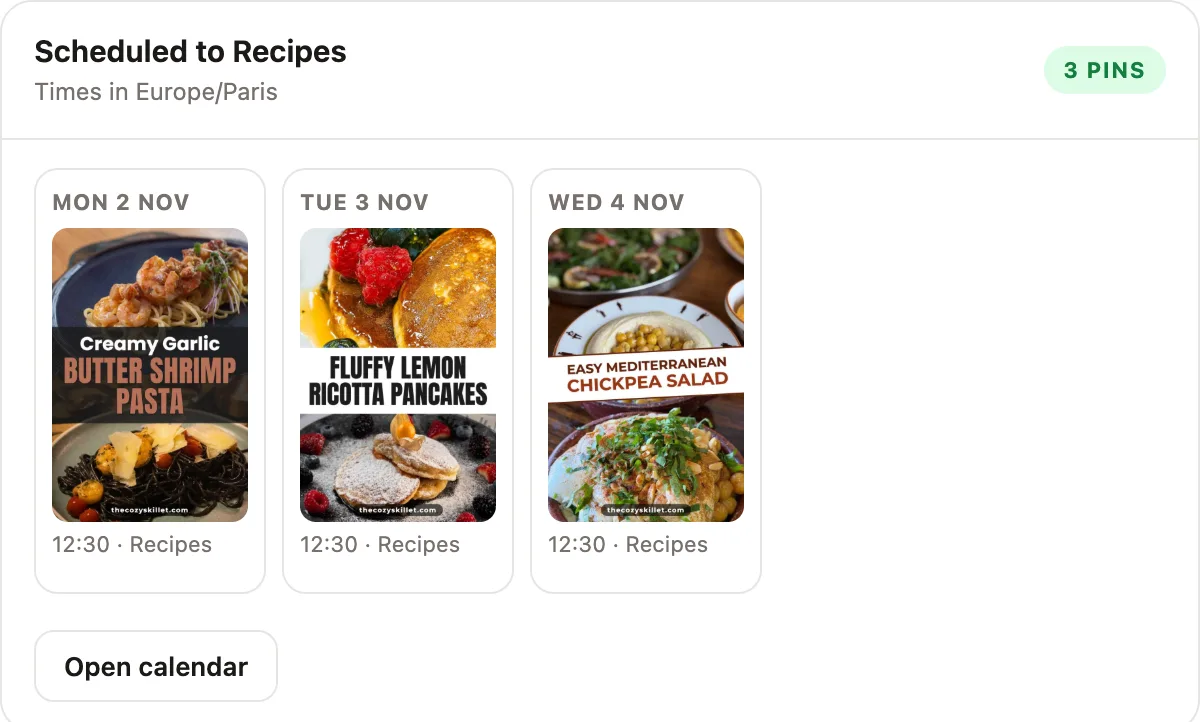 Tip: Ask “What is going out this week?” any time, or “Remove the Friday pin”.
 -
6
Many posts, or new pins every week
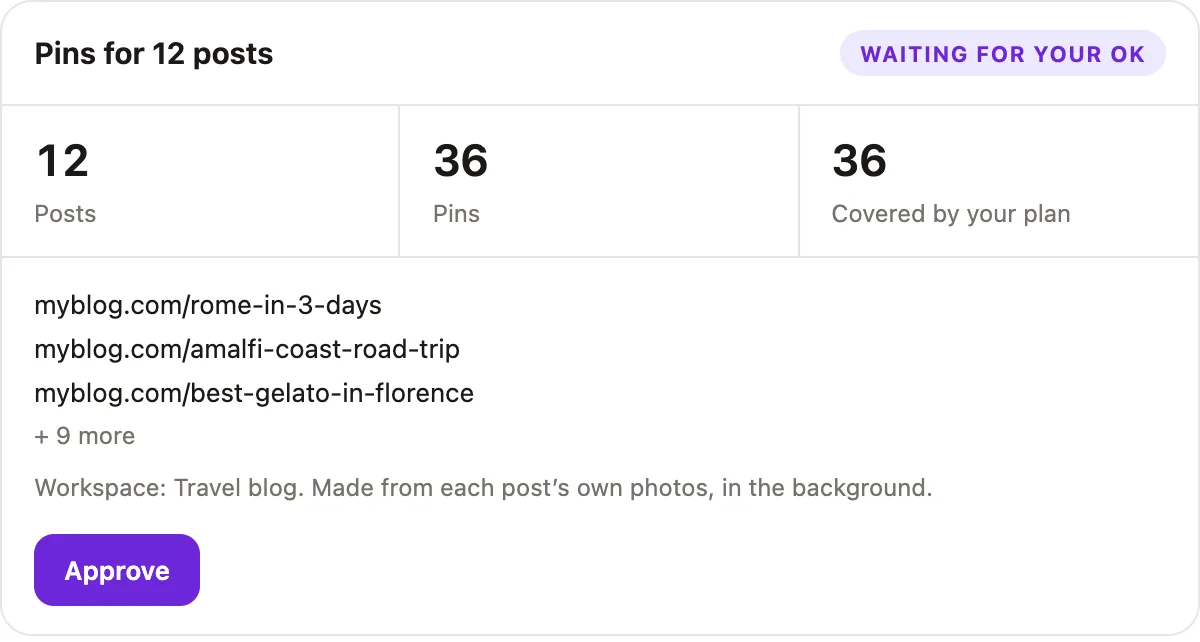
Ask “Make 3 pins for each of my posts about Italy”. The assistant finds the posts on your site, then shows the plan: how many pins, and how many your plan covers. Nothing starts until you click Approve or say yes. Pins for many posts at once are on the Solo and Growth plans.
- 1 Want a fresh pin for those posts every week? Ask “Make new pins every week for my Peru posts”. Auto Pin keeps it going by itself; it comes with the Solo and Growth plans and is set up once in the app.
- 2 Ask “What should I fix on my Pinterest profile?” for your top fixes, with what to do for each.
 1
1
Done! Pins, just by asking
Make, check and schedule your pins from the chat you already use.
Next guide
Schedule your pins, and post them to more than one board
From My Pins, or fill your whole Pinterest calendar in one click.
What if something goes wrong?
Which plans include it?
Every Made to Spark plan, and the 7-day trial. On the trial, a chat makes up to 3 pins from a page, from up to 5 pages a day. Pins for many posts at once are on the Solo and Growth plans, and API keys for your own agents are on paid plans.
I don’t see the pins screen, only text
Start a new chat: an old chat keeps the old version of Made to Spark. If that doesn’t help, refresh Made to Spark in ChatGPT’s connector settings, or remove it and add it again. Some assistants can’t show screens at all; they still get the same pins as pictures and links.
It says my days are full
Each workspace has a most-pins-a-day limit, and a new account can be warming up with a lower limit for its first weeks. Raise the limit or turn off the warm-up in the Pin Scheduler’s Schedule settings, or pick the first day with room that the assistant suggests.
Will it post to Pinterest without asking me?
No. New pins are drafts in My Pins. Pins only go on your calendar when you ask the assistant to schedule them, and ChatGPT asks your permission first.
What does it cost?
The same as in the app. Template pins are included in your plan. When your plan’s pins run out, the assistant asks before it uses any credits.
Which workspace does it use?
The one that matches the link you give it. Every reply names the workspace and Pinterest account it used. With several workspaces, just say which: “in my Travel blog workspace”.
How do I disconnect it?
Click Settings, then Integrations, and Disconnect next to the assistant in the ChatGPT & Claude box. Changing or resetting your password disconnects every assistant too.
Stuck on a step? Just reply to any email from us, or use the chat button at the bottom right.