Before you start
- Pinterest connected once: click Connect Pinterest next to your new pins, or click Integrations on the left.
- A plan or the 7-day trial, both of which include the scheduler.
- A few posts or products to make pins for.
-
1
Month 1: turn on the warm-up
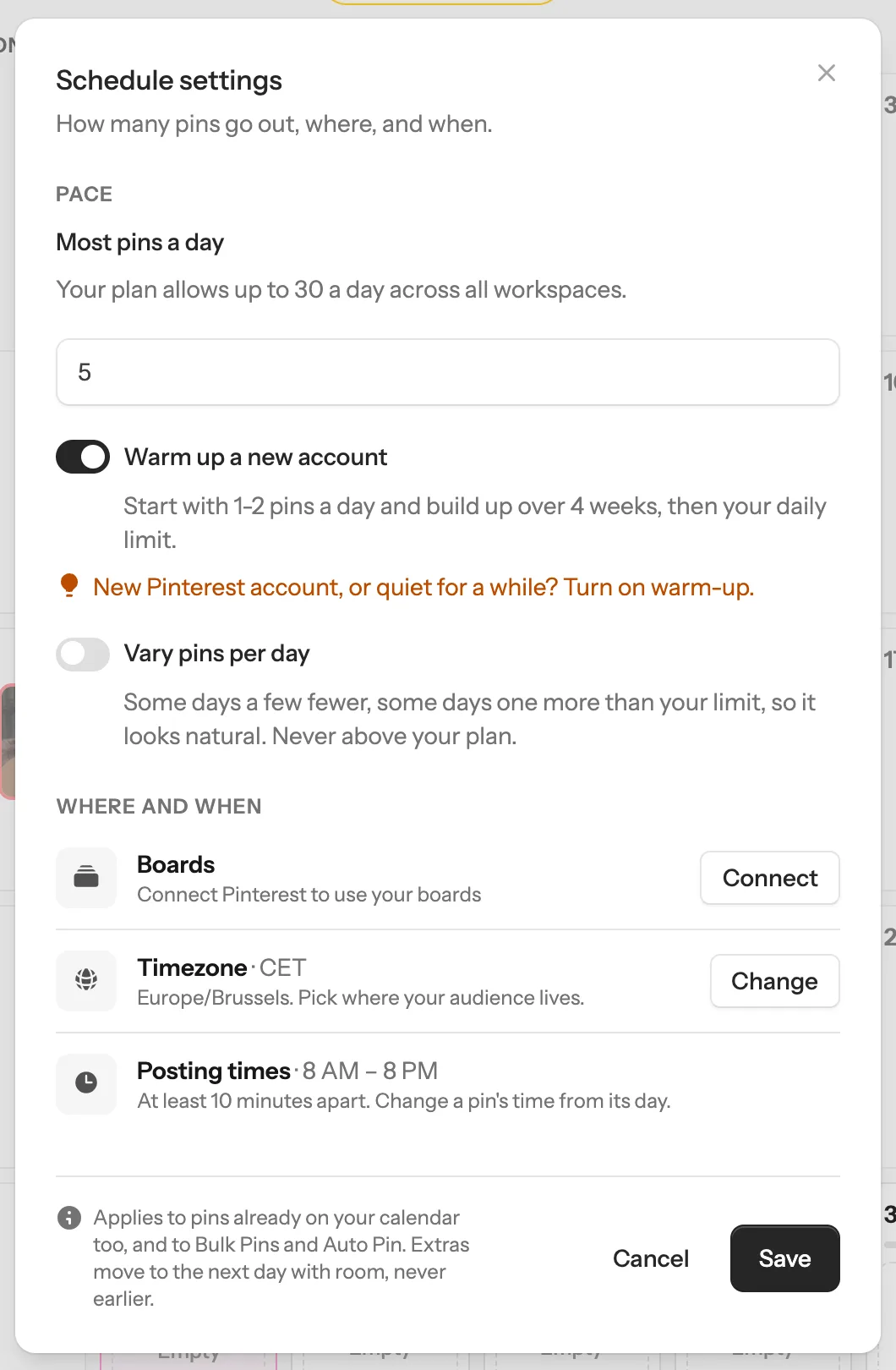
Pinterest shows more of your pins when it sees you every day. Thirty pins in one go can look like spam, so a new or quiet account starts slowly: 1–2 pins a day, building up to about 5 by week 4. You don’t have to count. Two settings do it for you.
- 1 Click Pin Scheduler on the left, then Schedule settings at the top.
- 2 Type 5 in Most pins a day. The warm-up builds up to this number, so there’s no sudden jump when it ends.
- 3 Turn on Warm up a new account.
- 4 Click Save. From tomorrow, every pin you schedule fits the warm-up, wherever you schedule it from.
 2
3
4
Tip: Under Most pins a day you see your plan’s limit: up to 5 a day on the 7-day trial and the Lite plan, more on Solo and Growth. Pins already on your calendar move to fit, never earlier.
2
3
4
Tip: Under Most pins a day you see your plan’s limit: up to 5 a day on the 7-day trial and the Lite plan, more on Solo and Growth. Pins already on your calendar move to fit, never earlier. -
2
Months 2–3: 5–7 pins a day, every day
Now show up every day. Got lots of posts or products? Raise Most pins a day to 7 (Solo and Growth plans go above 5). Keep about 2 weeks of pins on your calendar so no day goes empty.
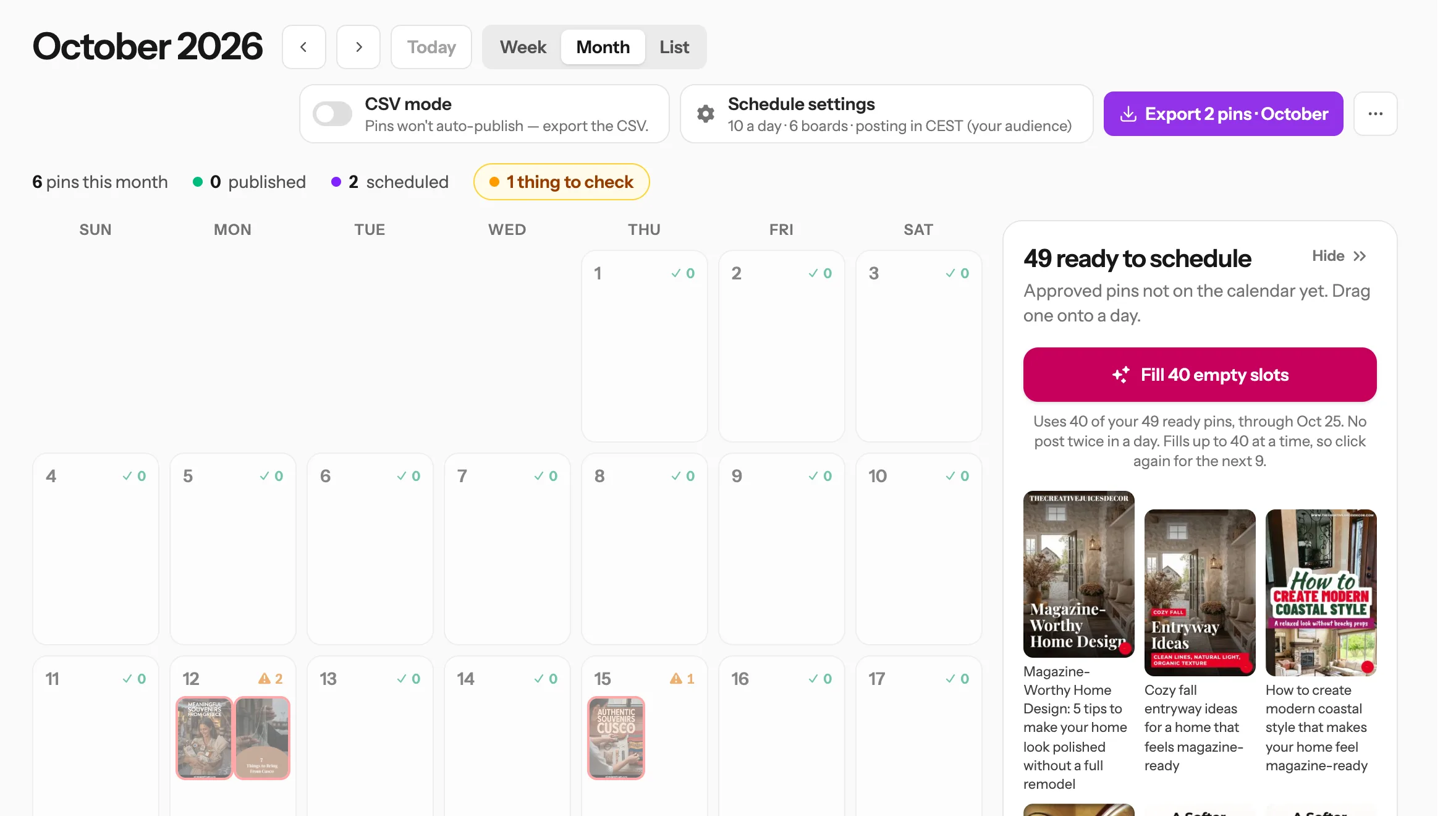 Puts ready pins on empty days
Tip: Short on time? On your Dashboard, Fill my next 2 weeks puts your ready pins on the calendar without opening it.
Puts ready pins on empty days
Tip: Short on time? On your Dashboard, Fill my next 2 weeks puts your ready pins on the calendar without opening it.A week between pins for the same link. Nothing to do here: the scheduler spaces them out for you.
Fewer than 35 posts or products? With a week between pins for the same link, 5 a day isn’t possible yet, and that’s fine. Post 1–2 a day and add new pages as you go.
-
3
Make 3–4 pins for each page, without doing it one by one
Different pins for the same page each reach a different person searching. Made to Spark gives every pin its own angle, with a different headline and design. 5–7 a day is about 150 pins a month, so make them in batches.
 Tip: Every way of scheduling follows your warm-up and Most pins a day, so a big batch never goes out at once.
Bulk Pins: choose your website or store, or paste a list of links, and get pins for many pages in one go. You check them, then they’re spread across your calendar. Comes with the Solo and Growth plans.
Or Auto Pin: connect your blog or shop once. On the day you choose, it makes the next pins from your pages and keeps your calendar full. Also on the Solo and Growth plans.
On the trial or Lite? Click New Pin, paste a link and tap 3–4 designs. You get a pin for each, with its own headline, in one go.
-
4
Give people a reason to click
A pin that shows everything gets views and saves, but no visitors. Promise the result in the headline, then end the pin with a nudge to visit, like “Read more →” or “Shop now →”.
- 1 Turn on Call to action on pins once, in My Templates or when you pick designs in New Pin. Every new pin gets the button, including Bulk Pins and Auto Pin.
- 2 Blog posts get “Read more”, products get “Shop now”. Or type your own words, like “Get the recipe”.
- 3 To change the words or turn it off for one pin, edit that pin.
Tip: Product infographics already end on a shop button, so keep it on. -
5
Month 4: make more of what works
By now Pinterest knows your account. Find what it likes and give it more.
- 1 In your Pinterest analytics, find your top 5 pins (most saves and clicks).
- 2 Make fresh pins for those 5 pages. On the Solo and Growth plans, paste the 5 links into Bulk Pins to do them all at once.
- 3 Raise Most pins a day by 2 each week, up to 10–15 (or your plan’s limit).
Skip these
- 20 pins one day, then nothing for a week.
- The same image pinned again and again.
- Giving up before month 3. Views and saves come first, clicks follow.
Questions
Why not post 30 pins on the first day?
A new account that posts a lot at once can look like spam to Pinterest, and pins posted together compete with each other. A few pins every day, building up, is what Pinterest rewards.
My account isn’t new. Do I need the warm-up?
Only if it has been quiet for a while. If you already pin most days, skip it and set Most pins a day to what you post now, then raise it slowly.
Can I pin the same image again and again?
Better not. Pinterest prefers fresh pins. Make a new design for the same page instead: each one gets its own headline and look.
When will I see clicks?
Views and saves come first, usually in month 1. Clicks tend to follow in months 2 and 3. The most common mistake is giving up before month 3.
What if I skip a few days?
Nothing breaks. Keep about 2 weeks of pins on your calendar and the scheduler keeps going while you’re away.
Does scheduling use credits?
No. Scheduling never uses credits. It comes with every plan and with the 7-day trial. Making pins uses credits, unless your plan covers template pins.
Stuck on a step? Just reply to any email from us, or use the chat button at the bottom right.
Next guide
Schedule your pins, and post them to more than one board
From My Pins, or fill your whole Pinterest calendar in one click.