Clicky

Step-by-step guide · 7 steps · about 4 minutes

How to make Pinterest pins for your printables

Planners, worksheets, wall art, clipart: paste one listing and get a small set of pins, each with a job. One brings clicks, one gets saved, one sells. Here’s the whole thing, click by click, with a real Etsy budget planner.
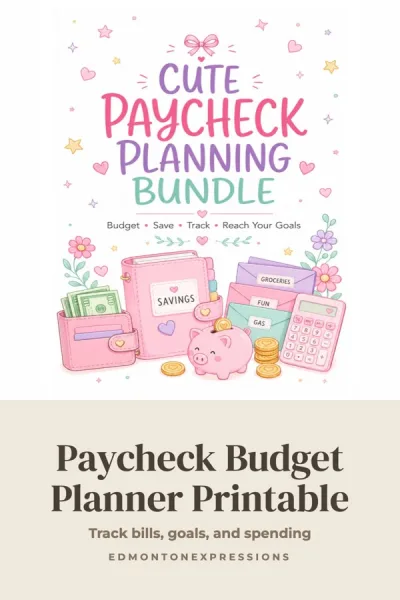
Pinterest pin for a budget planner printable, Clicks: Your cover
Clicks: Your cover
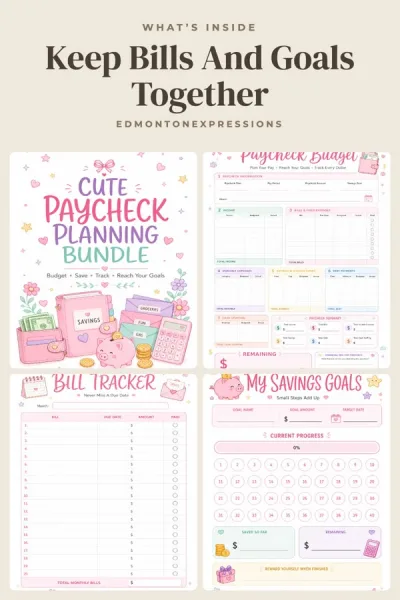
Pinterest pin for a budget planner printable, Saves: What’s inside
Saves: What’s inside
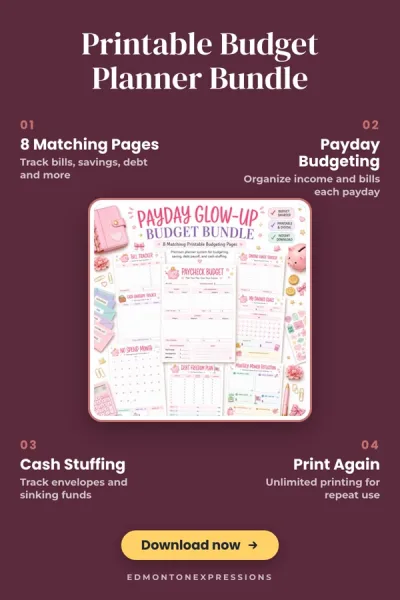
Pinterest pin for a budget planner printable, Sales: Feature pin
Sales: Feature pin

Before you start

Which pin does what

See every kind with real examples on Pinterest for Printables.

  1. 2

    Paste it into Made to Spark

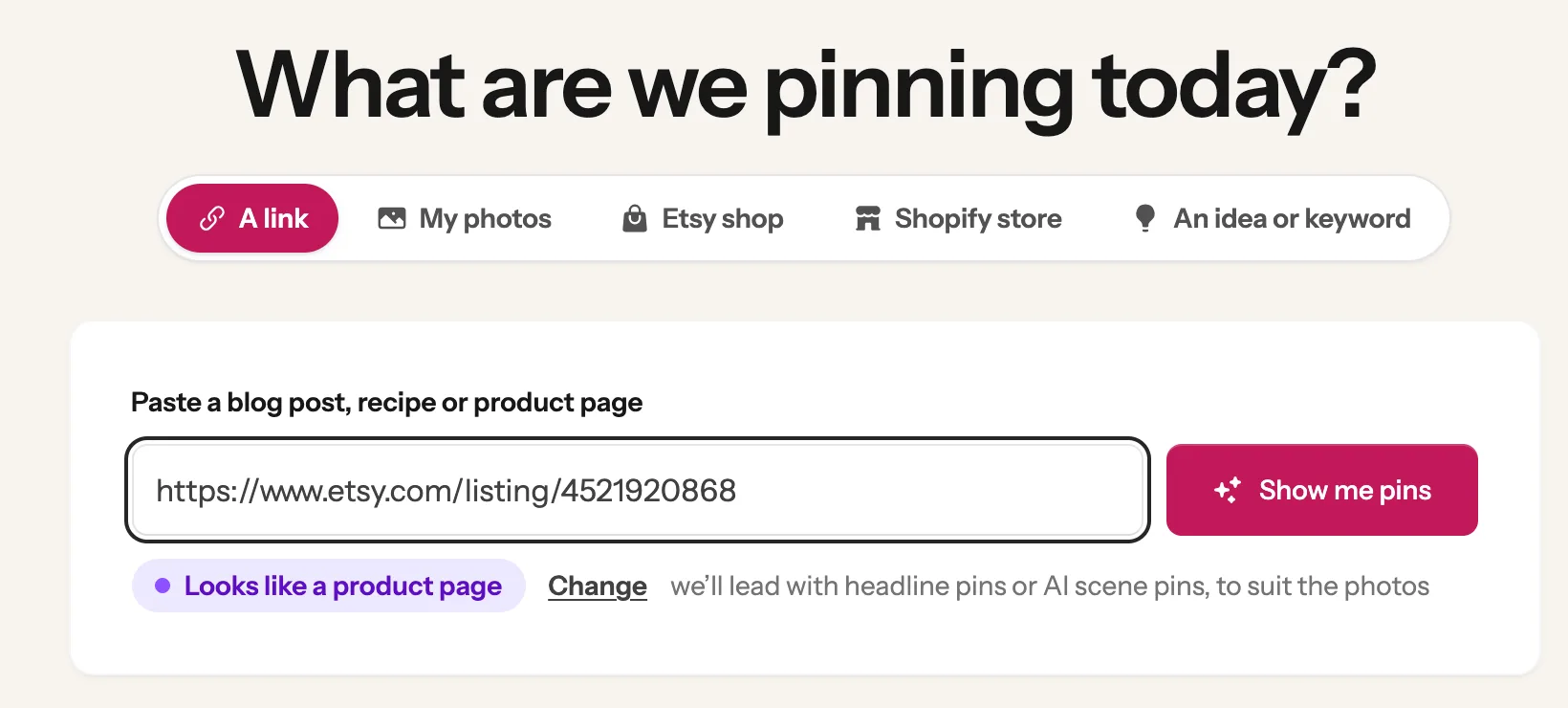
    Click New Pin on the left. On the A link tab, paste your link and click Show me pins. Made to Spark reads your cover, your preview pages, the title and the description, and sees that it’s a download. That is what switches on the printable designs and the Download now button.

    The New Pin page with an Etsy printable link pasted and the Show me pins button 1 2
  2. 3

    Pick Headline pins for clicks and saves

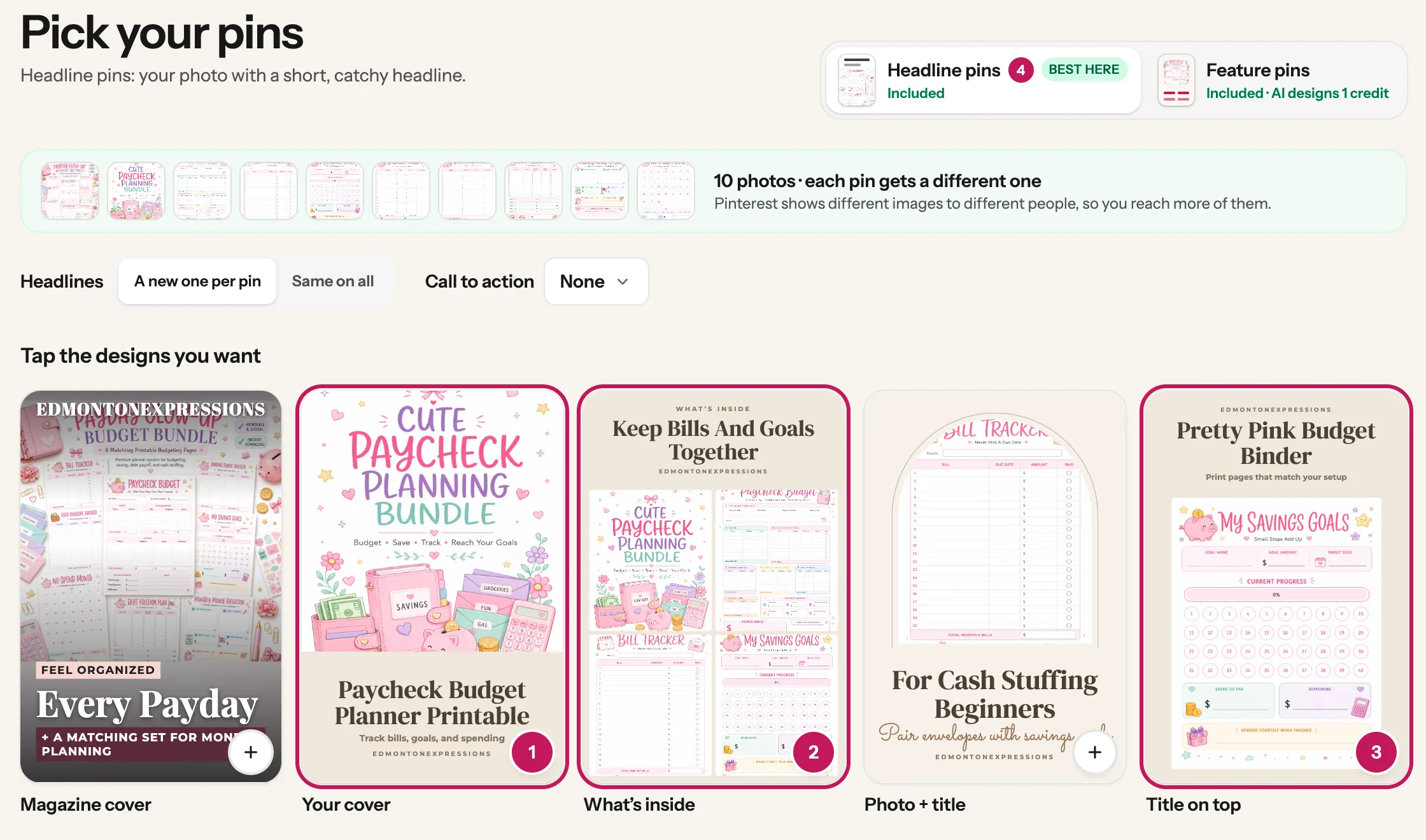
    Headline pins opens first, marked BEST HERE. These are your own images with a short headline, in designs made for printables: your cover stays whole, words and all. A few are already picked. Tap a design to add it, and tap a picked one to take it out. The two that matter most:

    1. 1 Your cover: your cover on top, a clear headline below. It tells people at a glance what they get, so it brings clicks.
    2. 2 What’s inside: four of your pages in a grid. People save what they plan to use later, and seeing the pages makes your printable easy to save.
    3. 3 Want a third? Title on top or Matted print give the same printable a different look. Each pin gets its own photo and headline, so Pinterest sees new pins, not copies.
    The Headline pins tab with Your cover, What’s inside and Title on top picked for a budget planner printable Headline pins 1 2
    Tip: Selling wall art? Then the first designs show your artwork big: in a room, side by side as a set, or matted like a framed print. Pick two of those.
  3. 4

    Add Feature pins for sales

    Click the Feature pins card at the top. These pins list what the buyer gets, so the people who tap are ready to buy.

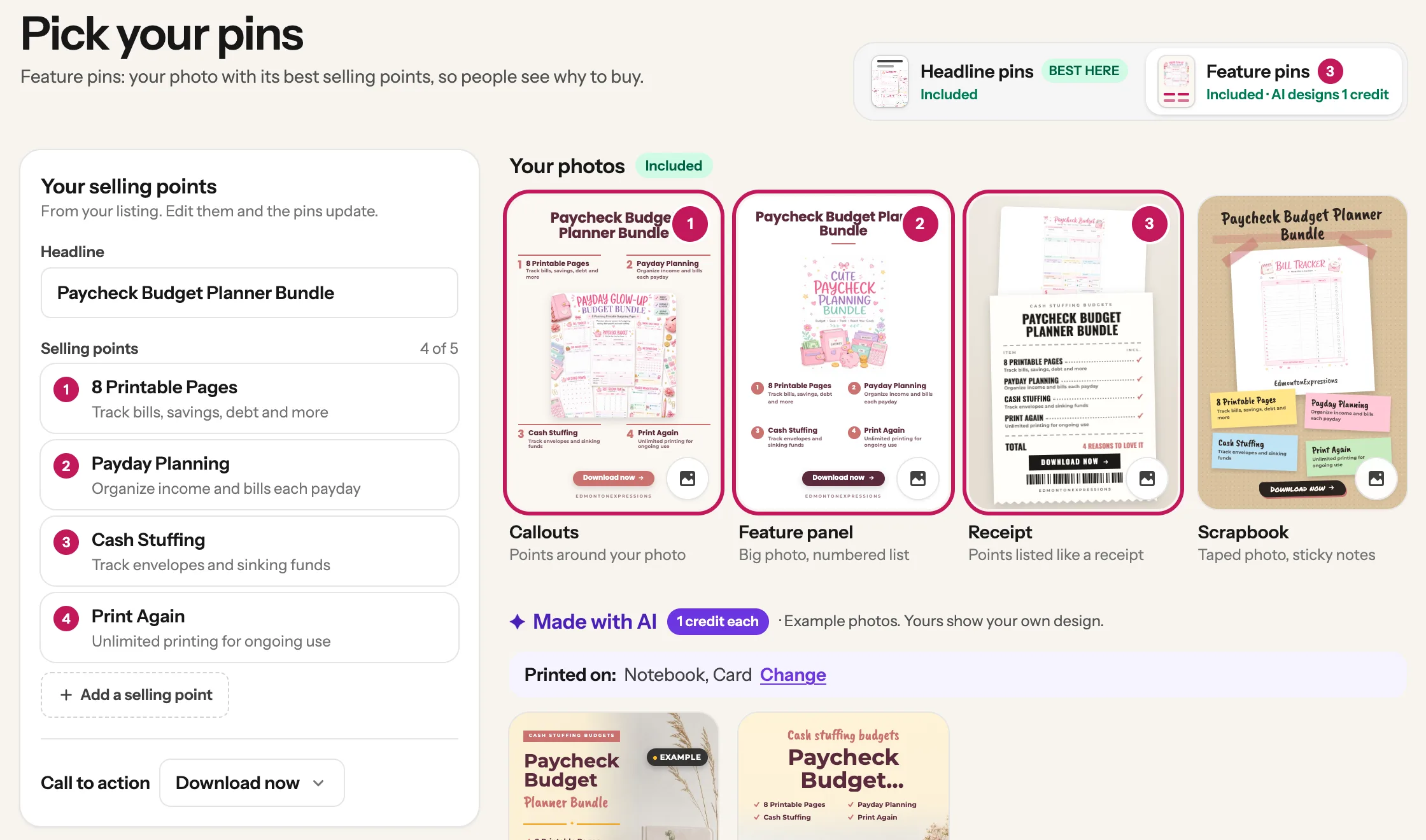
    1. 1 On the left, under Your selling points, check the headline and the points. They come from your listing and go on the pin word for word. Put the facts buyers check first: page count, sizes (A4 and US Letter), file type, instant download.
    2. 2 Call to action is already set to Download now. Leave it.
    3. 3 Under Your photos, tap one or two designs. Callouts and Feature panel work well for planners and worksheets. These use your own photos and are included in your plan.
    The Feature pins tab: the selling points panel with four points, Call to action set to Download now, and the Callouts, Feature panel and Receipt designs picked 1 2 3
    Tip: At most 5 pins are made at once, and the designs you picked on Headline pins count too. The bar at the bottom shows how many you have, like Make 4 pins.
  4. 5

    Selling clipart or designs? Add an On products pin

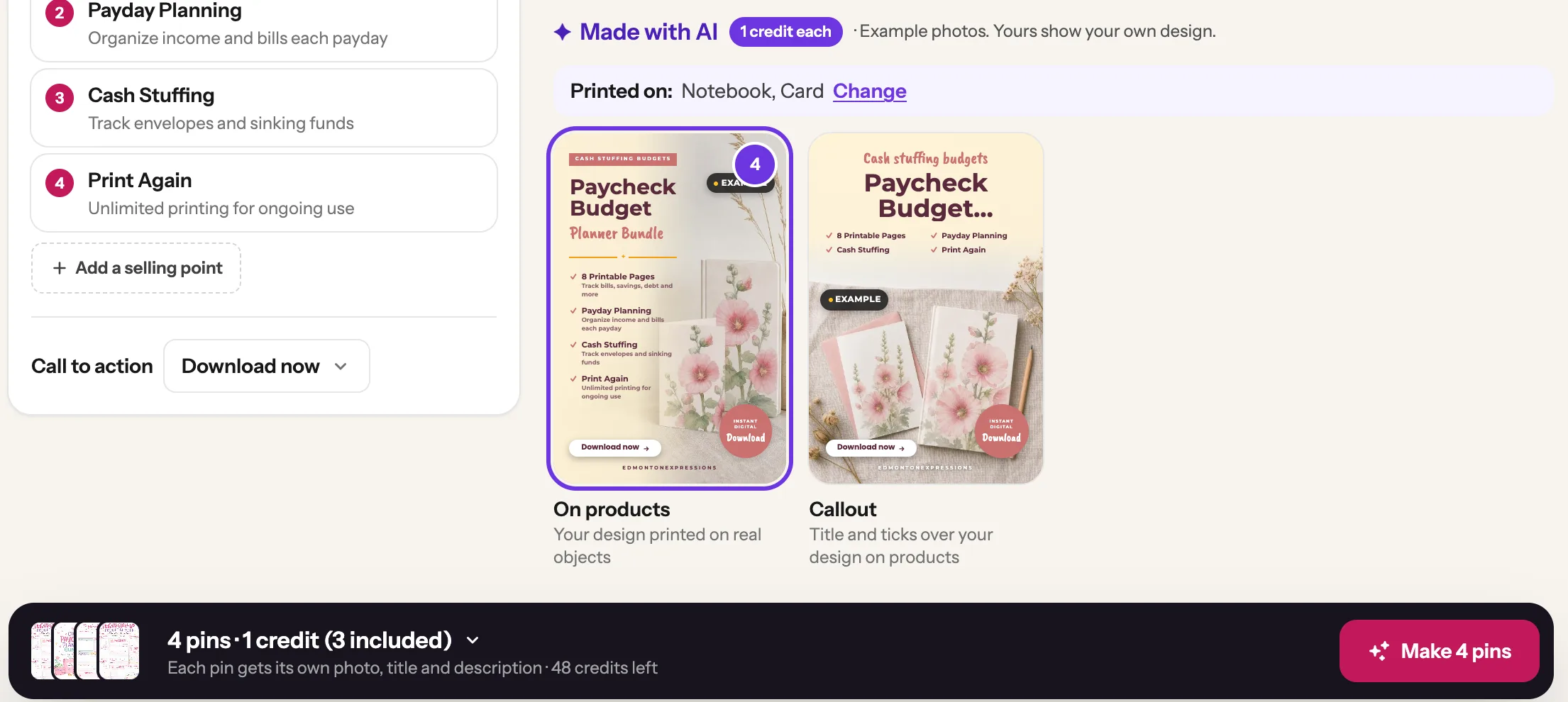
    Further down the Feature pins tab, under Made with AI, the On products card makes a new photo with your design printed on real objects, next to your selling points. People who buy clipart, SVGs or patterns want to see what they could make, and this shows them. Click Change next to Printed on to pick up to 3 objects: mug, tote bag, tumbler, T-shirt, card, notebook, cushion or framed print. It uses 1 credit per pin. Then click the Make button at the bottom.

    The Made with AI designs: Printed on Notebook and Card with a Change link, the On products card picked, and the Make 4 pins button 1 2 3
    Tip: The cards show example photos. Your pin shows your own design. AI can shift small details, so check that your design looks right on the finished pin.
  5. 6

    Wait about a minute: your pins are ready

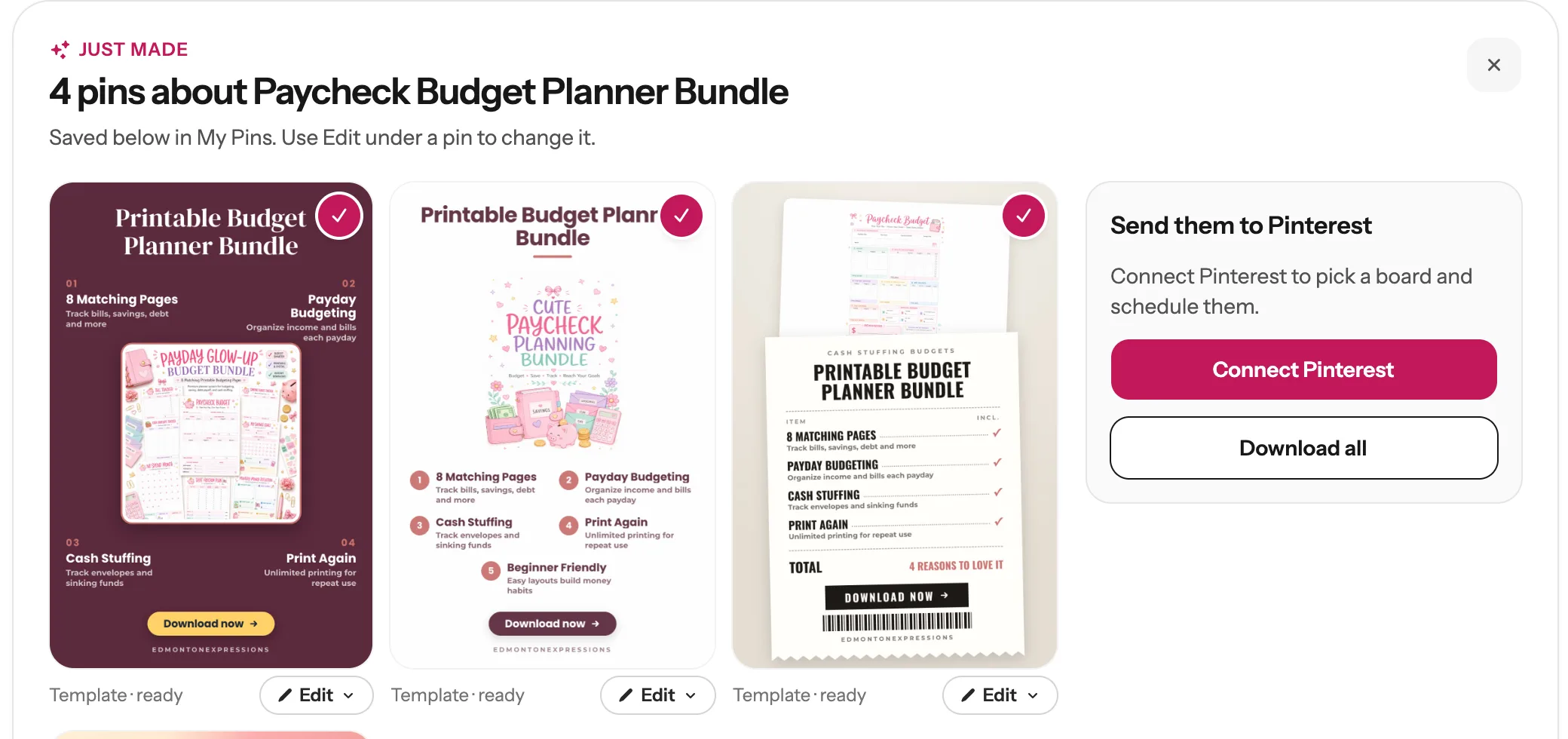
    You land on My Pins, where the “Just made” panel shows your new pins. Read each headline and selling point. If a word is off, click Edit under that pin to change it.

    The Just made panel with Callouts, Feature panel and Receipt pins for the budget planner, and the Send them to Pinterest box
  6. 7

    Spread them out on Pinterest

    On the right of your pins, under Send them to Pinterest:

    1. 1 First time? Click Connect Pinterest and allow access. You only do this once.
    2. 2 Pick a board named the way buyers search, like “Budget Printables” or “Kindergarten Worksheets”.
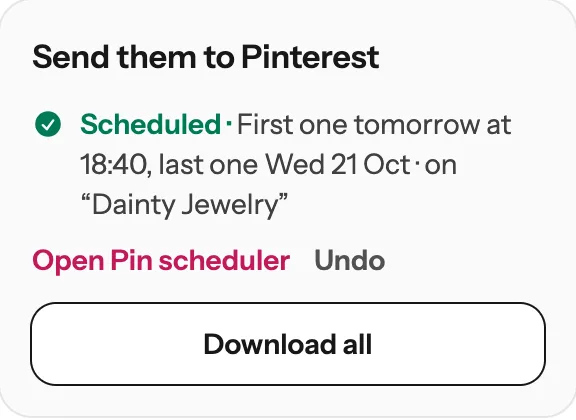
    3. 3 Leave When on Spread out (recommended). Pins for the same printable go out a week apart, so Pinterest sees steady new pins instead of a burst.
    4. 4 Click Schedule all. Every pin links to your listing.
    Scheduled: the first pin goes out tomorrow and the last one next week
    Tip: Rather upload them yourself? Click Download all.

Your routine for every printable

  1. 1. Paste the listing. Pick Your cover, What’s inside and one Feature pin.
  2. 2. Schedule them spread out, a week apart.
  3. 3. Seasonal printable? Do this weeks before the season: back-to-school, holidays, the new year.
  4. 4. A few weeks later, make a fresh set with new headlines. Make more of the kind that brought you sales.

Next guide

Schedule your pins, and post them to more than one board

From My Pins, or fill your whole Pinterest calendar in one click.

Questions

How many pins should I make per printable?

3 to 5: a cover pin, a What’s inside pin and one or two Feature pins. Each kind reaches different people. Come back a few weeks later and make a fresh set with new headlines.

Does this use credits?

Headline pins and Feature pins made from your own photos are included in your plan. The Made with AI designs, like On products, use 1 credit each. The bar at the bottom shows what a batch uses before you click Make.

Why don’t I see the printable designs?

Made to Spark didn’t read your page as a download. On Etsy, check the listing is set as a digital download. On your own shop, say printable, instant download or PDF in the title or description. Blog posts about printables get the blog designs instead.

Can I do all my printables at once?

Yes, with Bulk Pins: paste up to 100 listing links, one per line. Each printable gets its own pins, linked to its own listing.

What if something goes wrong?

If a pin doesn’t work, the Just made panel says why, and nothing is charged for it. Click Try again under it. If the selling points are wrong, change them on the left of the Feature pins tab before you click Make.

Stuck on a step? Just reply to any email from us, or use the chat button at the bottom right.