For bloggers · 7 steps · about 5 minutes
Pinned every post you have? Type one keyword and get a brand-new blog post with headings and photos. Made to Spark picks the title, shape and photos for you; you check them and change what you like. Then send it to WordPress or paste it into any blog, and turn its photos into pins. Here's the whole thing, click by click, with a real travel post about Cusco.
Your keyword
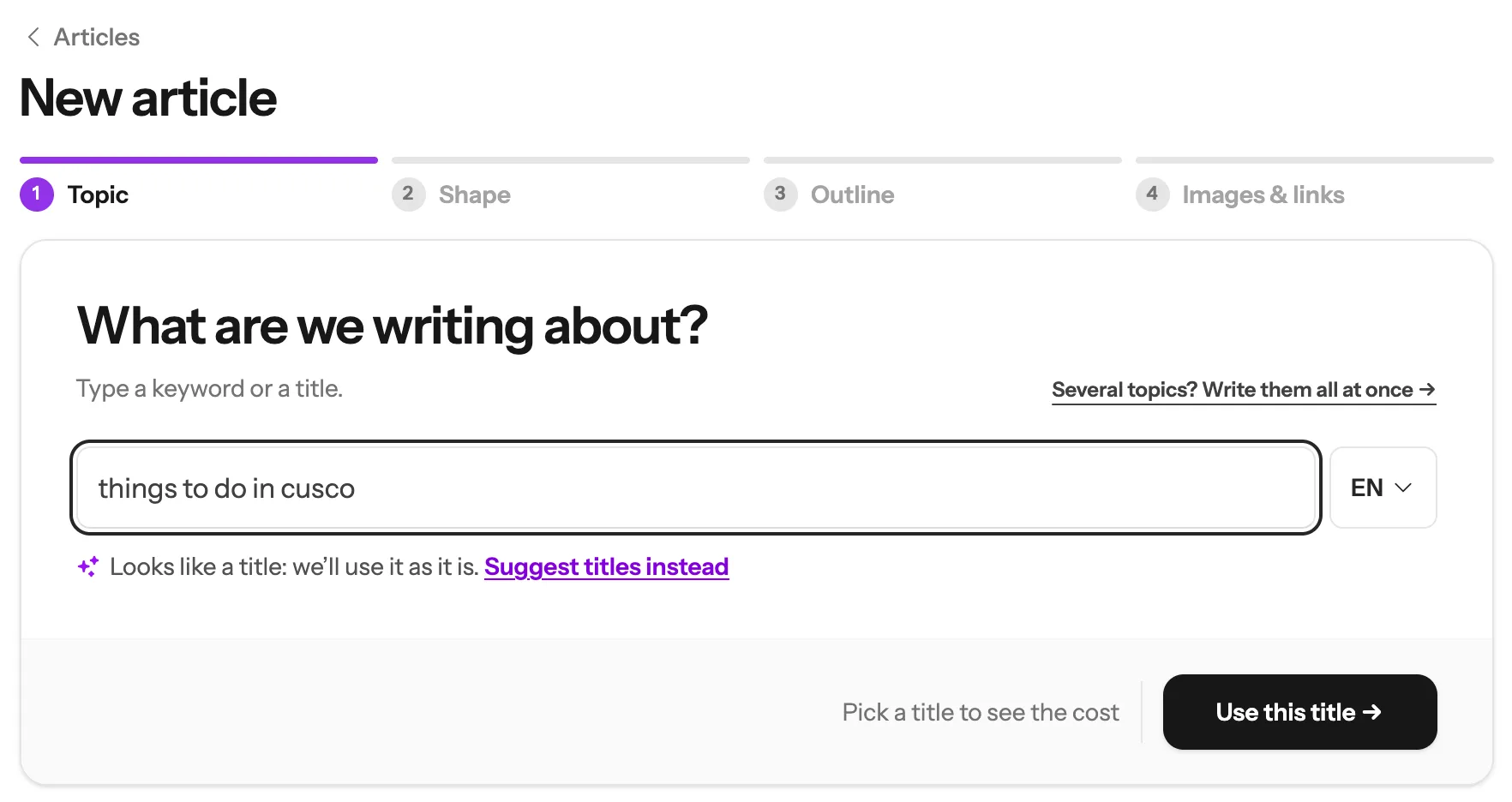
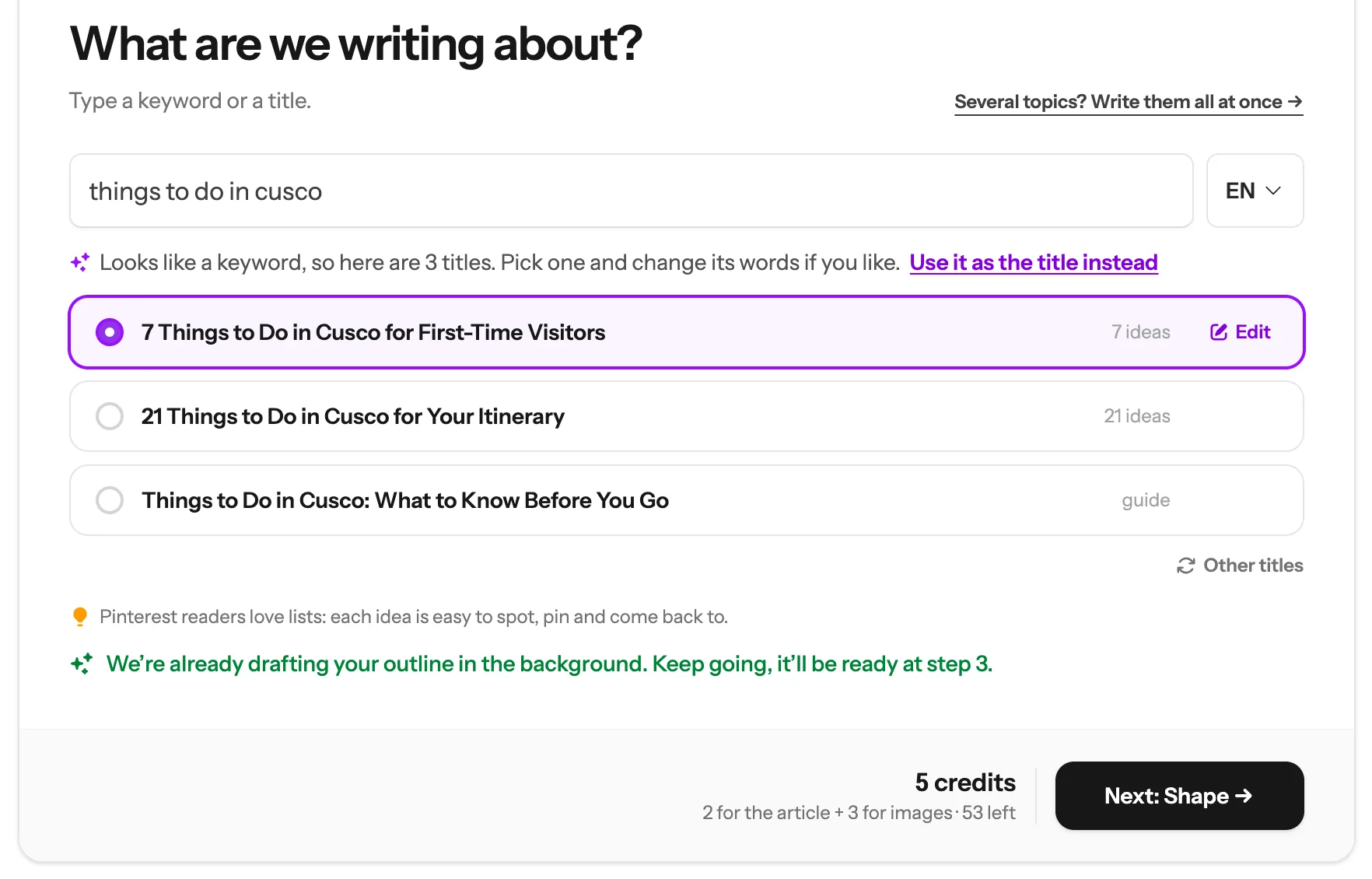
things to do in cusco
Once you are signed in to Made to Spark, click Article Generation on the left, then New Article at the top right. Here we write a post for a travel blog about Cusco.
1
2
3
After a few seconds you see 3 titles written from your keyword. Each one says what kind of post it makes, like 7 ideas or a guide.
1
2
3
4
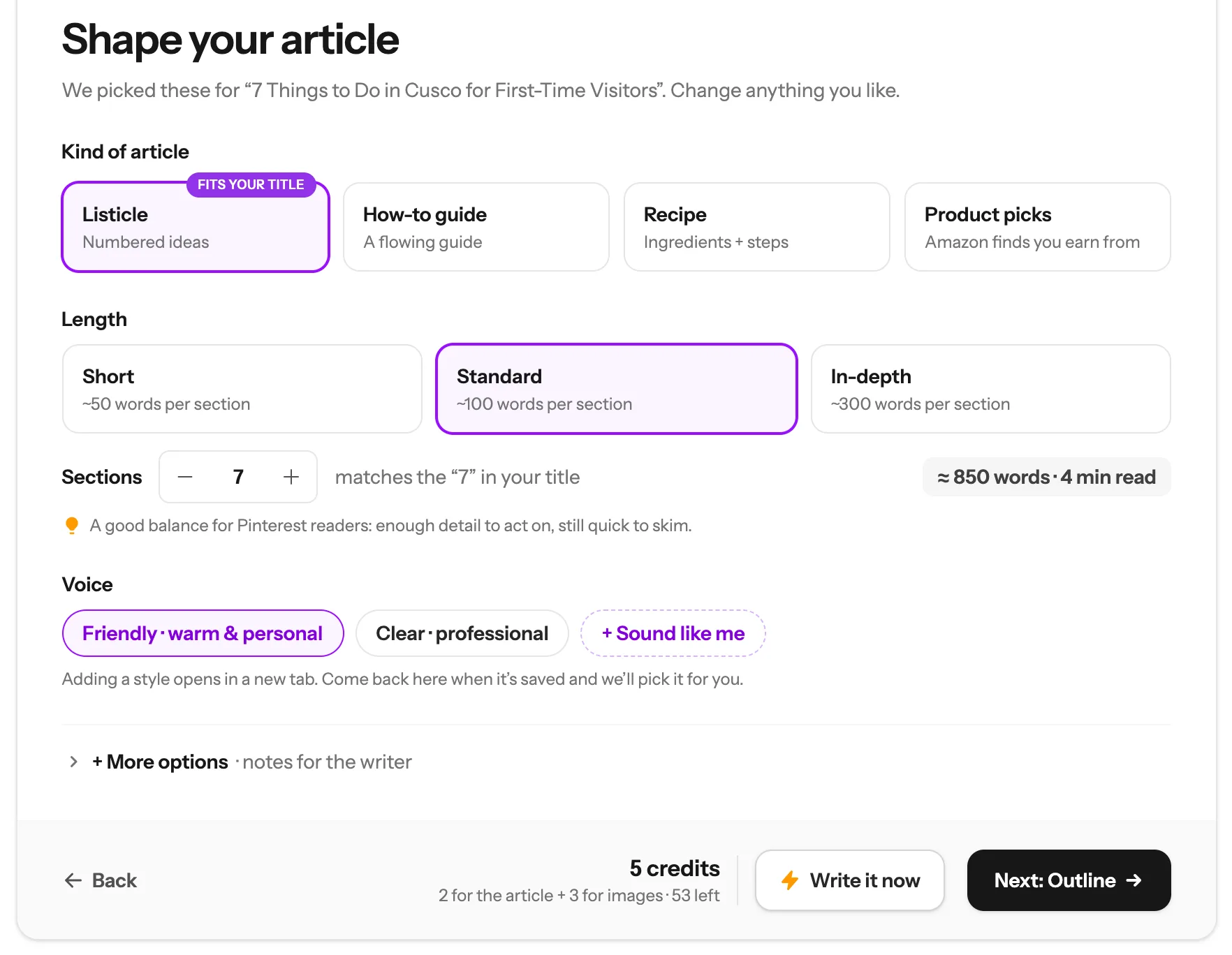
Made to Spark picks these for your title. Change anything you like:
1
2
3
4
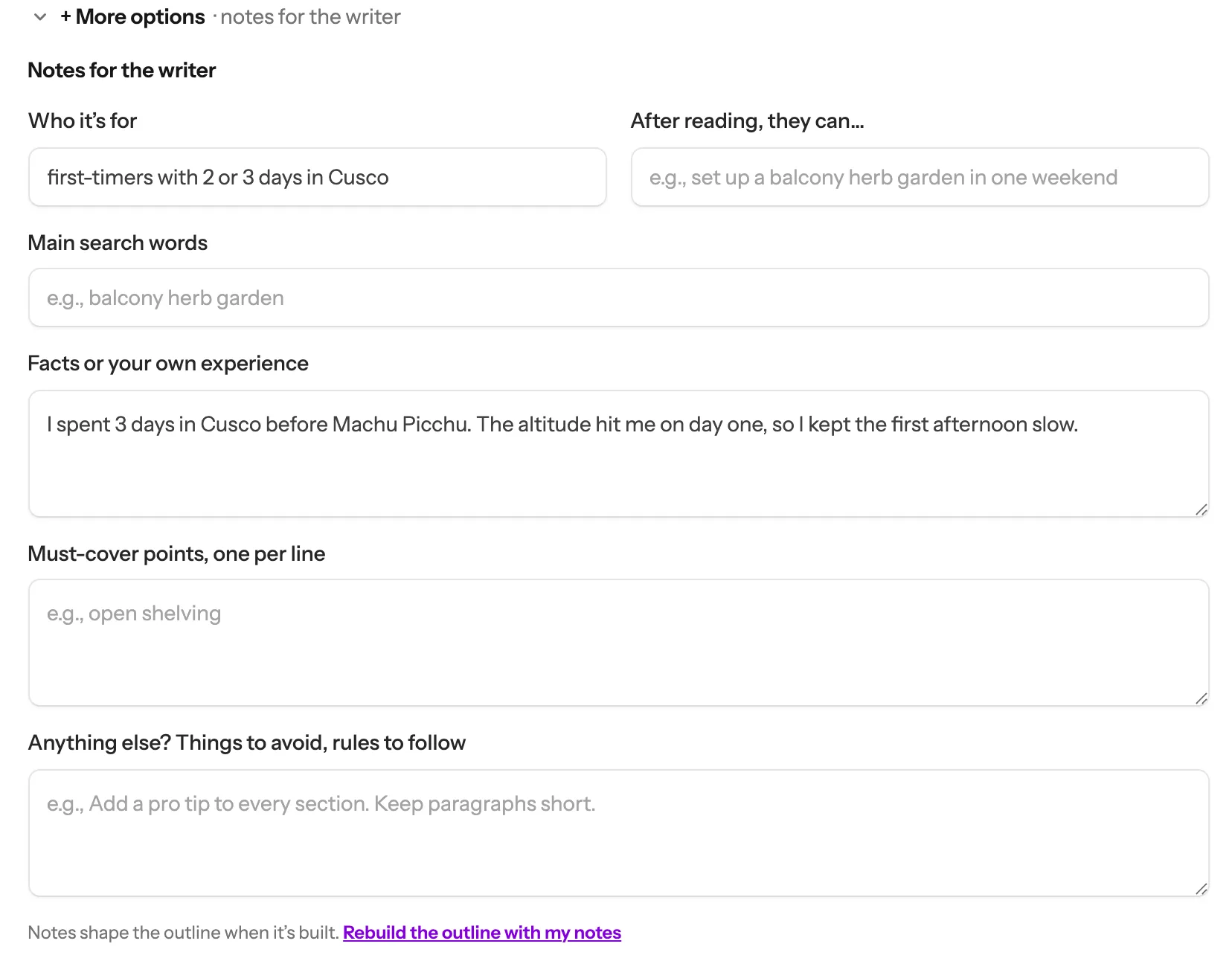
Notes for the writer
1
2
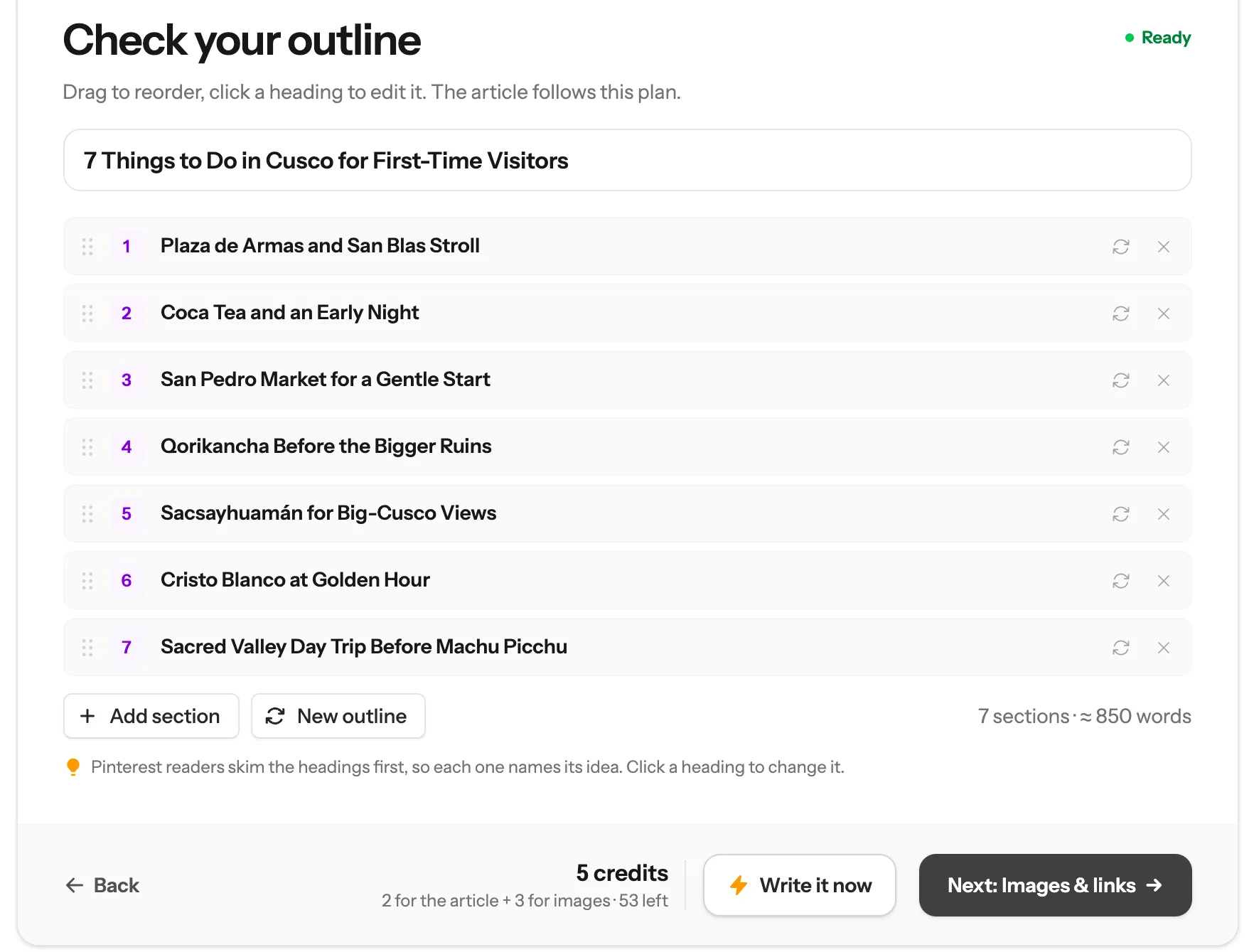
These are the headings your post will have, one per section. The post follows this plan, so this is the best moment to steer it:
1
2
3
4
5
6
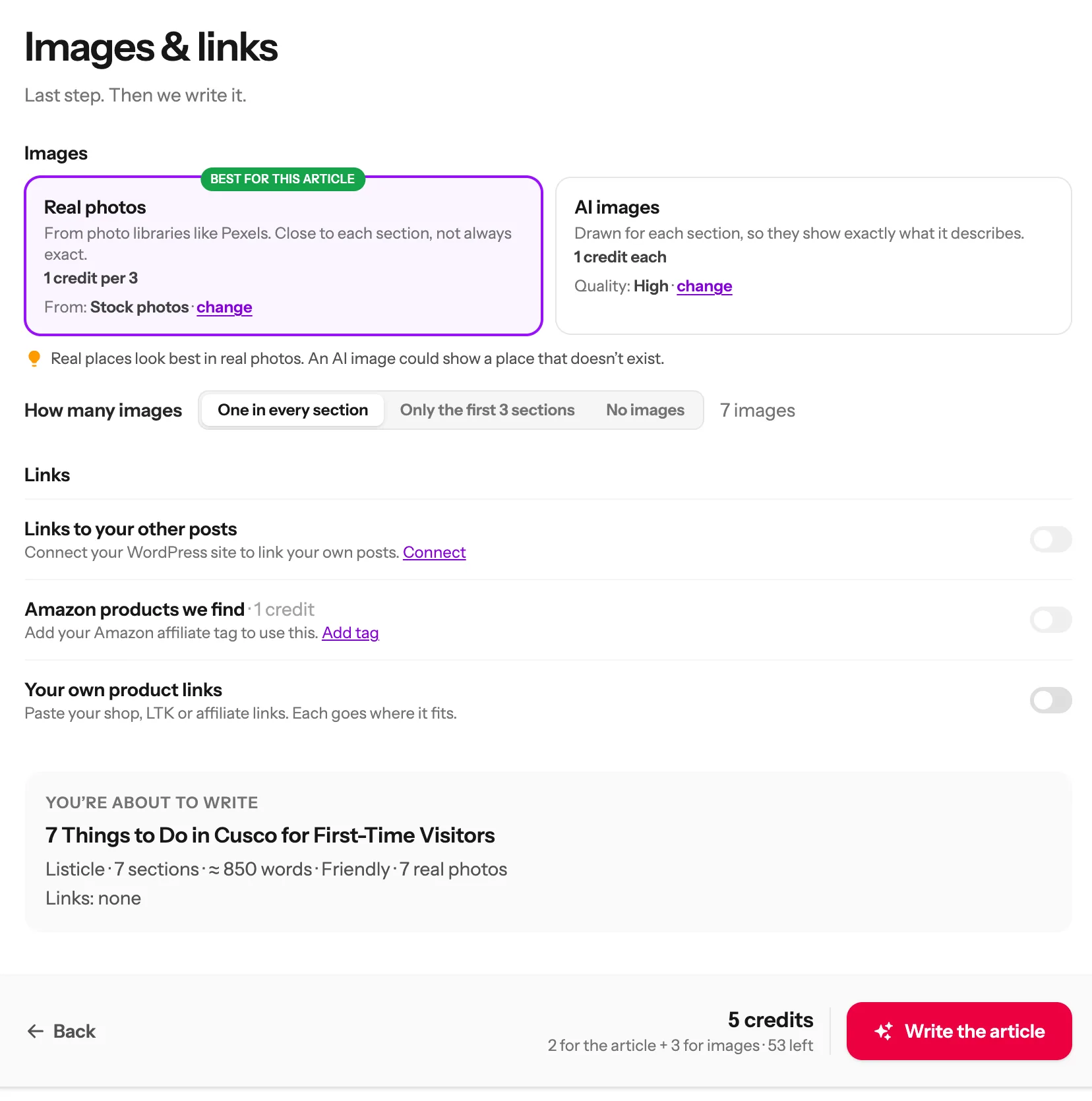
The last step. The photos are picked for you too, marked Best for this article:
1
2
3
4
5
6
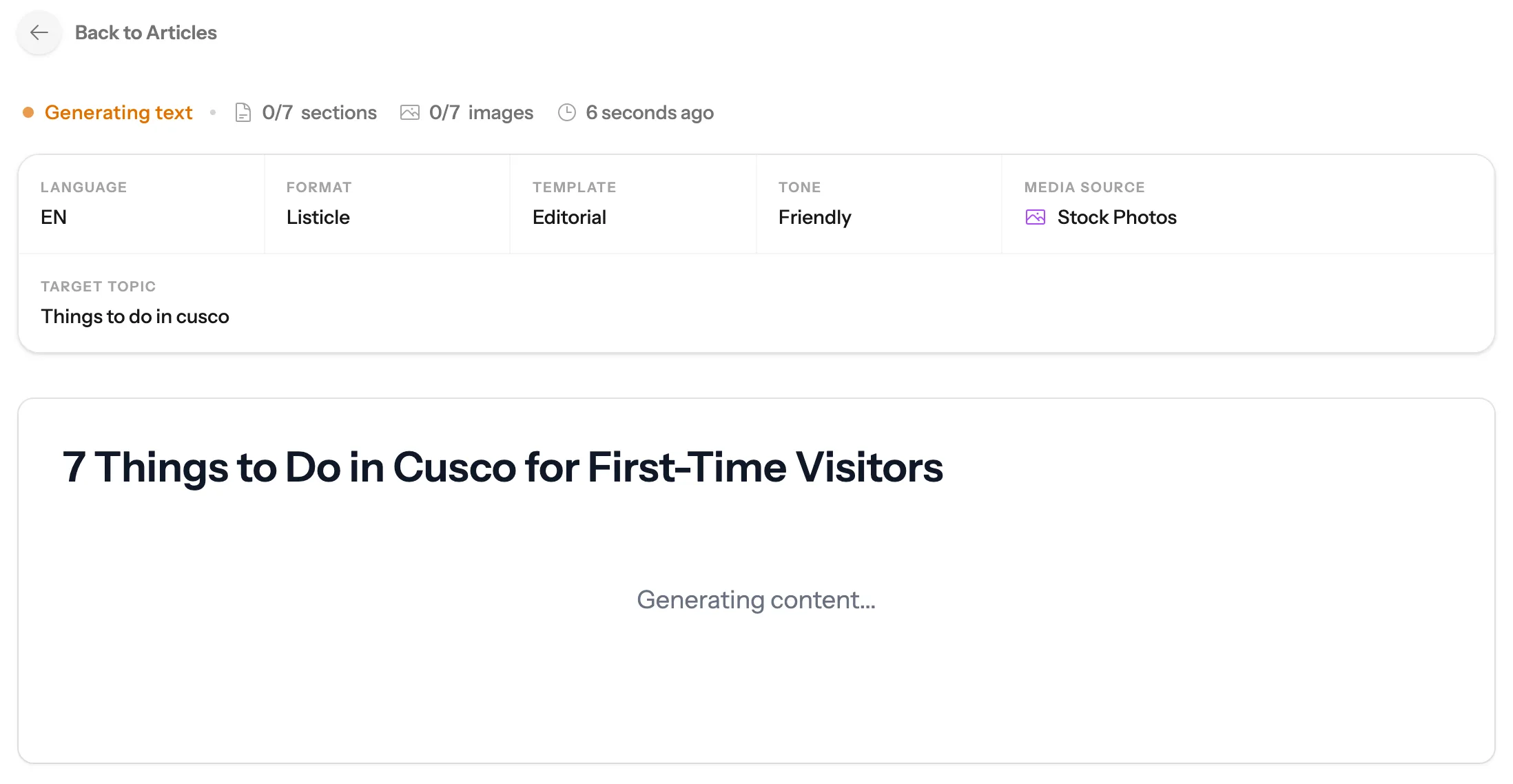
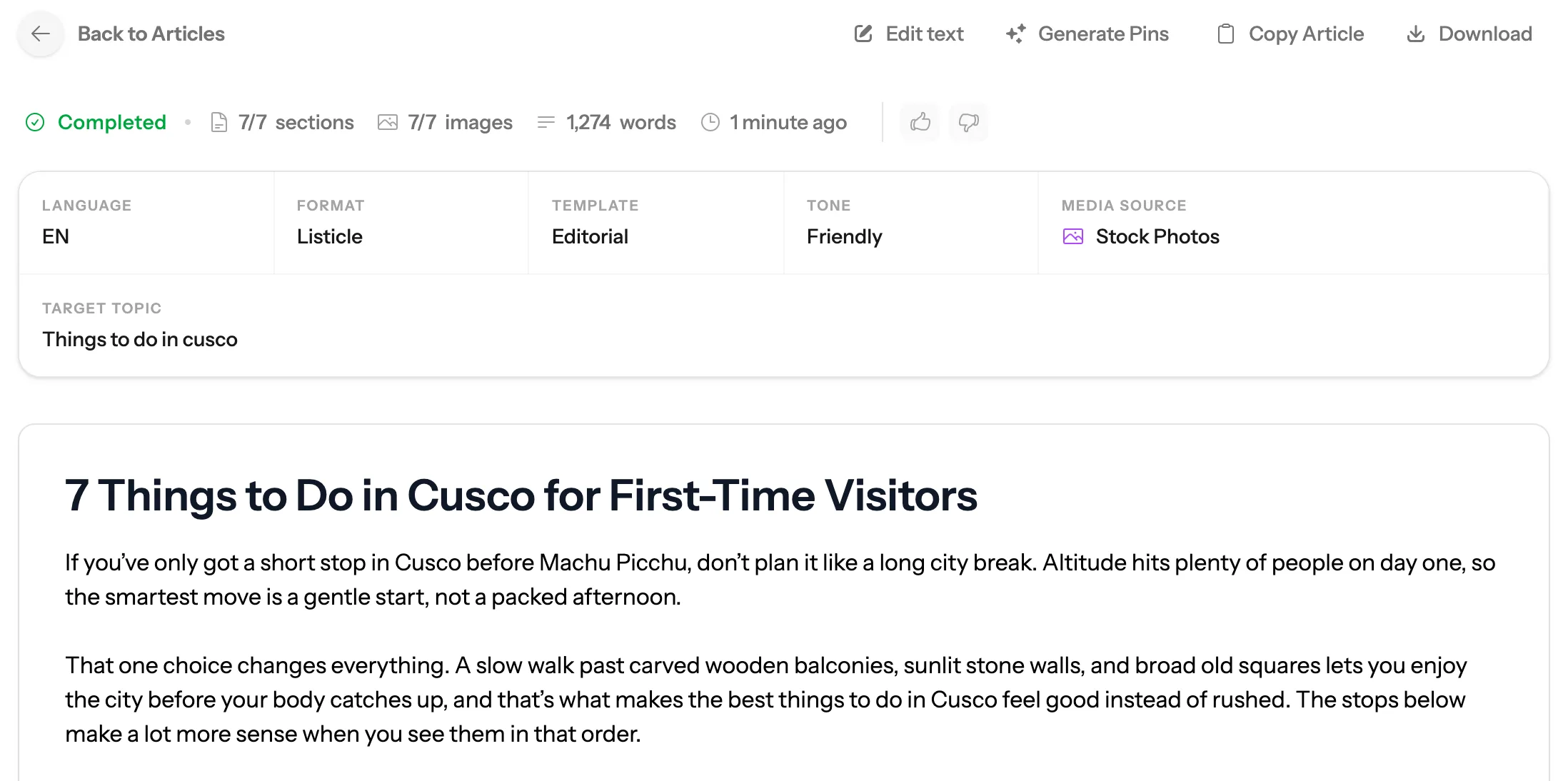
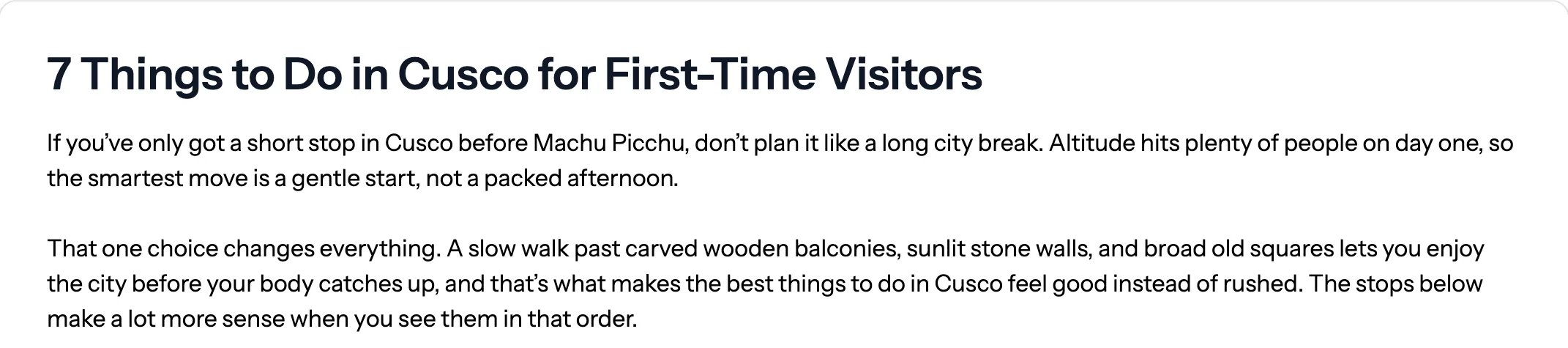
Your post opens straight away and fills in as it is written. You can leave the page: it keeps going. Ours took about a minute.
1
2
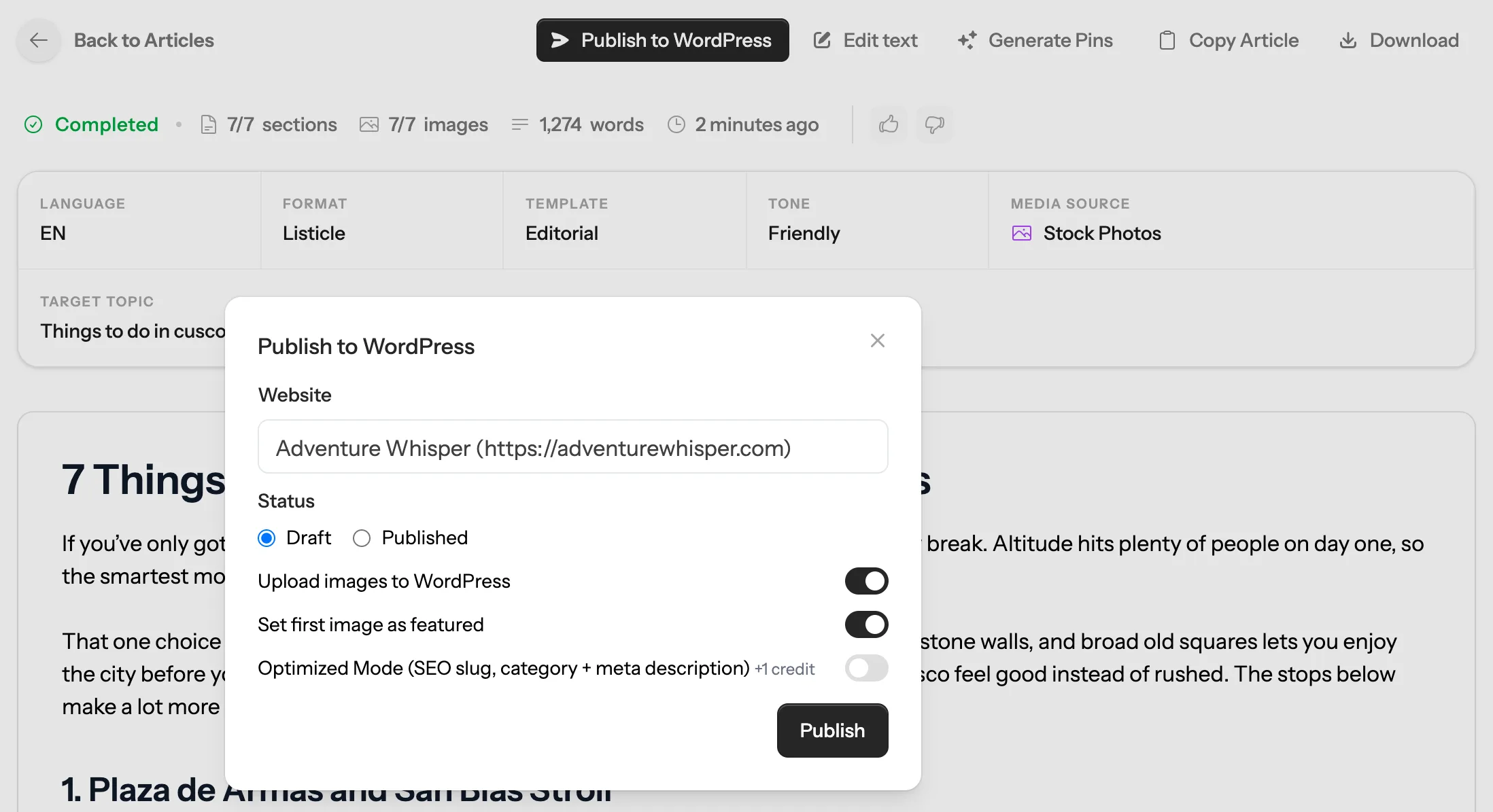
With WordPress connected (click Integrations on the left to connect it once):
1
2
3
Any other blog
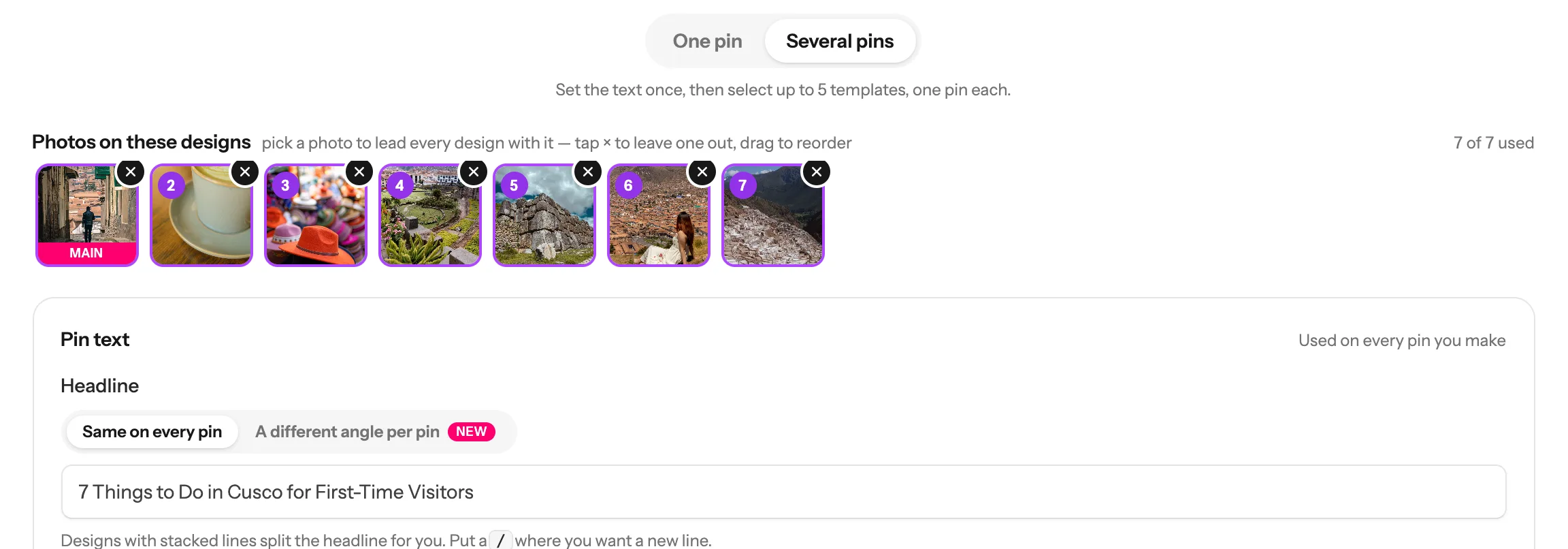
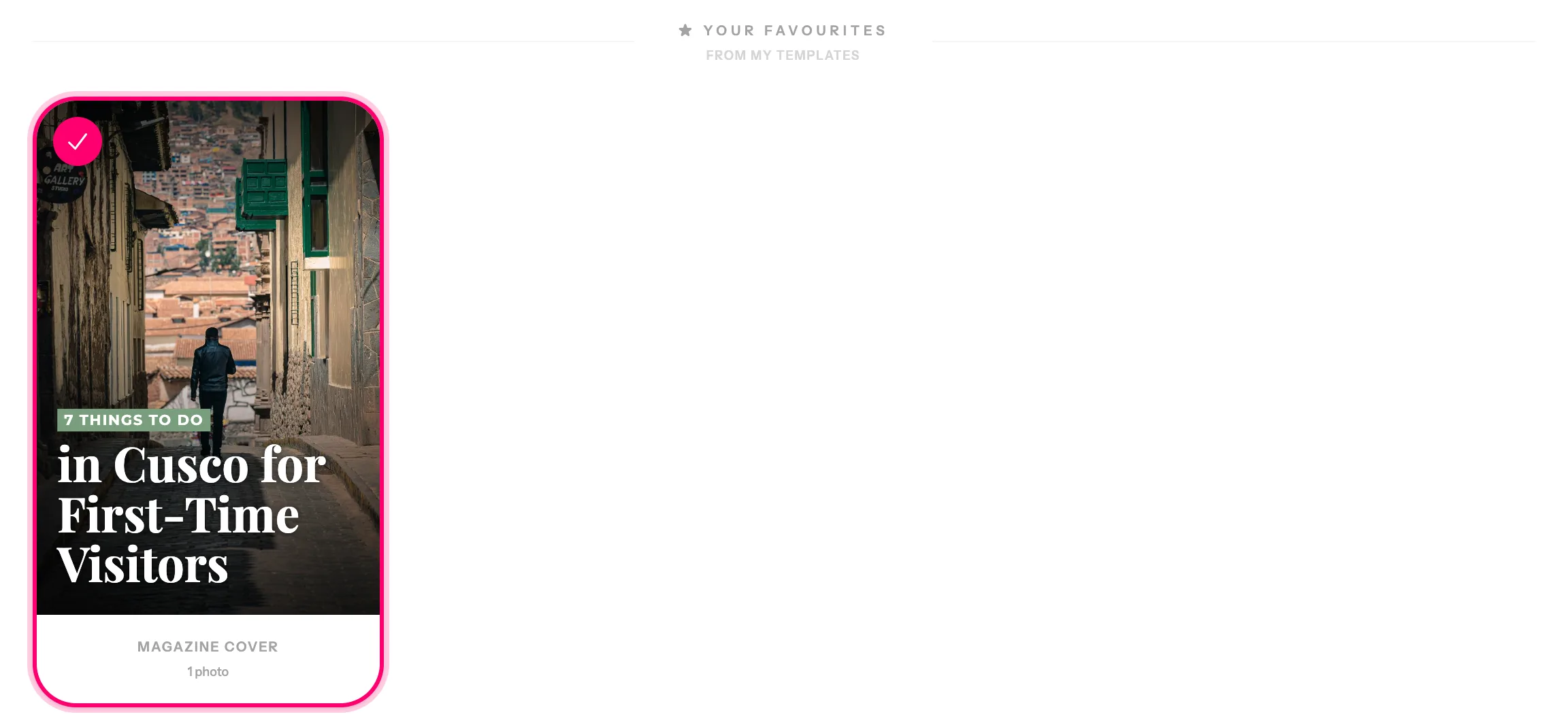
Your post’s photos make the pins. Click Generate Pins at the top of the post, then Templates (1). That uses the photos in ready-made pin designs, so they look like your post.
1
1
2
3
Chosen
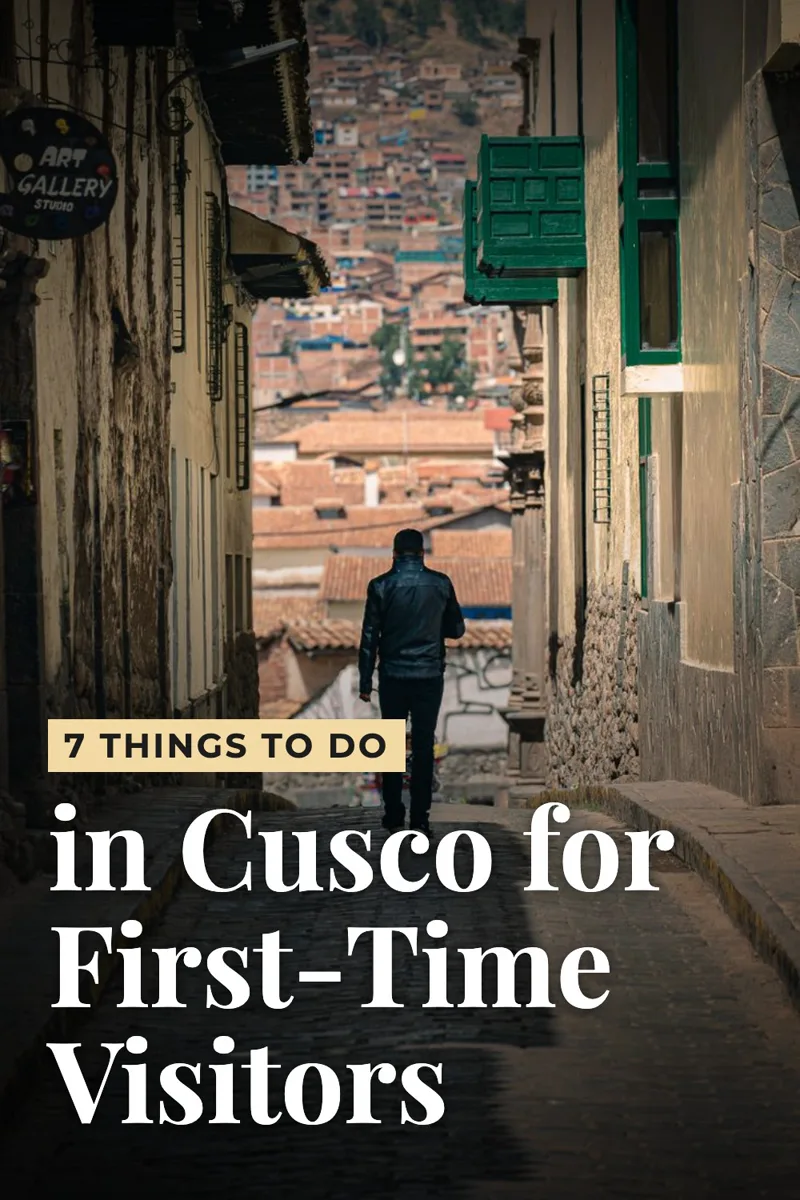
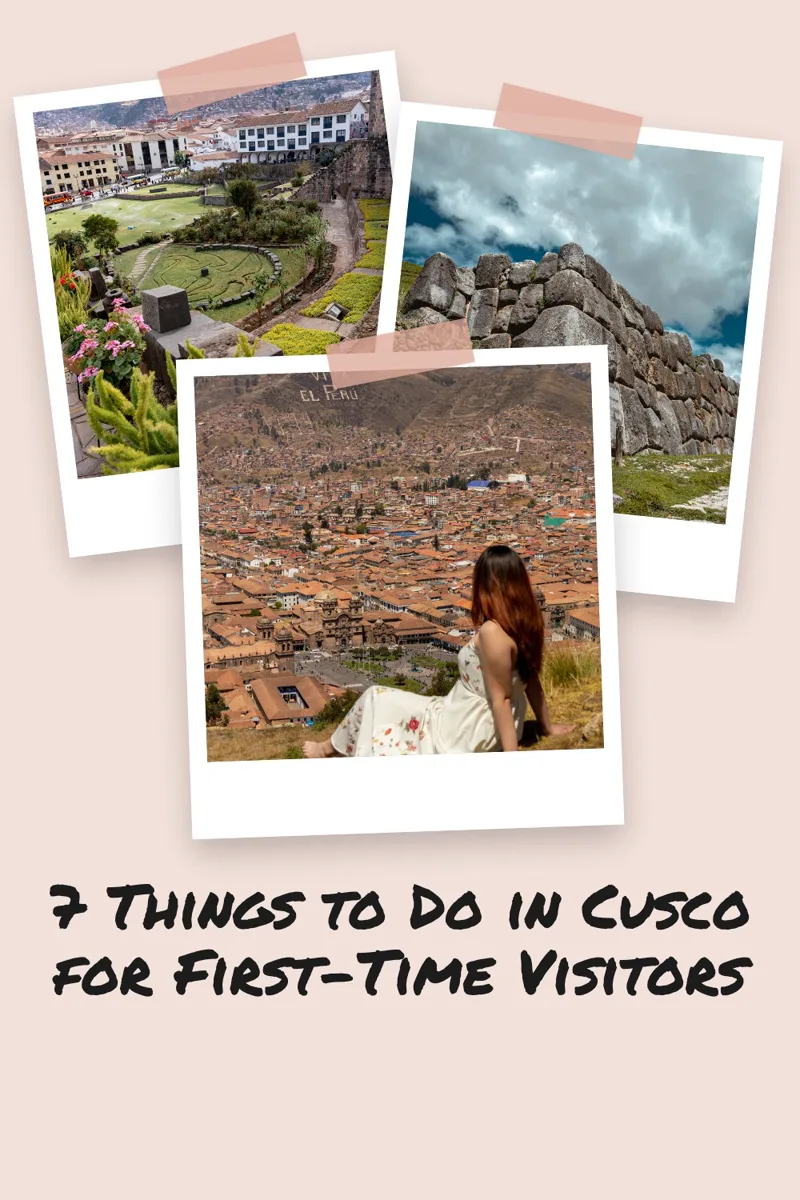
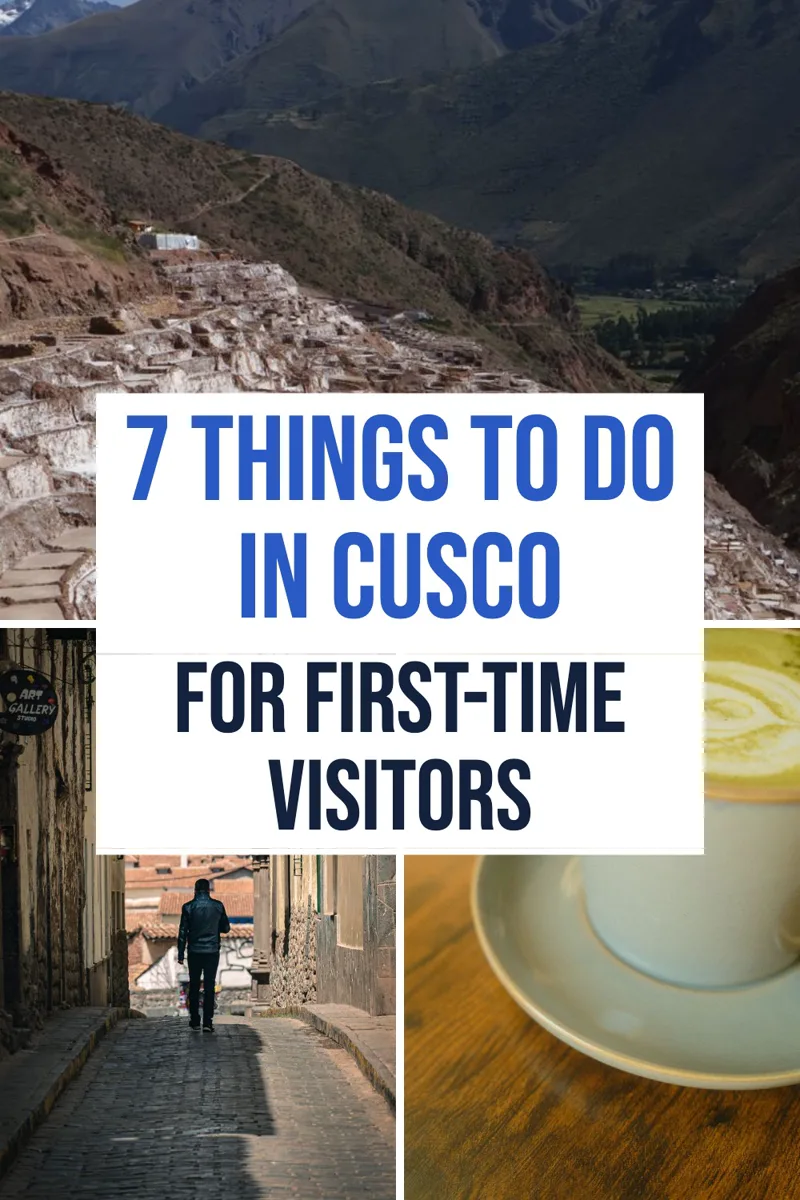
One keyword became a 7-section post with a photo in every section, and three pins made from those photos.
Next guide
Schedule your pins, and post them to more than one board
From My Pins, or fill your whole Pinterest calendar in one click.
Bloggers. If you told us you run a blog when you signed up, Article Generation is in the menu on the left. Don’t see it? Reply to any email from us and we will help.
It depends on the length and the photos: our 7-section post with 7 real photos used 5. The cost shows at the bottom of every step, split into the writing and the images, so you always know before you click Write the article.
No. Come back within 12 hours, click New Article, and you are back where you were, with your title, choices and outline kept. Click Start over for a fresh one.
If a section or photo does not come through, the top line of the post shows fewer than all of them, for example 6/7 images. Click the round arrows under a photo to try another. Still stuck? Use the chat button at the bottom right.
Usually a security plugin, like Wordfence, is blocking the connection. Allow application passwords in that plugin, or use Copy Article and paste the post into WordPress yourself.
Yes. Pick the language next to the keyword box in the first step, where it says EN. The titles, outline and post are all written in that language.
Stuck on a step? Just reply to any email from us, or use the chat button at the bottom right.