Clicky

Step-by-step guide · 6 steps · about 3 minutes

How to put your brand colours and logo on your Pinterest pins

Set your three colours, your name and your logo once, and every new pin wears them. Or let each pin take its colours from its own photo. Here's how, click by click, plus how to change the colours for one batch or one pin.


A roast chicken pin in colours picked from its photo: orange and forest green
Match each photo
The same roast chicken pin in the Poppy & Navy palette: red, navy and light blue
Your brand colours

Before you start

  1. 1

    Open Brand Voice: Match each photo is already on

    Click Brand Voice on the left, under Account. On a phone or tablet, tap the menu button at the top left first. Every change on this page saves by itself, the moment you make it.

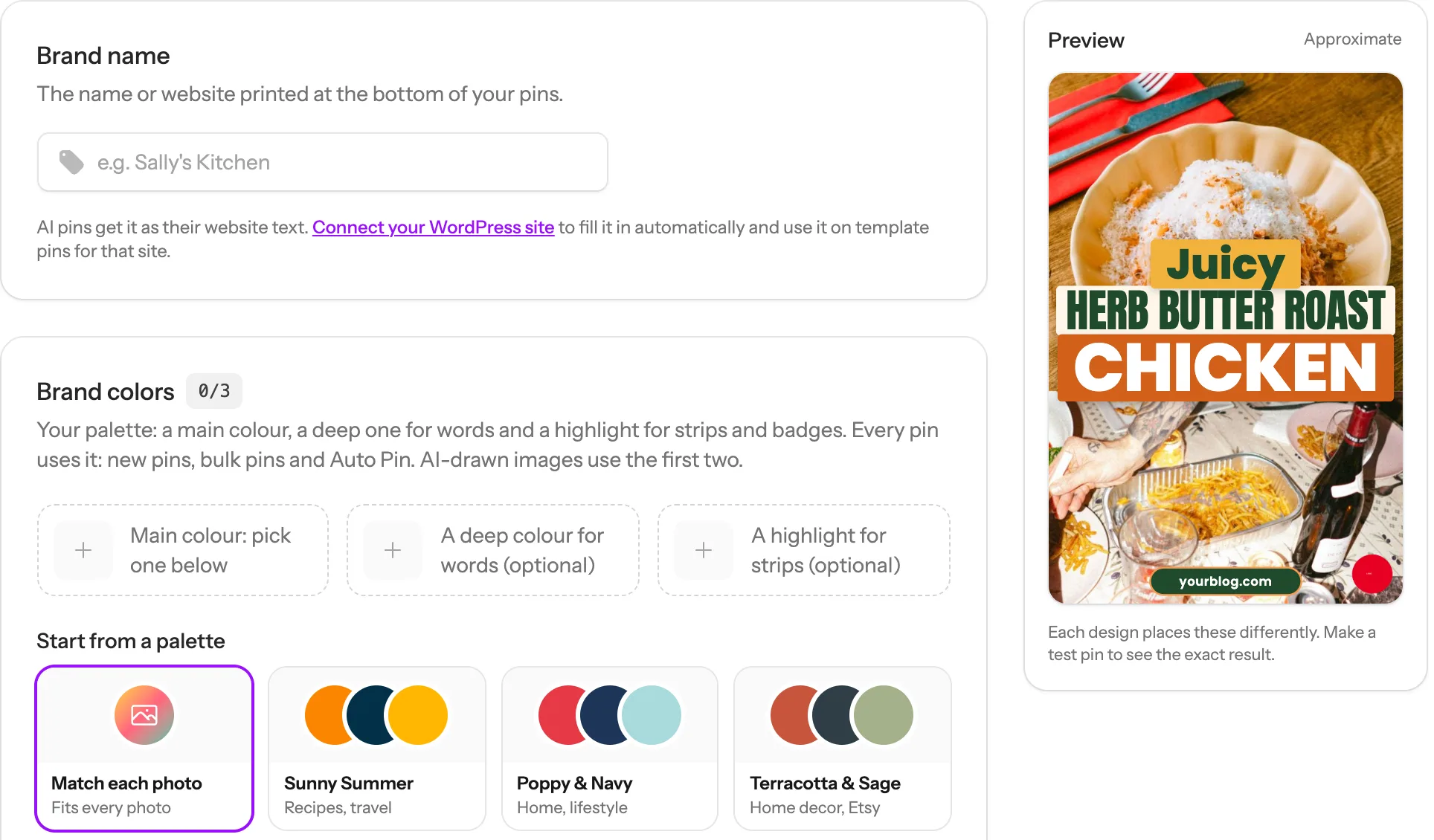
    1. 1 Under Brand colors, the Match each photo card has a purple ring. That means it’s on, and it’s how every account starts. Each new pin gets three colours picked to go with its own photo: a beach photo gets sea blues, a pumpkin photo gets warm oranges.
    2. 2 The Preview on the right shows roughly how a pin looks with your colours.
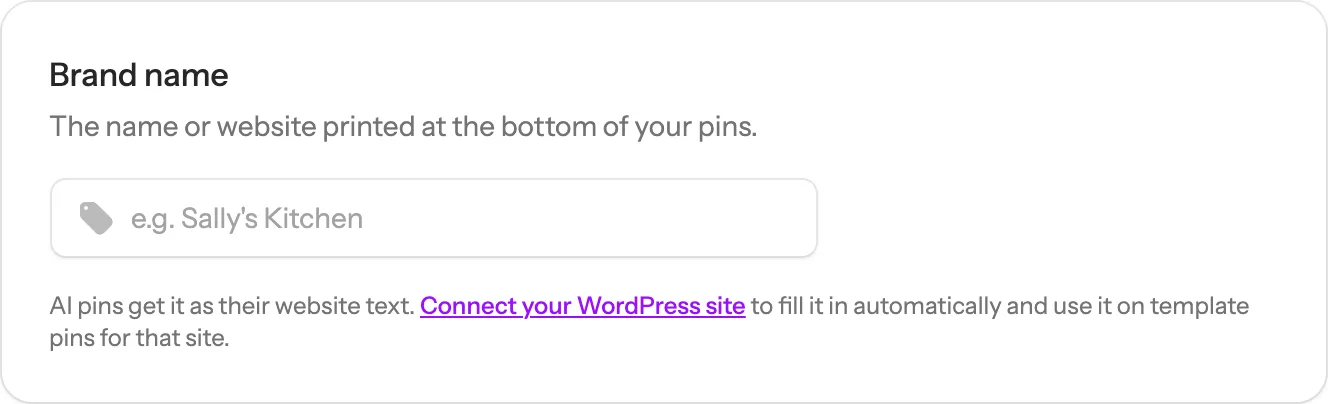
    The Brand Voice page: Brand name, Brand colors with Match each photo picked, and the pin Preview on the right 1 2
    Tip: Happy with colours that change with each photo? You can stop here. Want people to know your pins at a glance? Give every pin the same three colours: step 2.
  2. 2

    Or pick a ready palette

    Under “Start from a palette”, every card is three colours that go well together. The small words under the name say what it suits, like Recipes or Home decor.

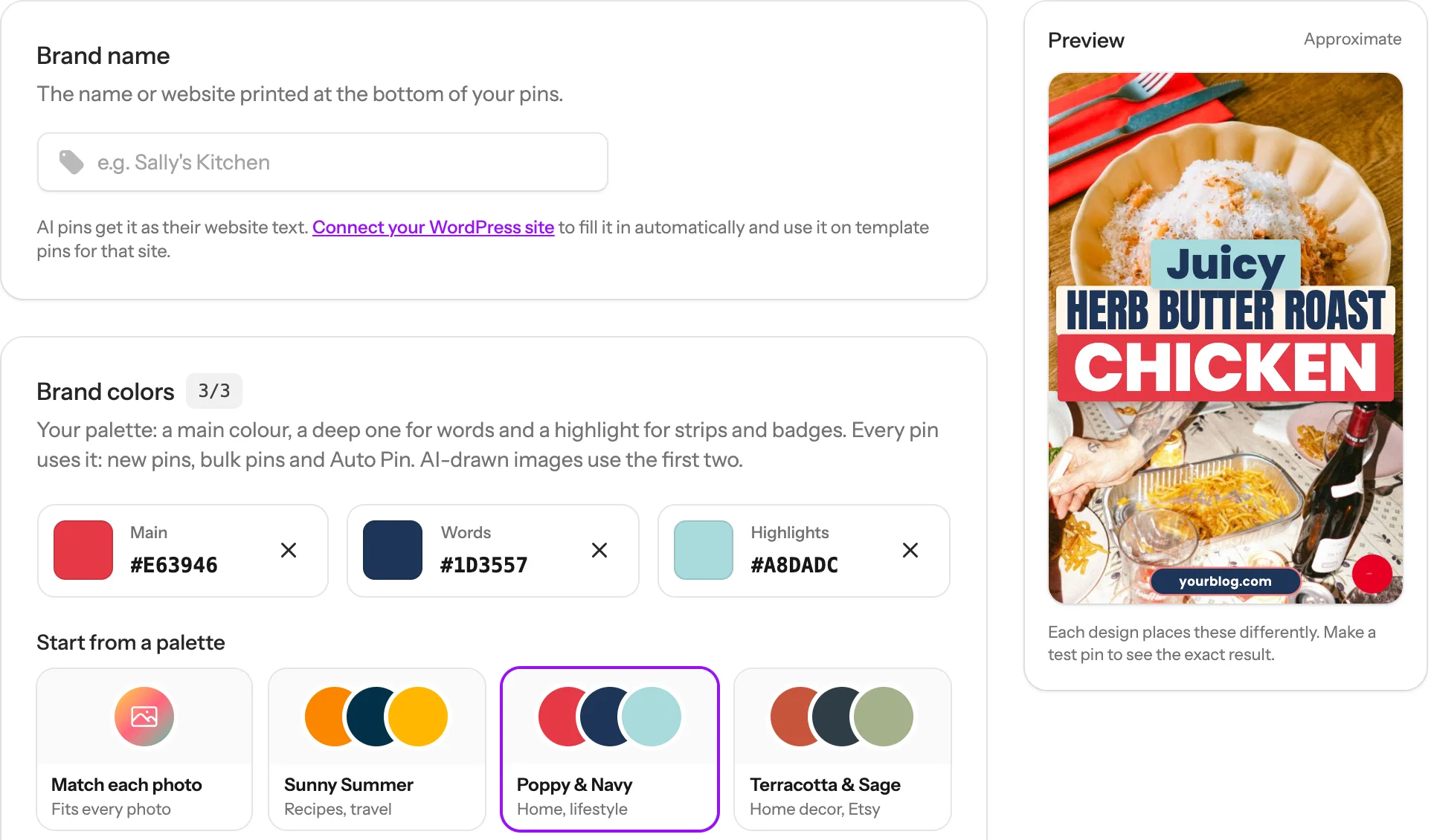
    1. 1 Tap a palette. We tapped Poppy & Navy. It gets a purple ring and is saved straight away.
    2. 2 Its three colours fill the spots at the top, and the Preview changes to show them.
    Poppy & Navy picked: the Main, Words and Highlights spots filled in red, navy and light blue, and the Preview pin in those colours 1 2
    Tip: Is your WordPress or Shopify site connected (under Integrations)? Then the first card after Match each photo is From your site. Tap it and we read your site’s own colours. Changed your mind? Tap Match each photo again. Your three colours stay saved for later.
  3. 3

    Make the three colours your own

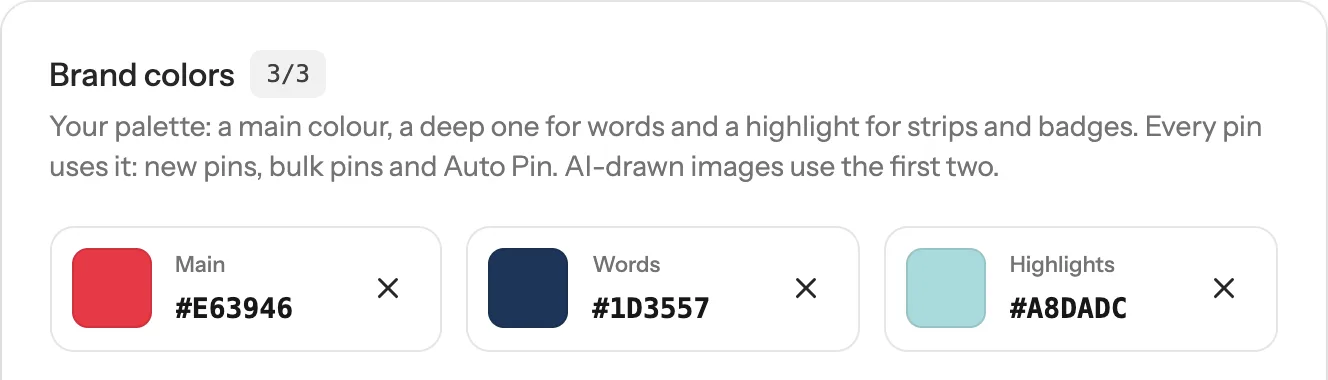
    Each of the three spots has a job on your pins: Main is the big colour (bands, strips and boxes), Words is a deep colour for writing, and Highlights is for small strips and badges. To change one:

    1. 1 Click the colour square and pick a new colour.
    2. 2 Or type your colour code, like #1E2952, in place of the one shown.
    3. 3 Or click the × to empty a spot. Then tap one of the round colours under the palettes, or type a code and click Add custom color.
    The three colour spots: Main, Words and Highlights, each with a colour square, its code and a remove button 1 2 3
    Tip: Keep Words dark, like navy, brown or charcoal, so your headlines are easy to read. Pictures drawn by AI use your Main and Words colours too.
  4. 5

    Change colours for one batch of pins

    Want different colours just this once, say for a Christmas post? On the pin page, after you paste a link and click Show me pins:

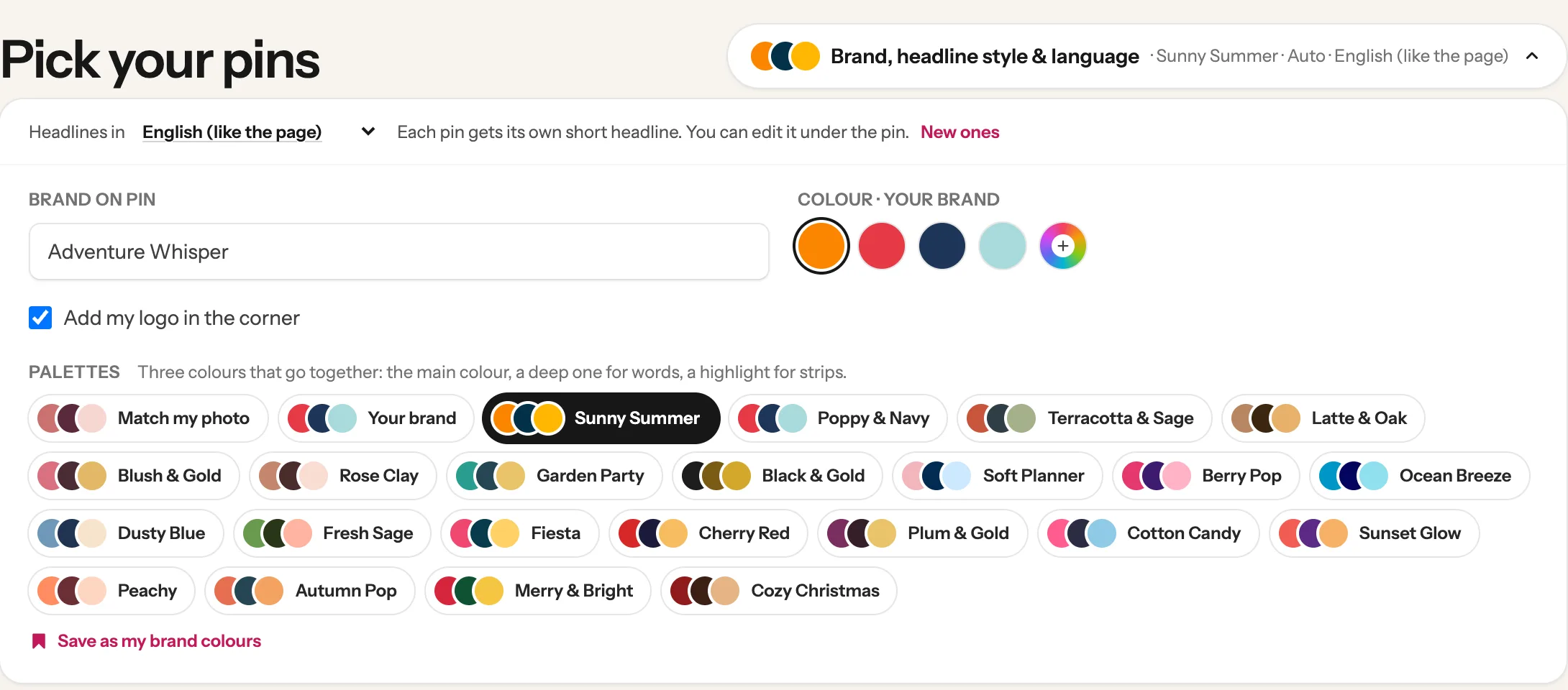
    1. 1 Click Brand, headline style & language at the top right. The little dots show the colours your pins get now.
    2. 2 Under Palettes, tap one. Your brand is your three colours, Match my photo takes them from the photo. The designs below repaint in a second.
    3. 3 Like it so much you want it on every pin? Click Save as my brand colours.
    The open Brand, headline style and language panel: Brand on pin, Add my logo in the corner, and the Palettes row with Sunny Summer picked 1 2 3
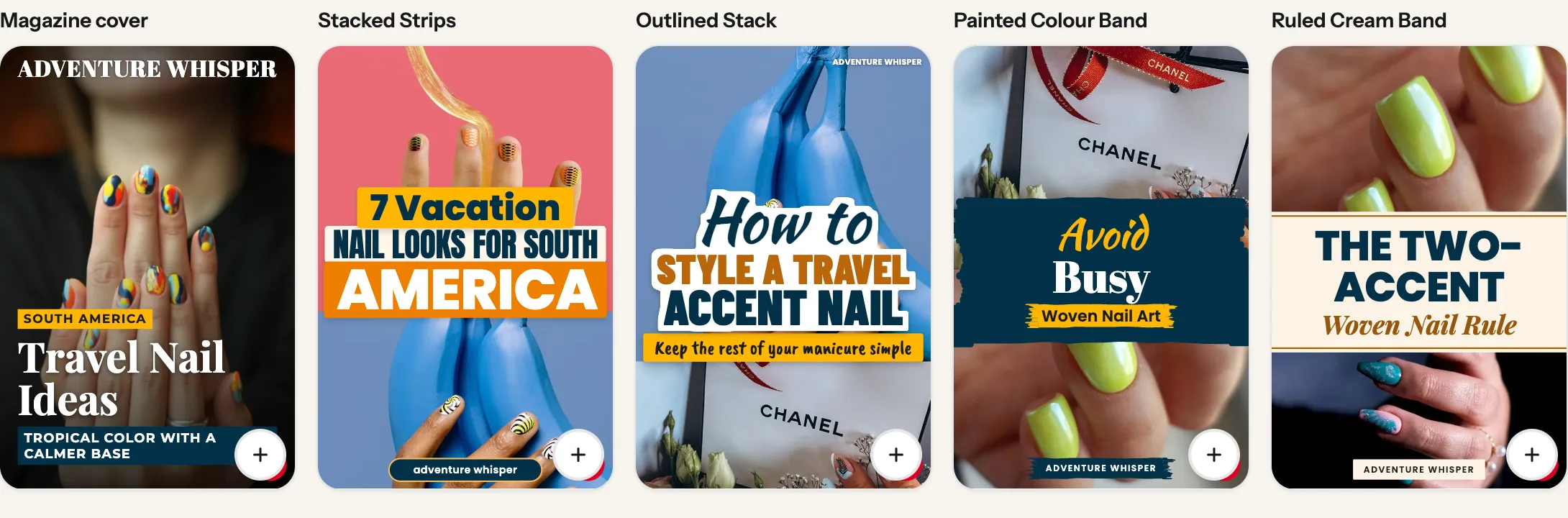
    Pin designs for a travel nails post, repainted in orange, navy and yellow
    The same post’s designs, now in Sunny Summer
    Tip: Without clicking Save as my brand colours, the change is for this batch only. Brand on pin, in the same panel, changes the name on these pins only.
  5. 6

    Change one pin later in My Pins

    New colours go on pins you make from now on. Pins you already made keep theirs. To change one of them, click My Pins on the left, click the ⋯ button under the pin, then Edit text and photos (no credit):

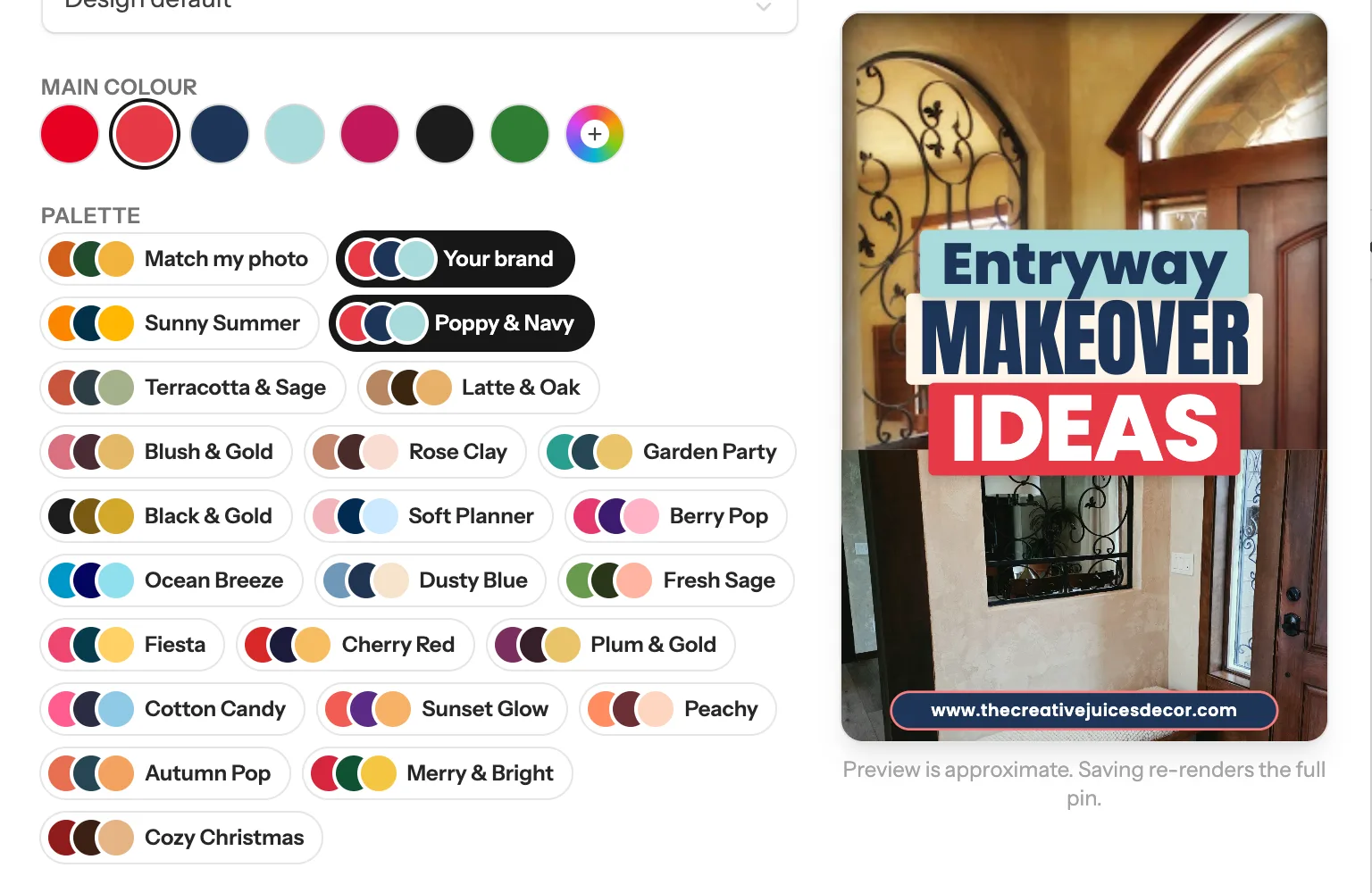
    1. 1 Under Palette, tap Your brand or any other palette. The Live preview on the right changes straight away.
    2. 2 Click Save changes at the bottom. The pin updates in a few seconds.
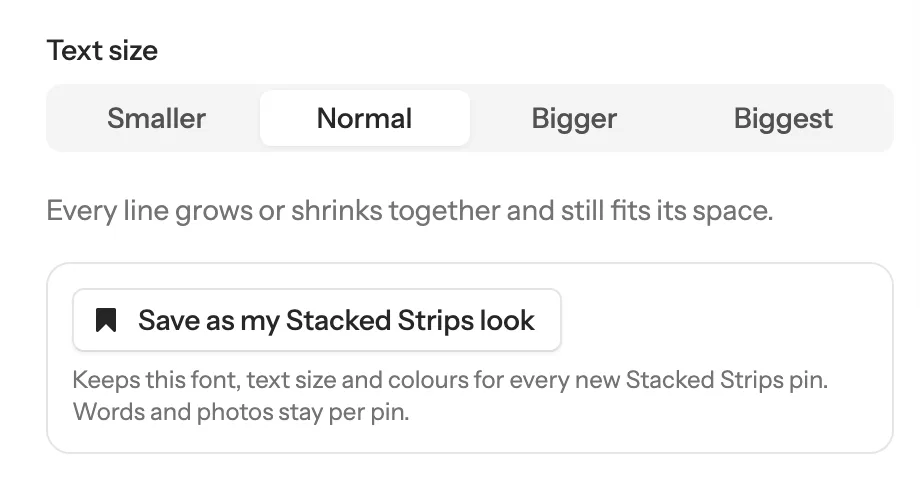
    3. 3 Want this font, text size and colours on every new pin with this design? Click the Save as my … look button. It shows the design’s name, like Save as my Stacked Strips look.
    The Edit Pin window: the Palette row with Your brand picked and the live preview of the pin in the brand colours 1 Live preview
    Text size and the Save as my Stacked Strips look button in the Edit Pin window 3
    Tip: This works on pins made from a template design. A pin with a picture drawn by AI has Edit headline (no credit) instead.

Done! Your pins now look like yours

Every new pin gets your colours, your name and your logo. Make a pin to see them on a real design.

Next guide

Schedule your pins, and post them to more than one board

From My Pins, or fill your whole Pinterest calendar in one click.

Questions

Does changing colours use credits?

No. Picking a palette, changing your three colours, your name or your logo, and changing the colours of a pin in My Pins never use a credit. Only making pins does.

Will my old pins change colour?

No. Your brand colours go on the pins you make from now on. To change a pin you already made, open it in My Pins (step 6).

What if something goes wrong?

If From your site says it couldn’t read clear colours, pick a ready palette and change it to match. If your logo doesn’t show, check it’s a PNG under 2MB and that Add my logo in the corner is ticked on the pin page. If a pin looks different from the Preview, that’s normal: each design places the three colours in its own way. Make one pin to see the real thing.

Match each photo or my brand colours: which is better?

Match each photo makes every pin look at home with its photo, which suits food and travel. The same three colours on every pin help people spot your pins in a busy feed. Try both: you can switch back any time.

Do pictures drawn by AI use my colours?

Yes. They use your Main and Words colours.

Stuck on a step? Just reply to any email from us, or use the chat button at the bottom right.