Clicky

Step-by-step guide · 6 steps · about 3 minutes

How to pick your favourite pin templates

Templates are the ready-made designs your pins are built on. Star the few you love and every new pin starts with them. Hide the ones you never want. Here’s how, click by click, plus every way to find the right design fast.
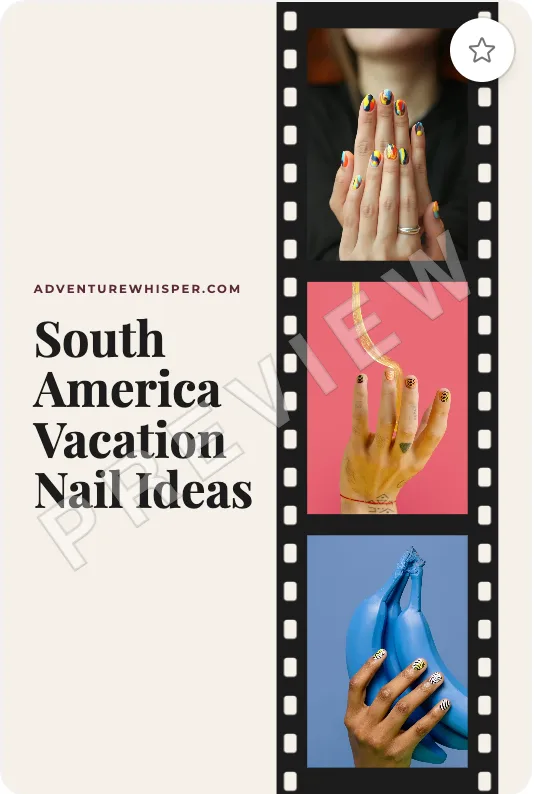
The Film Strip design filled with a South America travel nails post
One of the designs
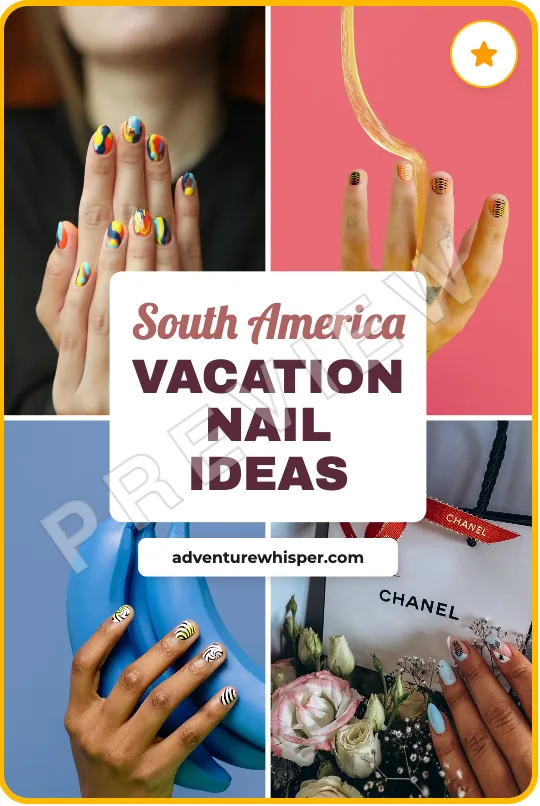
The Number Badge Card design starred as a favourite, with a gold frame
Your favourite, used first

Before you start

  1. 1

    Open My Templates

    Click My Templates on the left. On a phone or tablet, tap the menu button at the top left first. A template is a ready-made pin design, like a picture frame with spots for your photos and words. Every template pin you make starts from one of these designs. Pins with a picture drawn by AI don’t use them.

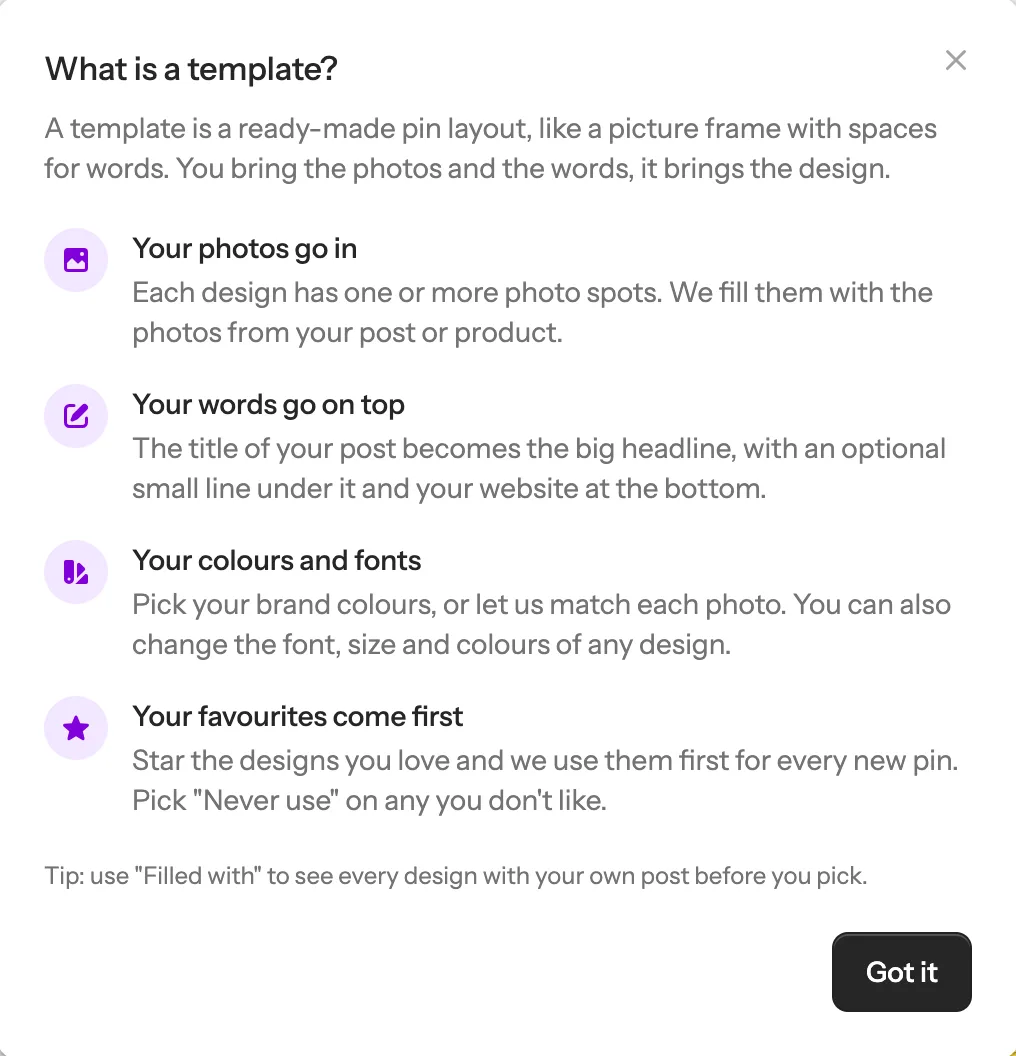
    1. 1 Not sure what a template is? Click What is a template? at the top for a short explanation.
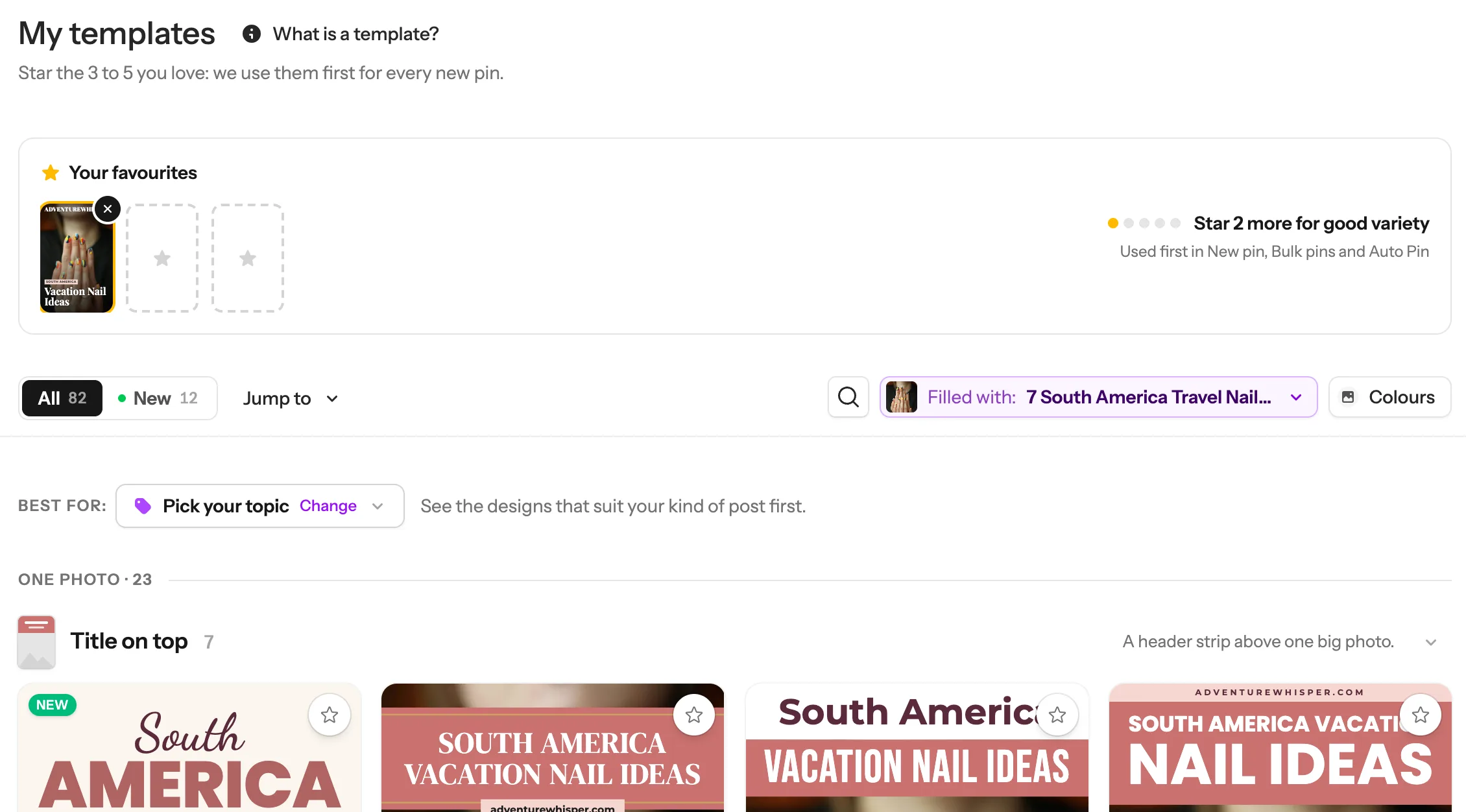
    2. 2 Your favourites sit at the top. Empty spots with a star mean you haven’t picked yet.
    3. 3 This bar helps you find designs. It stays at the top of the screen while you scroll.
    The My Templates page: the What is a template button, Your favourites with one design and two empty spots, and the bar with All, New, Jump to, Search, Filled with and Colours 1 2 3
    The What is a template window: your photos go in, your words go on top, your colours and fonts, your favourites come first
    What is a template? in four lines
    Tip: Each workspace keeps its own favourites. Got two sites? Pick favourites for each one: switch workspace at the top left first.
  2. 2

    Fill every design with your own post

    A design is easier to judge with your own photo and title in it. Here’s how:

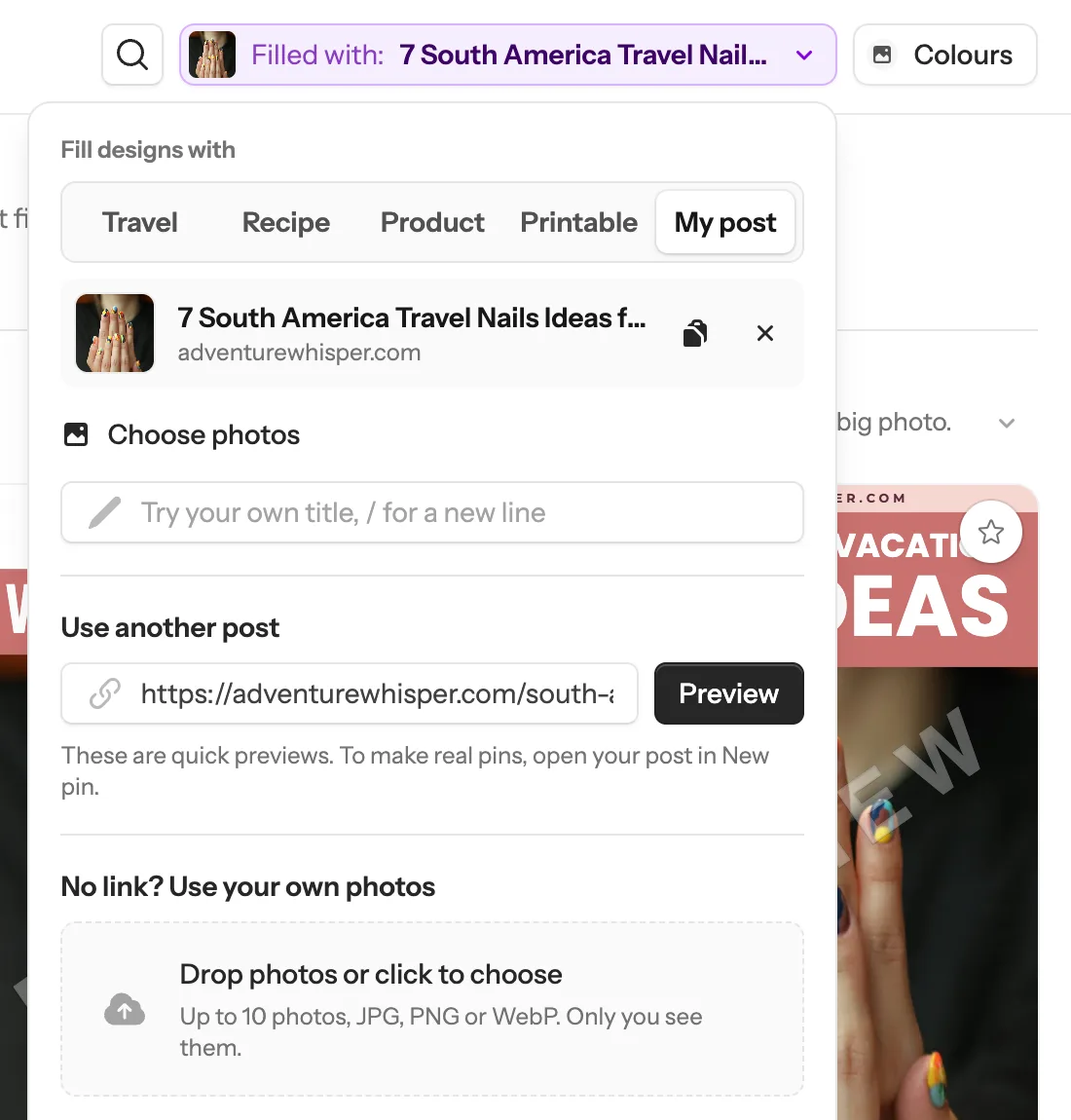
    1. 1 Click the purple Filled with: button. It shows what fills the designs now.
    2. 2 Tap Travel, Recipe, Product or Printable for an example, or My post for your latest post.
    3. 3 Or paste the link to any post or product and click Preview. Every design redraws with its photos and title in a few seconds. We used our South America travel nails post.
    4. 4 No link? Drop up to 10 of your own photos into the box. Only you see them.
    The open Filled with box: example choices Travel, Recipe, Product, Printable and My post, the travel nails post being shown, a box to paste another post and a box to drop photos 1 2 3 4
    Tip: Type in the “Try your own title” box to see your words in every design. Put a / where you want a new line. These are quick previews, not real pins. Before your first plan or credits, you can preview 3 links of your own. After that, any time.
  3. 3

    Pick your kind of post

    Some designs suit recipes, others suit travel, shops or printables. Let the page put the best ones first:

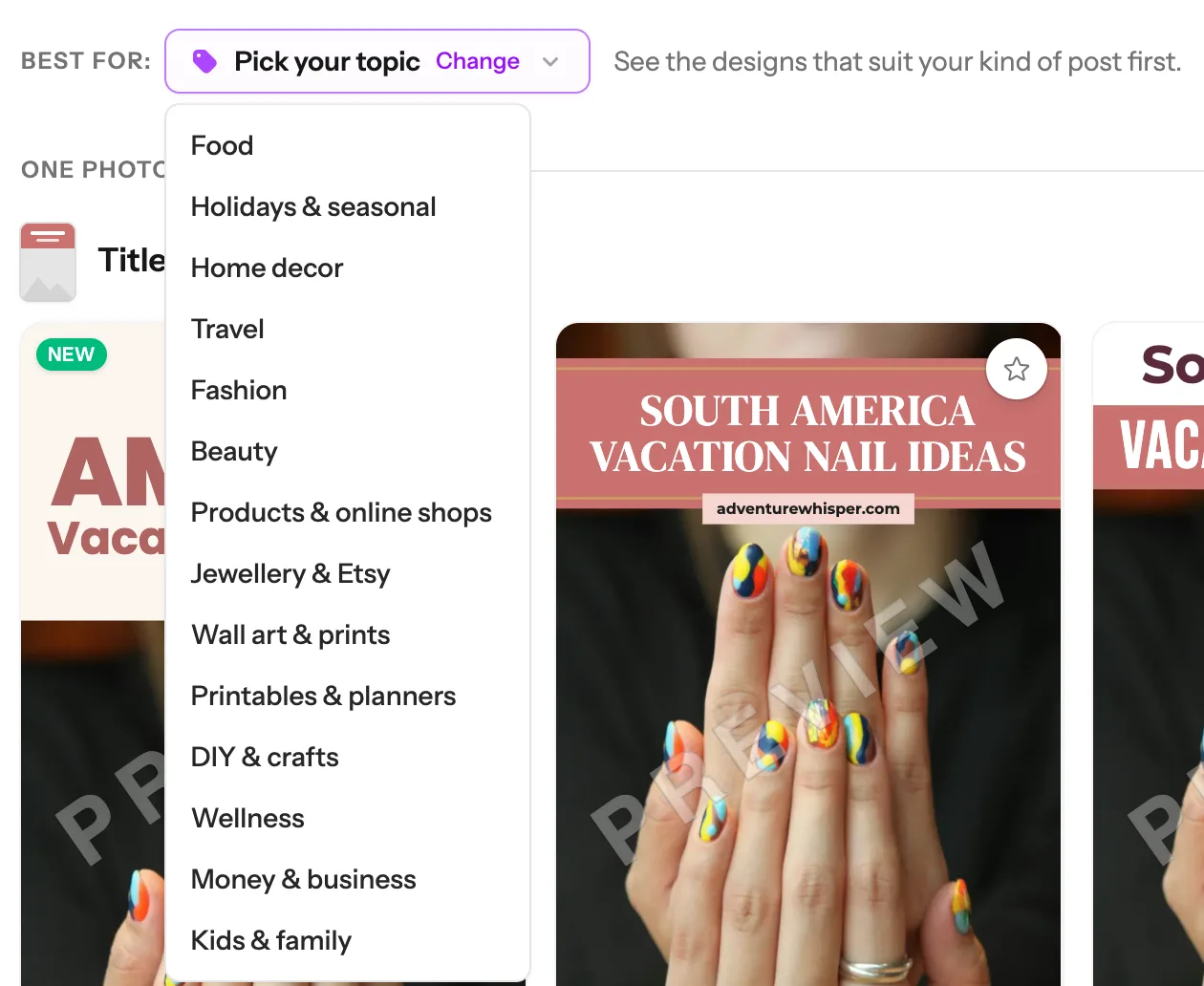
    1. 1 Click the button next to Best for:. Before you pick, it says Pick your topic.
    2. 2 Tap the kind of post you make most. We tapped Travel.
    The Best for menu open with 14 kinds of post: Food, Holidays and seasonal, Home decor, Travel, Fashion, Beauty and more 1 2
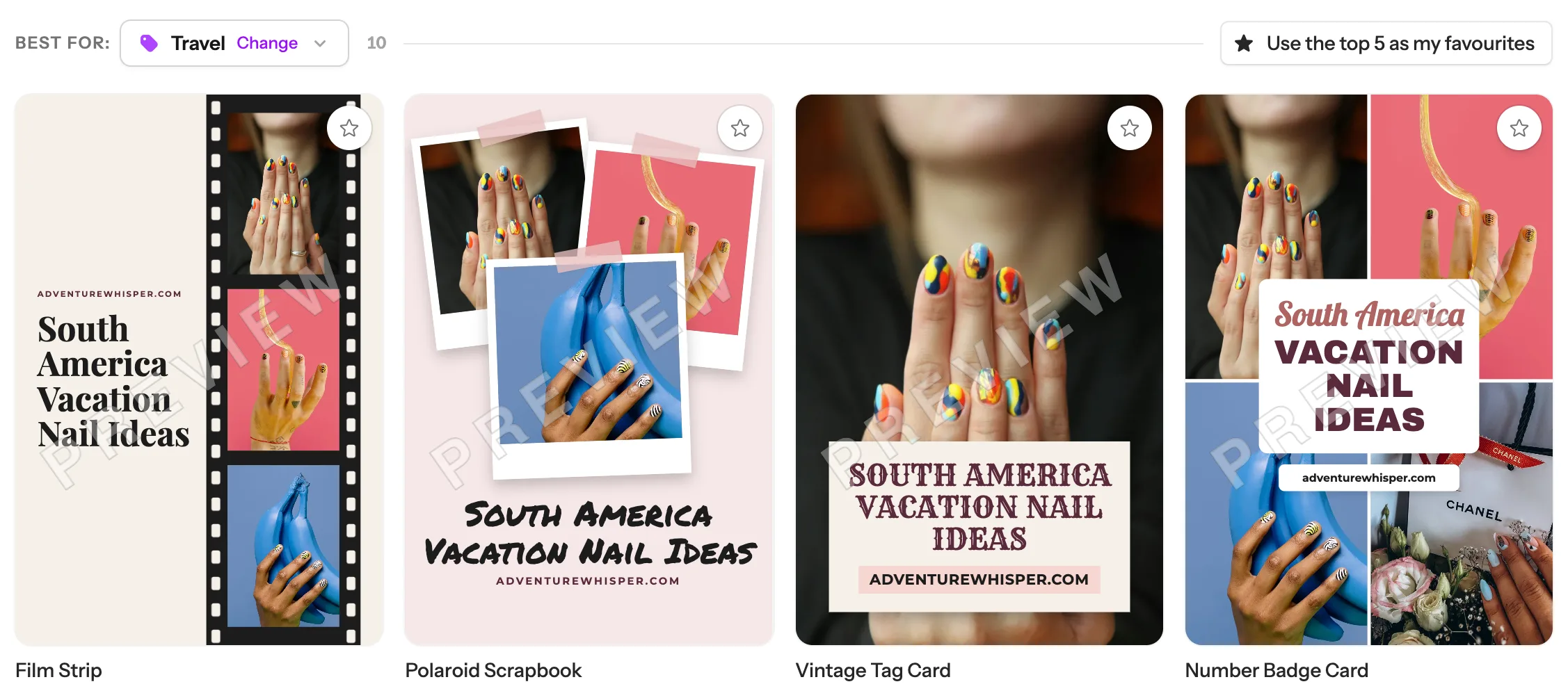
    Best for Travel: the 10 best travel designs first, filled with the travel nails post, and the Use the top 5 as my favourites button 3
    Tip: In a hurry? Click Use the top 5 as my favourites (3 in the picture) and you’re done: the top designs for your kind of post become your favourites in one go, in place of any you had. You can still change them one by one later.
  4. 4

    Find a design: New, Jump to and Search

    The bar at the top has three more ways to narrow down the designs:

    1. 1 All shows every design. New shows only our newest designs, added in the last 14 days. It’s only there when there are new ones. The numbers tell you how many there are.
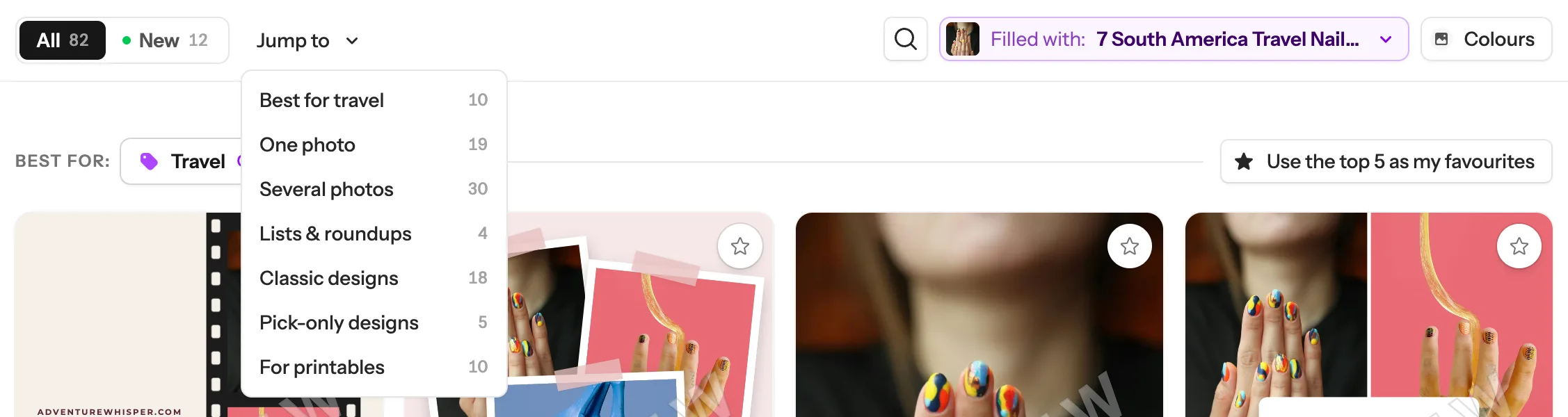
    2. 2 Jump to takes you straight to a section: One photo, Several photos, Lists & roundups, Classic designs, Pick-only designs or For printables. The number beside each one is how many designs it has.
    3. 3 The magnifying glass searches by design name. Type a word like “badge” or “collage”.
    The bar with All 82 and New 12, the open Jump to menu listing Best for travel, One photo, Several photos, Lists and roundups, Classic designs, Pick-only designs and For printables, and the search button 1 2 3
    Tip: Got many photos in your posts? Look at Several photos: those are collages for two to eight photos. Pick-only designs are never chosen for you, only when you pick them yourself.
  5. 5

    Star 3 to 5 favourites

    Found one you love? Star it:

    1. 1 Click the star in the top-right corner of a design.
    2. 2 It turns gold and gets a gold frame. The first time, a message says “Saved — new pins will use this.”
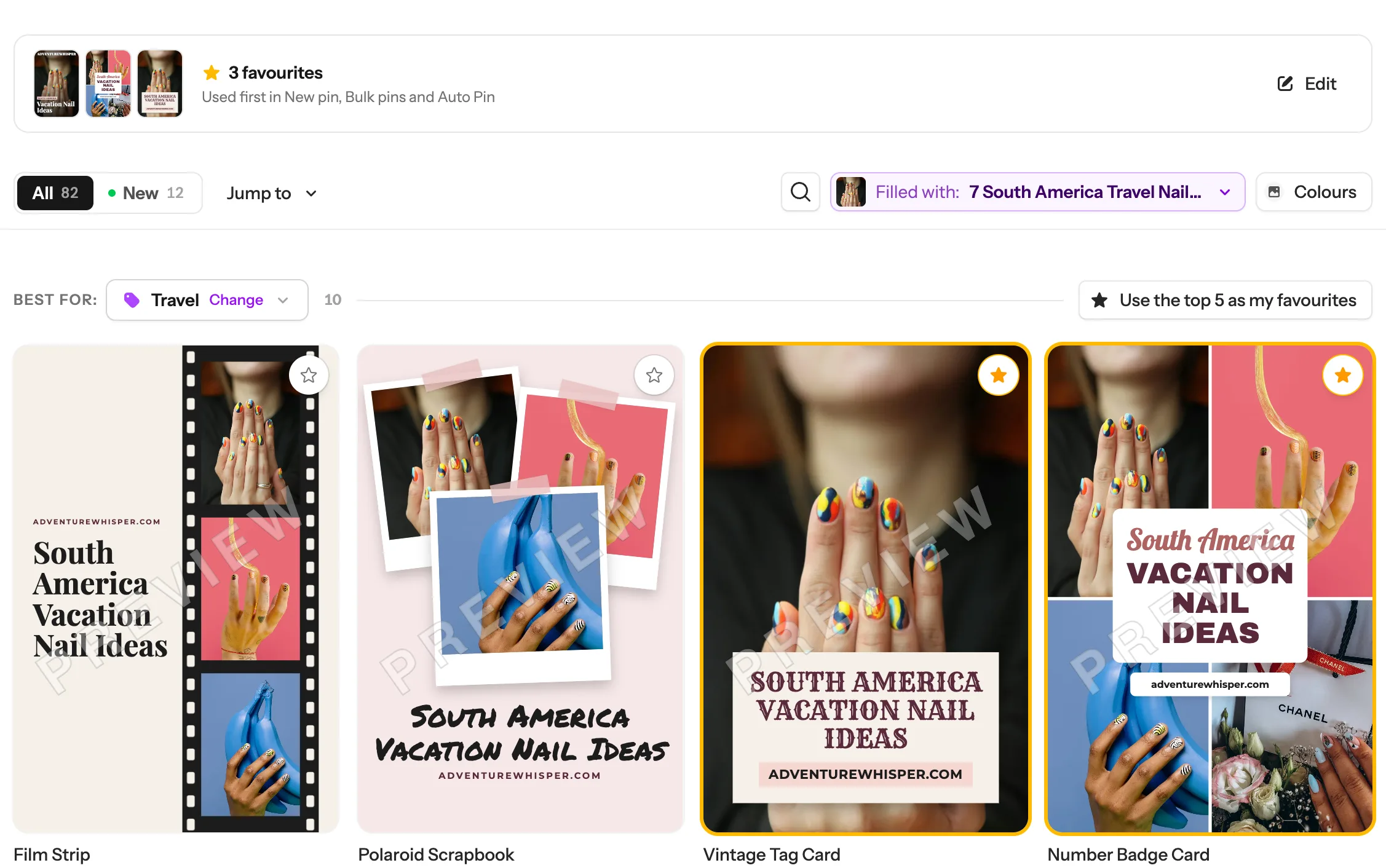
    3. 3 Your favourites show at the top. Once you have 3, they fold into one short row. Click Edit there to remove one.
    3 favourites at the top, Used first in New pin, Bulk pins and Auto Pin. Below, Vintage Tag Card and Number Badge Card with gold stars and gold frames, Film Strip with an empty star 1 2 3
    Tip: What a star changes: on the pin page, the Templates tab opens with a “★ Your favourites” group at the top. (For a shop product, the designs made for products come first.) When we choose the designs for you (several pins from one link, Bulk Pins, Auto Pin), we use your favourites first. In Bulk Pins you can also tap Only my favourites. Pins you already made don’t change. 3 gives good variety; 5 is the most.
  6. 6

    Hide the designs you never want

    Some designs just aren’t you. Hide them and they’re never used for your pins:

    1. 1 Click a design to see it large. On a computer you can also point at it and click the eye button.
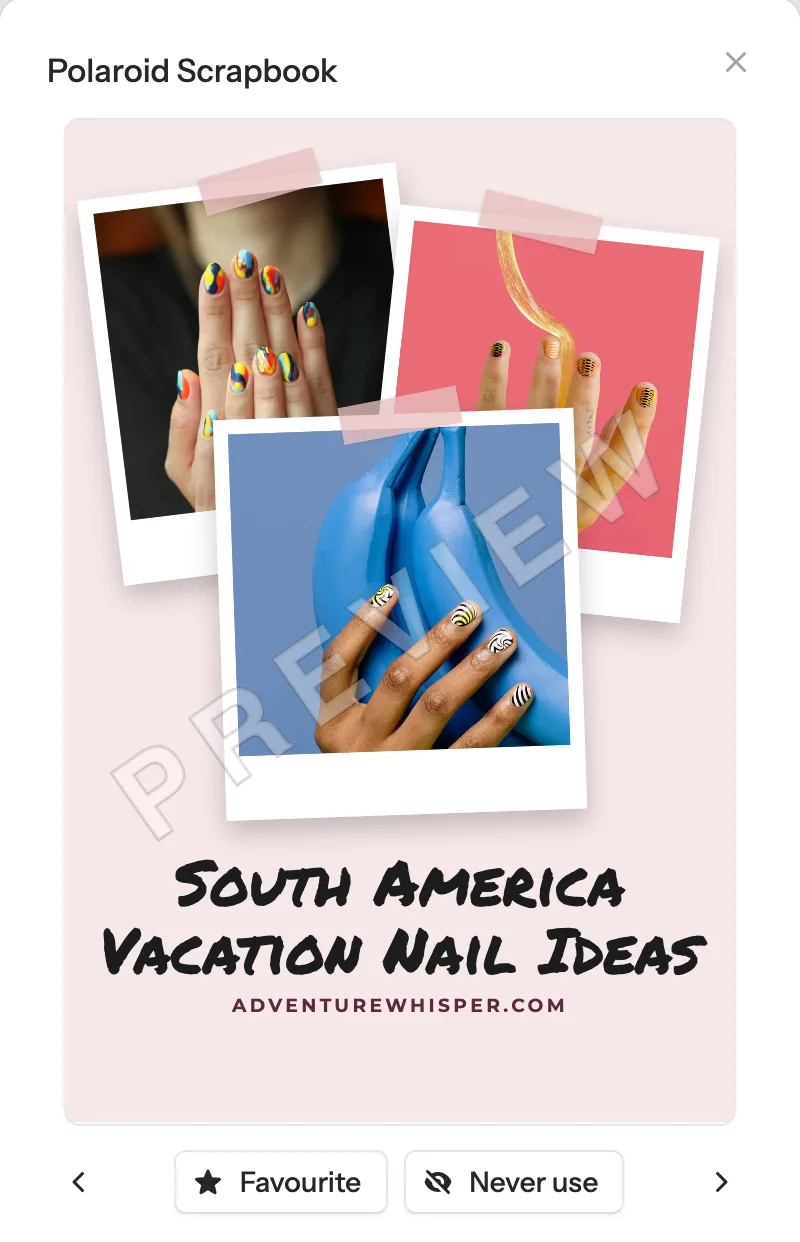
    2. 2 In the large view, Favourite stars it and Never use hides it. The arrows at the sides go to the next design.
    3. 3 Changed your mind? At the bottom of the page, click Show next to “1 hidden”. The Hidden tab opens with your hidden designs. Click one, then Show again. Back to all designs takes you back.
    The large view of the Polaroid Scrapbook design with the Favourite and Never use buttons under it 2
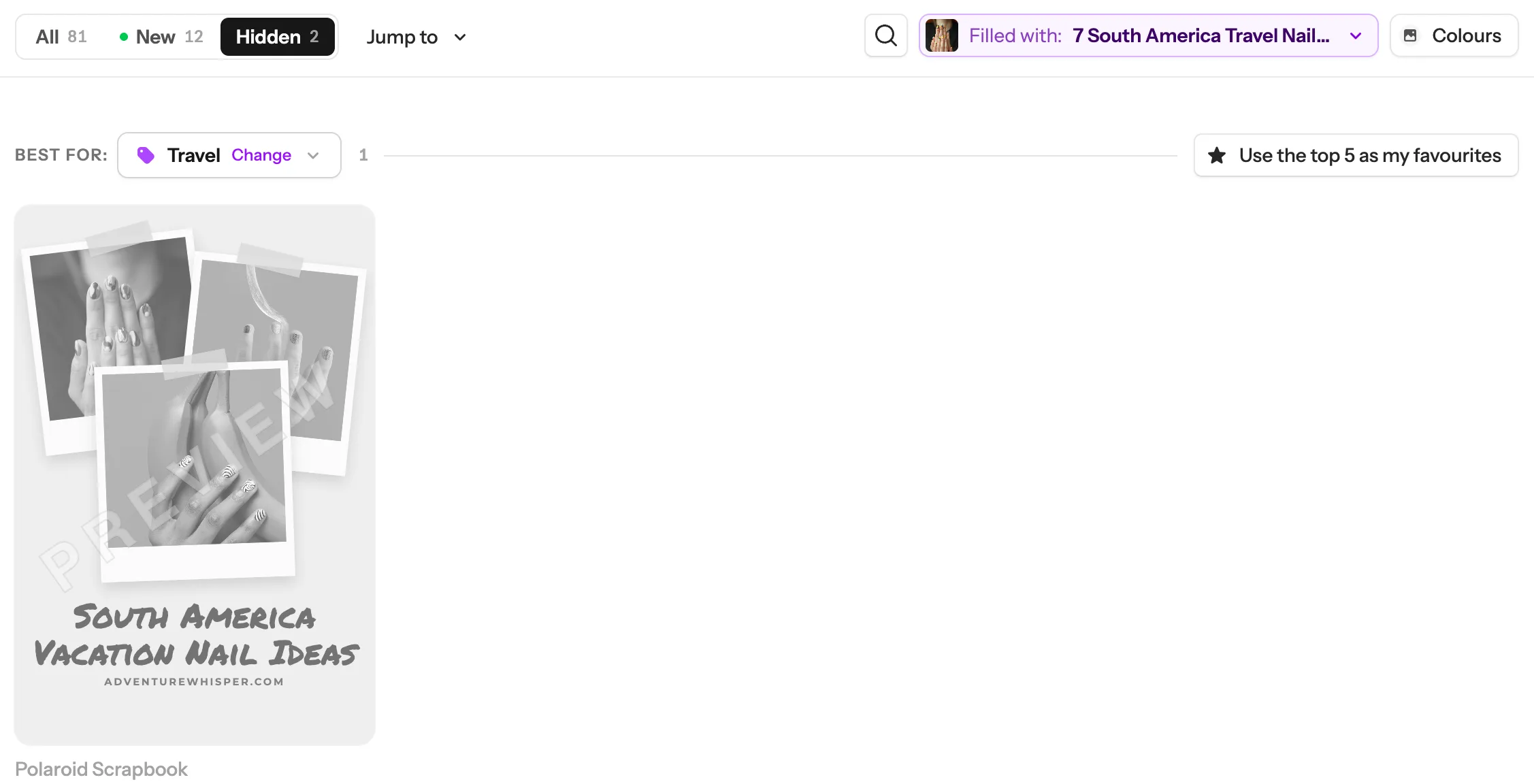
    The Hidden tab picked in the bar, showing the hidden Polaroid Scrapbook design in grey 3 Hidden designs turn grey
    Tip: Hidden designs leave All and never show on the pin page. You always keep at least 5 designs, so your pins stay varied.

Done! Your favourites come first

Every new pin starts with the designs you starred, and never with the ones you hid. Make a pin to see them at work.

Next guide

Schedule your pins, and post them to more than one board

From My Pins, or fill your whole Pinterest calendar in one click.

Questions

Does starring or hiding a design use credits?

No. Starring, hiding and previewing designs never uses a credit. To save your stars and hidden designs, you need a plan or some credits in your account. Without them you can still look at every design.

Will my old pins change?

No. Favourites and hidden designs only change the pins you make from now on.

Can I still use a design that isn’t a favourite?

Yes. Favourites only come first. Every design you haven’t hidden is still there on the pin page, and you can pick any of them.

Can I change a design’s font, size and colours?

Yes, on most designs. Point at a design and click Edit, or click it and then Customise font, size and colours. Save it as your look and every new pin with that design uses it. To set colours for every design at once, see the brand colours guide.

What if something goes wrong?

If the star or Never use button is greyed out, your account needs a plan or some credits to save choices. If you have 5 favourites, remove one before you star another. If Never use is greyed out, you are down to the last 5 designs: show one again first. If your link won’t preview, check it opens in your browser, or drop in your photos instead.

Stuck on a step? Just reply to any email from us, or use the chat button at the bottom right.