Step-by-step guide · 6 steps · about 3 minutes
Paste one product link from your Shopify or other online shop. Get finished Pinterest pins that show your product in fresh new photos, each linking back to your product page. Here's the whole thing, click by click, with a real candle from a Shopify shop.
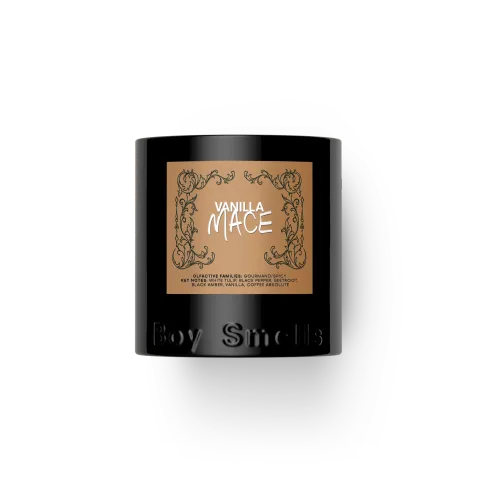
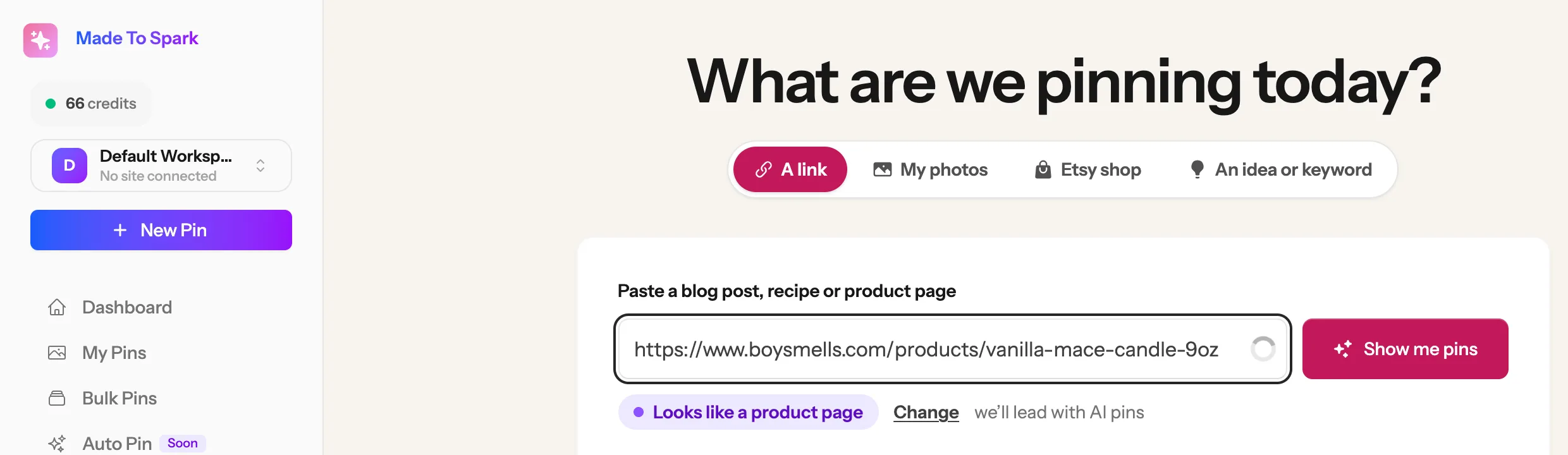
Open the product in your shop and copy the link from the top of your browser. It works with Shopify and other shop pages that show your product and its photo. Here we use a candle from the Boy Smells shop on Shopify.
Once you are signed in to Made to Spark:
1
2
3
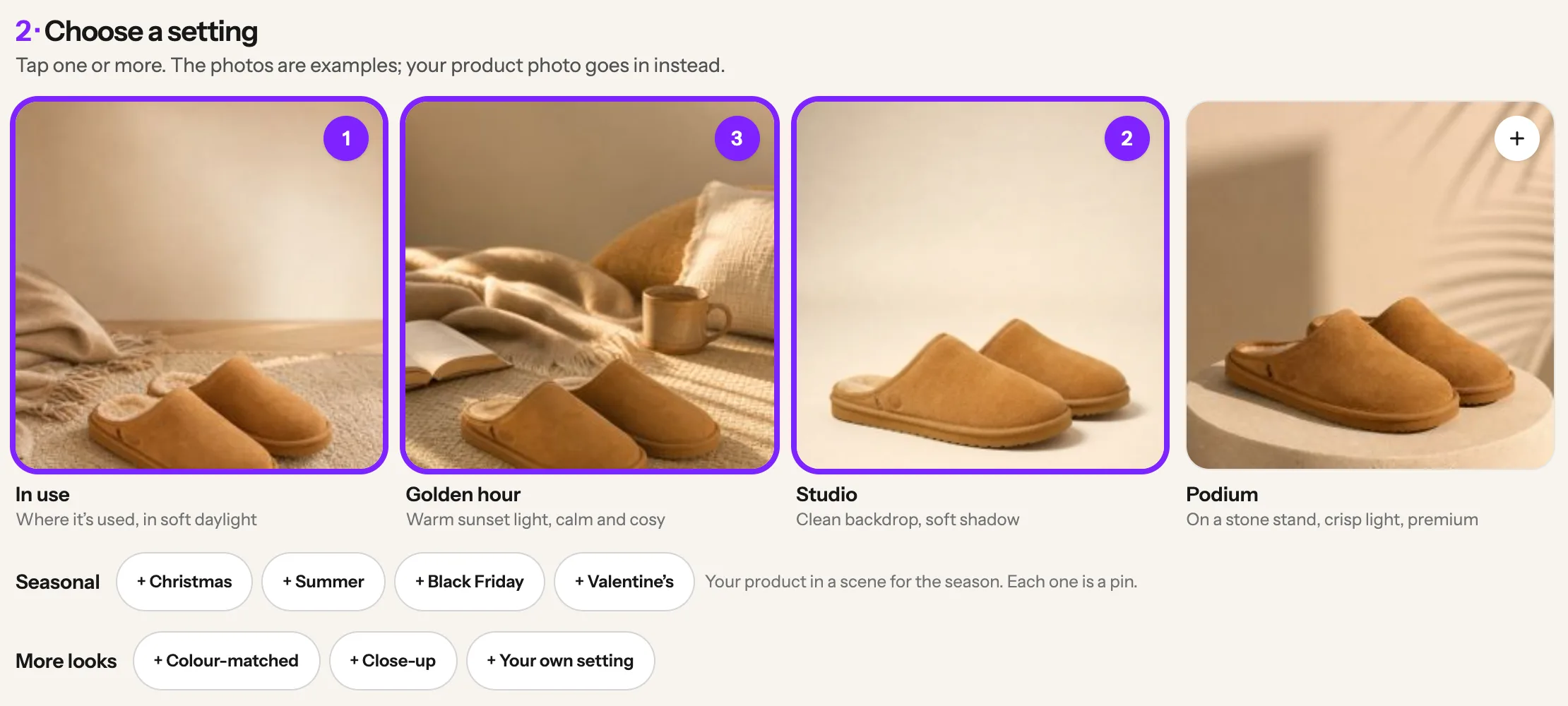
At the top, Made to Spark has already picked your product photo. Your pins link straight to your product page. Then:
Tap + to add
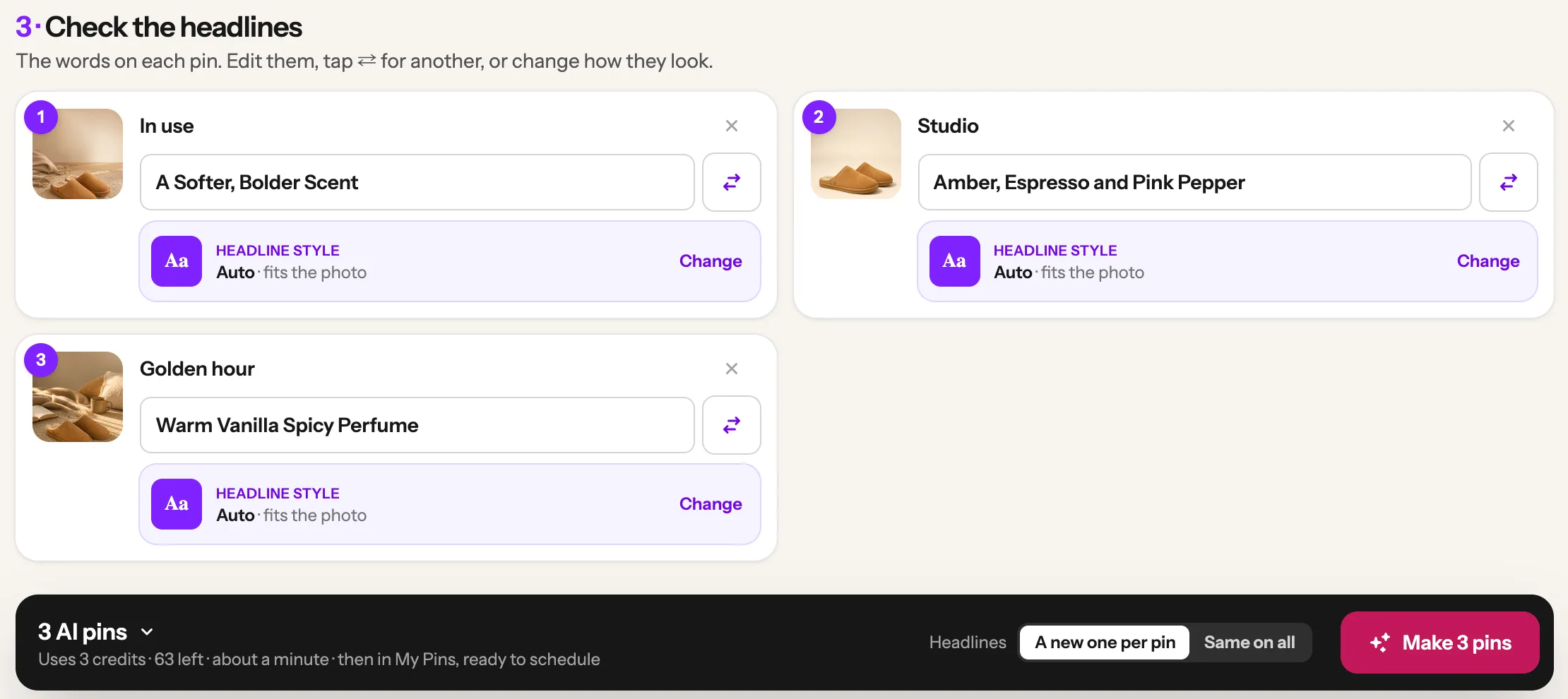
Each pin gets a short headline written from your product page. Click one to change the words, or tap the ⇄ button next to it for a new one. Or leave them as they are. The small pictures next to each headline are the example settings, not your pin. Then click the Make button at the bottom. It shows how many pins you picked, like Make 3 pins, and what it uses: one credit per pin, so 3 pins use 3 credits.
1
2
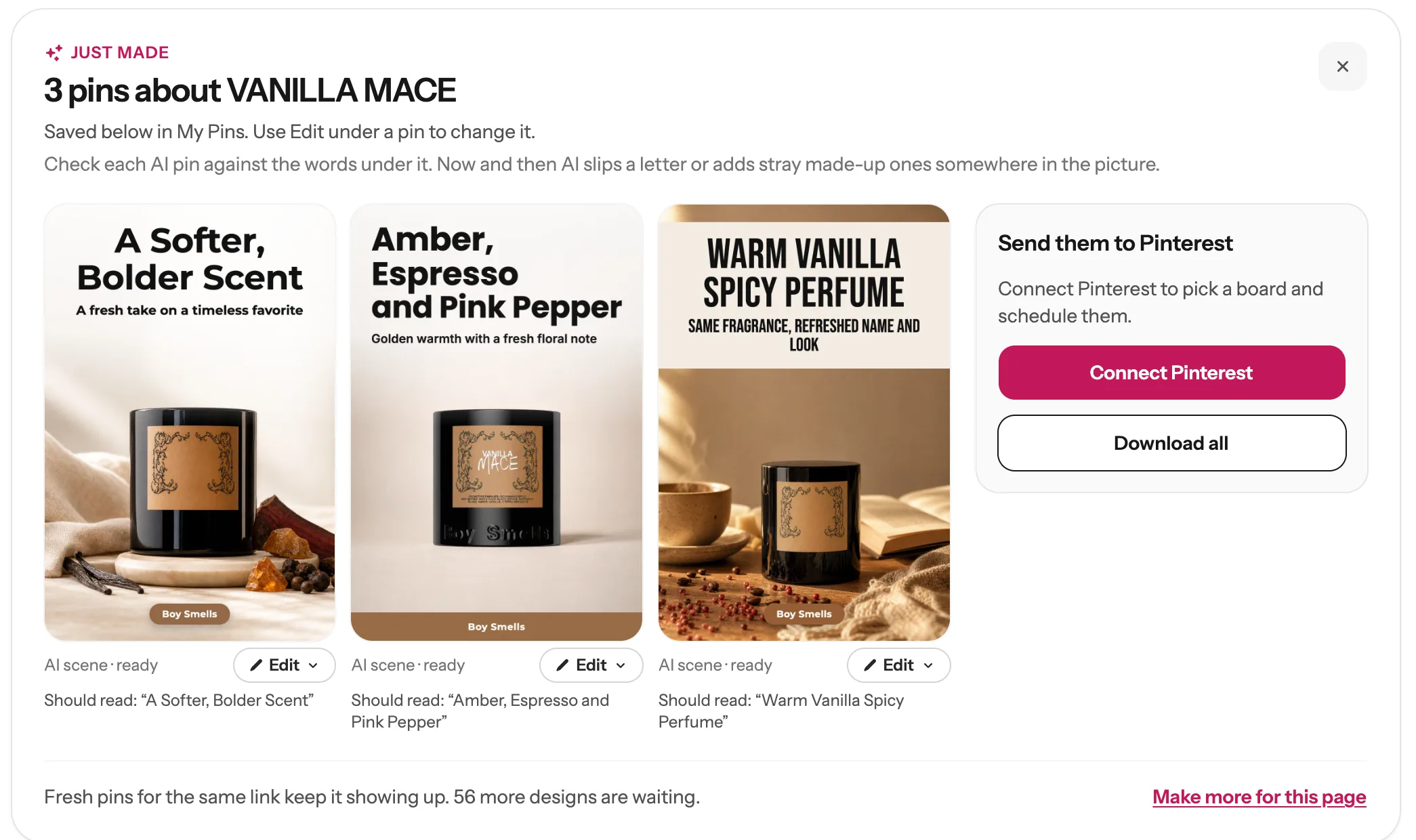
You land on My Pins and watch them being drawn. You can leave the page; they keep going. Then look closely at your product on each pin, because it is your shop people will see:
1
1
2
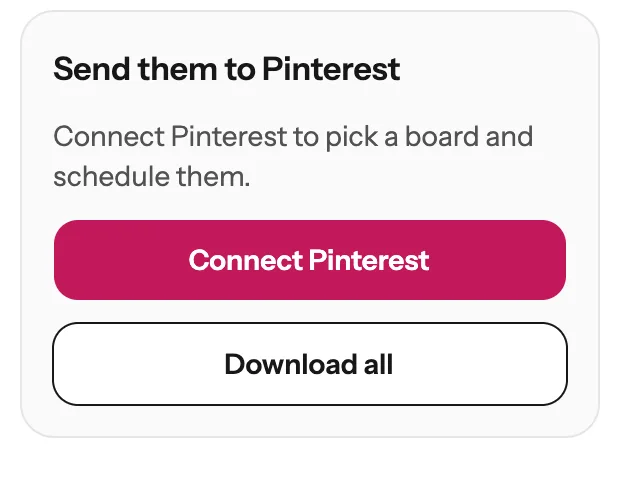
On the right of your new pins:
1
2
3
4
5
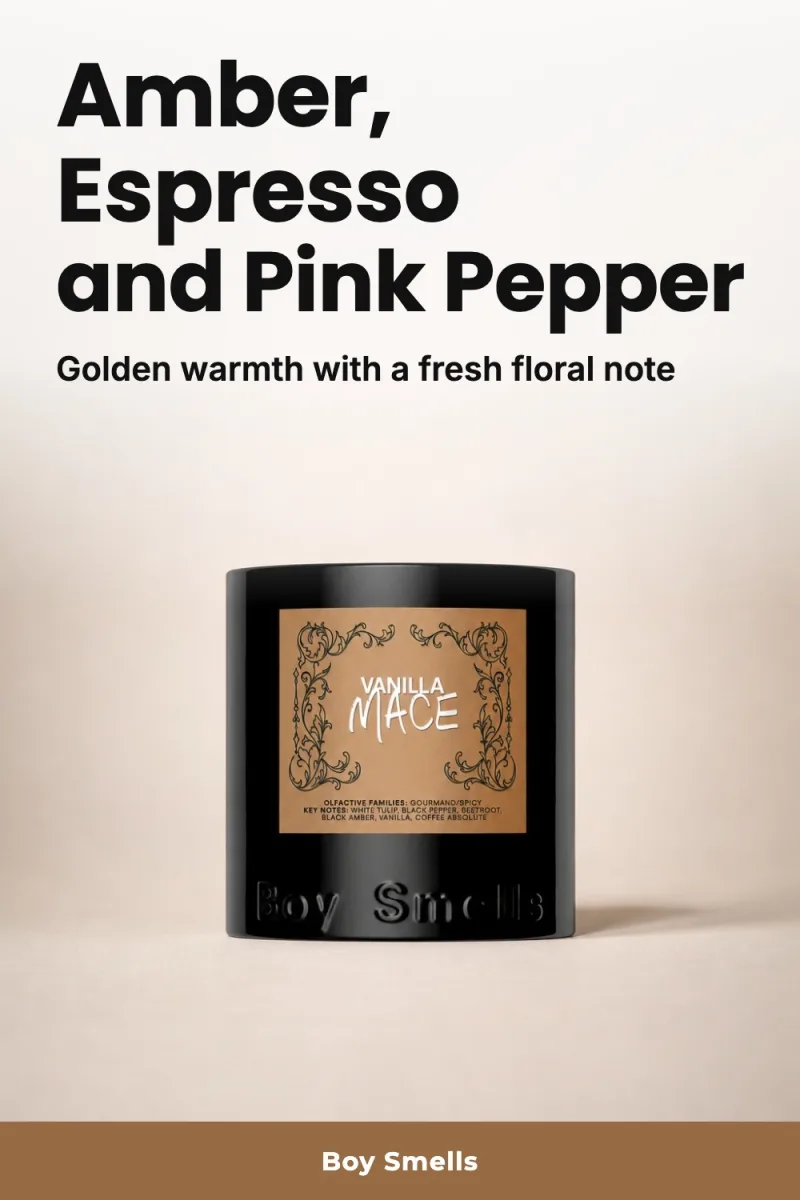
One product link, three settings, three pins. Each one links to the product page. Pin 2 kept the label best, so that is the one to post first.
Next guide
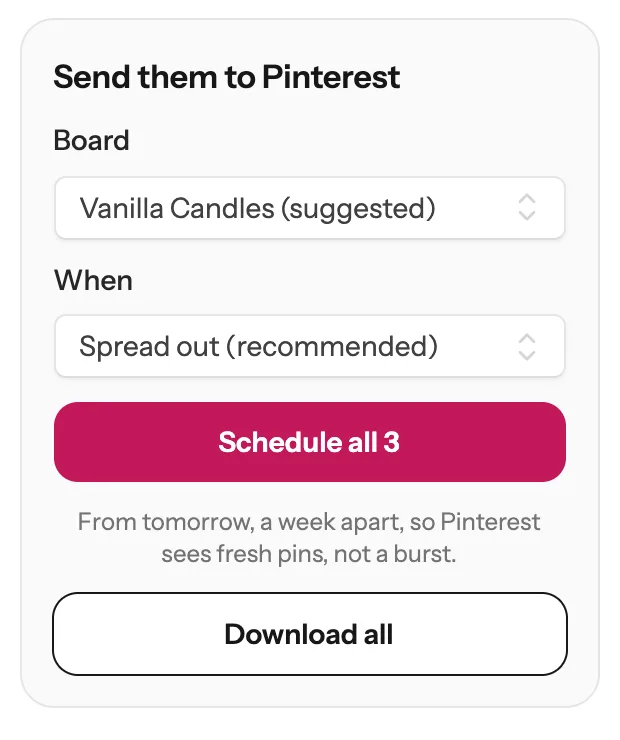
Schedule your pins, and post them to more than one board
From My Pins, or fill your whole Pinterest calendar in one click.
Shopify, and other public product pages that show the product and its photo. If a page can’t be read, you see a message saying so: then use the My photos tab with your own product photos instead. Selling on Etsy? Use the Etsy shop tab instead: you type your shop name and pick a listing.
Each AI scene pin uses 1 credit, so 3 settings use 3 credits. The page shows the total next to the Make button before you click it. Template pins from your own product photos are included in every subscription plan, up to your plan’s monthly amount; with credits only, each uses 1 credit. Fixing a word with Edit headline does not use a credit.
AI draws your product again in each new setting. Shapes and colours stay, but small printed words, like a label or a logo, can blur or disappear. Always check before you post. Remake makes a new pin for 1 credit, but it can lose the label too. The Templates tab uses your real product photos without changing them.
Yes. Every pin links to the product page you pasted, so people who click land right on it.
If a pin does not work, its spot says what happened, and nothing is charged for it. Often you see a Try again button: click it once. If you pick more pins than you have credits for, the Make button changes into a button to get more credits, so nothing starts half done.
Stuck on a step? Just reply to any email from us, or use the chat button at the bottom right.