Step-by-step guide · 5 steps · about 3 minutes
Checklists, how-tos and cheat sheets are the pins people save to come back to. Type a topic, pick a format, and get a finished infographic in about a minute. Here's the whole thing, click by click, with a real example.
A checklist, a how-to or a cheat sheet is something you come back to: while you cook, pack or shop. So people save it to a board instead of just scrolling past.
A saved pin lands on someone else’s board, where their followers can see it and save it too.
Pinterest pays attention to what people save, and tends to show useful pins to more people, for months rather than days.
Best topics: anything people do in steps or tick off. Routines, packing lists, recipes, care guides, swaps.
Sign in to Made to Spark and click New Pin on the left (on a phone or tablet, tap the menu button at the top left first). At the top, click the An idea or keyword tab.
↓
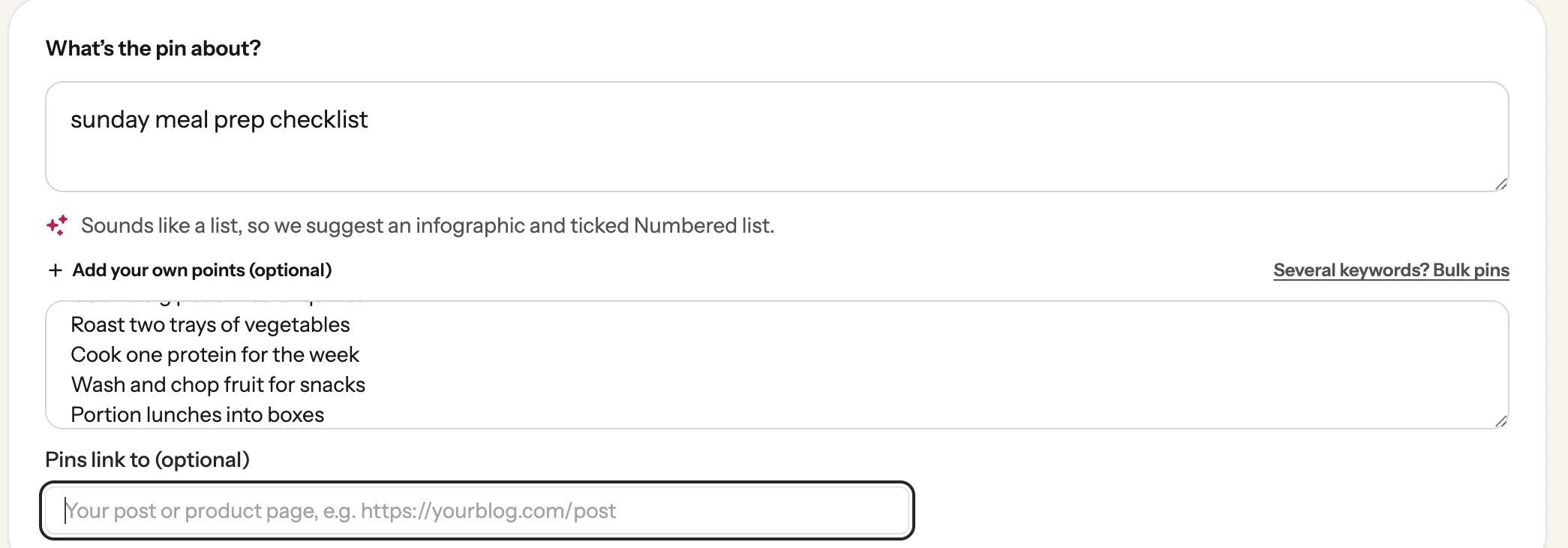
Type what the infographic is about, the way people search for it. Here we use “sunday meal prep checklist”.
1
2
3
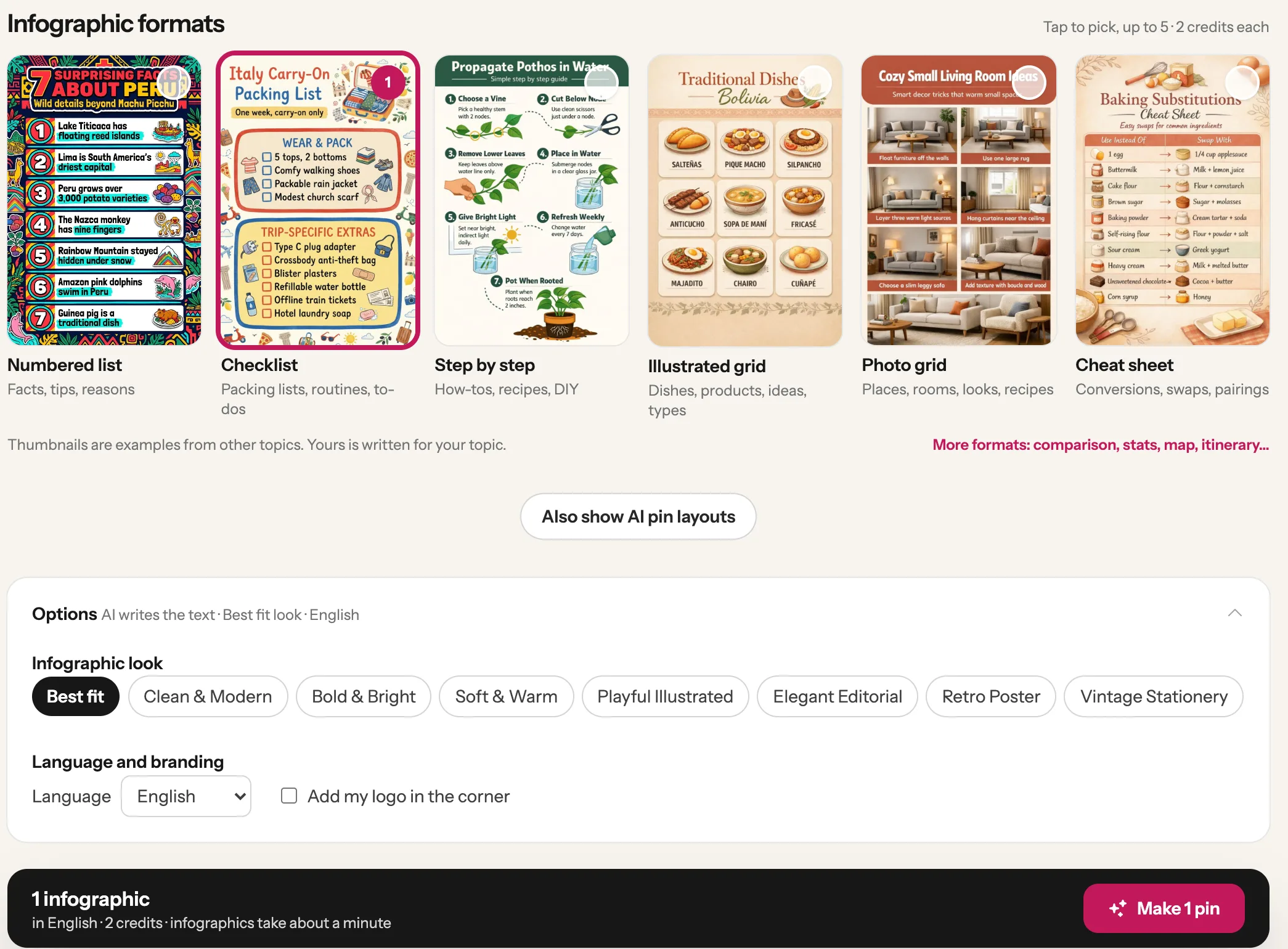
Each format you tick makes one pin. Made to Spark ticks one for you: for our topic it ticked Numbered list. To switch, tap the ticked one to untick it, then tap the one you want. We wanted Checklist. Tick several for several pins (up to 5). The bar with the Make button shows what it costs. Then click Make 1 pin.
Tap a format
Click Make
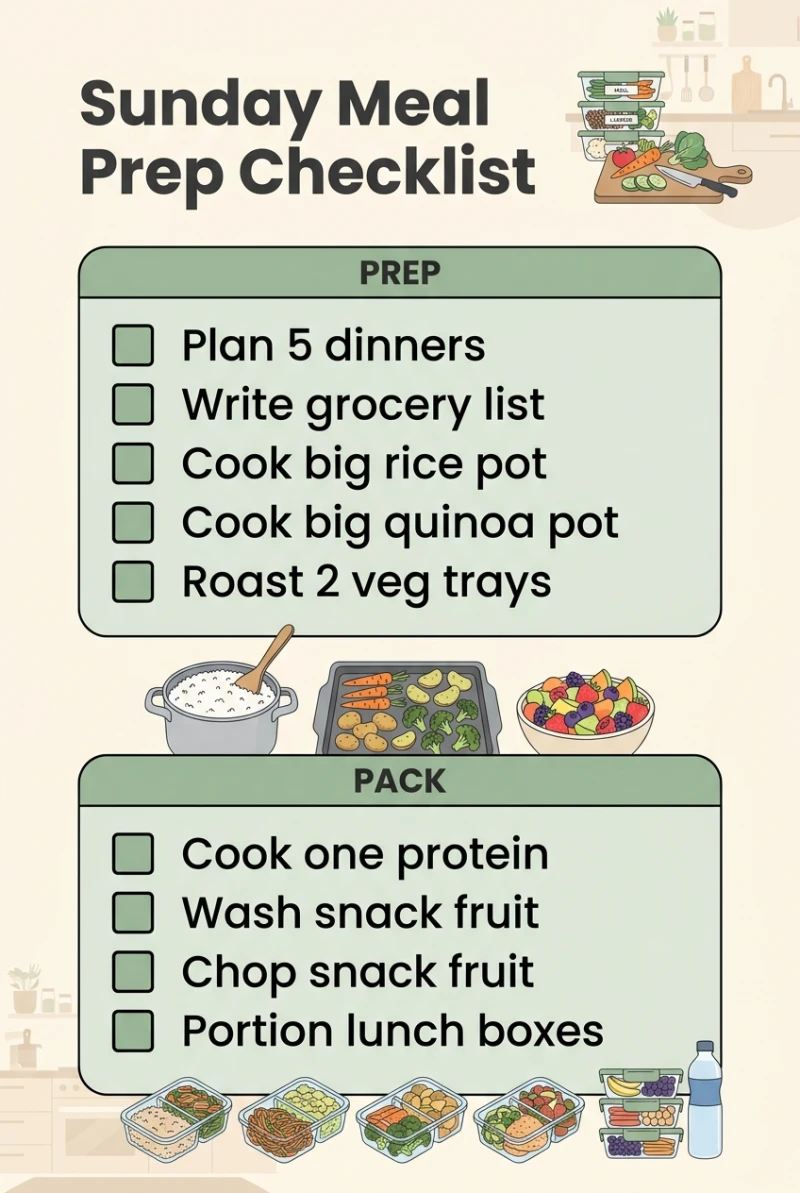
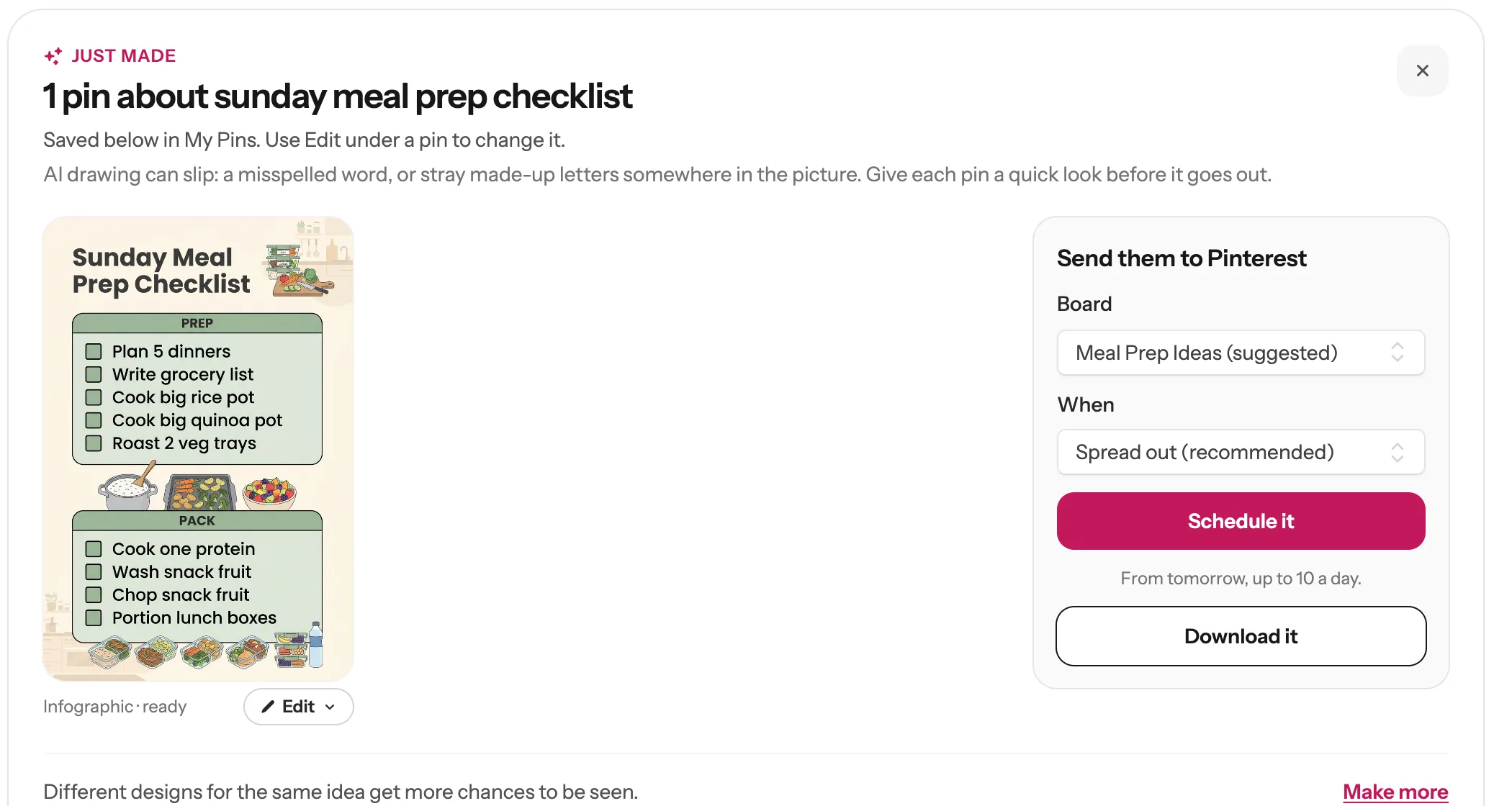
You land on My Pins, where the Just made box at the top shows your infographic being drawn. After about a minute it’s ready. AI draws the words right into the picture. Made to Spark reads them back, and if one is missing or garbled it draws the pin once more by itself. Still, now and then a misspelled word or a few made-up letters slip through, so read every line before you send it to Pinterest. AI also shortens long points so they fit: ours became “Plan 5 dinners” and “Write grocery list”.
✎
On the right of your pin:
1
2
3
One topic, one format, one pin people will want to keep.
Next guide
Schedule your pins, and post them to more than one board
From My Pins, or fill your whole Pinterest calendar in one click.
Each format you tick makes one pin. The cost shows above the formats and in the bar with the Make button, before you click Make.
Yes. Click Add your own points and type one per line. AI keeps your ideas and may shorten them so they fit the design.
AI draws the text as part of the picture, and sometimes it slips. Made to Spark checks the words and redraws once by itself when something is wrong, but always read the pin before it goes out. Edit with AI fixes a word when you give the exact words in double quotes.
If a pin doesn’t work, the Just made box says so and nothing is charged for it. If you see Try again under it, click it to draw the pin once more. If you don’t have enough credits, the Make button is replaced by a button to get more. And if a word comes out wrong, use Edit with AI as shown in step 4.
If you have a page on the topic, yes: paste it in Pins link to, so people who want more click through to you.
Stuck on a step? Just reply to any email from us, or use the chat button at the bottom right.