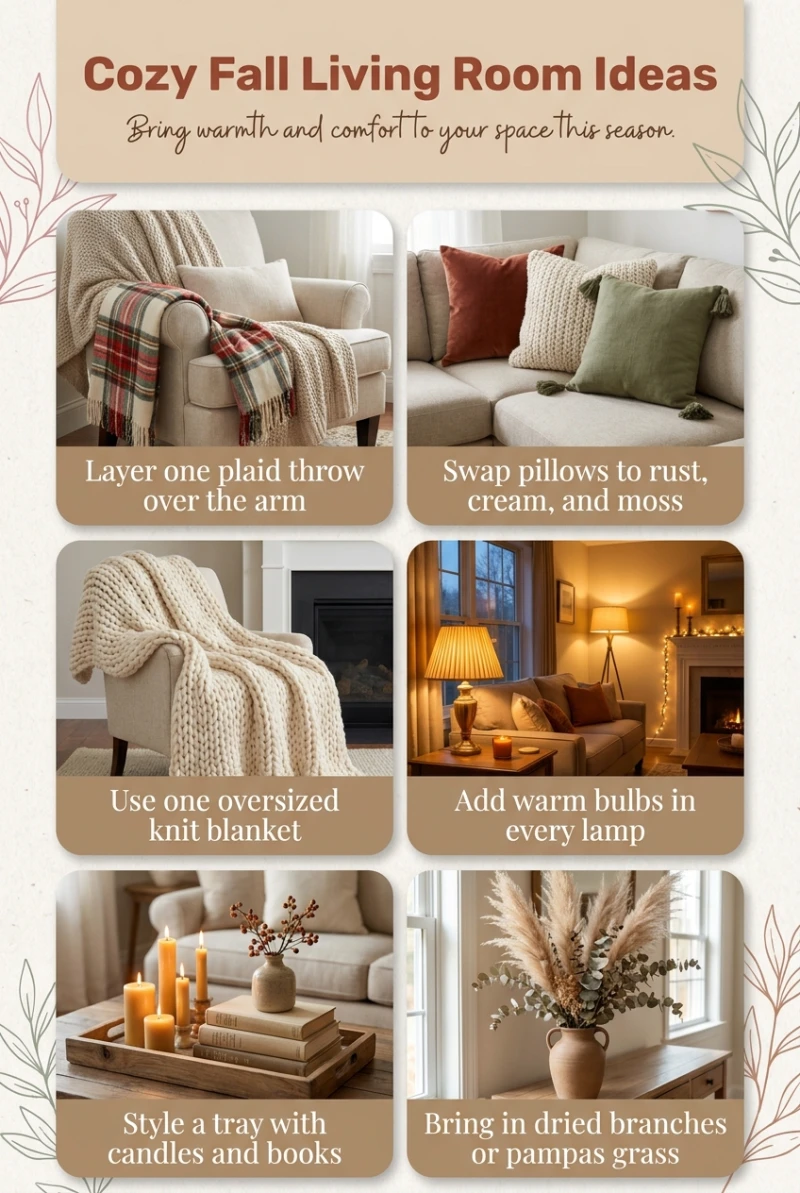
No link, no photos: type a keyword and get a finished Pinterest pin drawn by AI. Here's the whole thing, click by click, with a real example.
“cozy fall living room ideas”
The keyword you typeThe pin, about a minute later
Before you start
A Made to Spark account with credits. The bar next to the Make button shows what your pins use. Without enough, the button turns into one to get credits.
A keyword or idea. No link or photos needed.
To schedule pins, connect Pinterest once with the Connect Pinterest button next to your new pin. Scheduling comes with every subscription plan. Download it works without it.
1
Click New Pin, then “An idea or keyword”
Sign in to Made to Spark and click New Pin on the left (on a phone or tablet, tap the menu button at the top left first). At the top, click the An idea or keyword tab. You don’t need a link for this one.
1
2
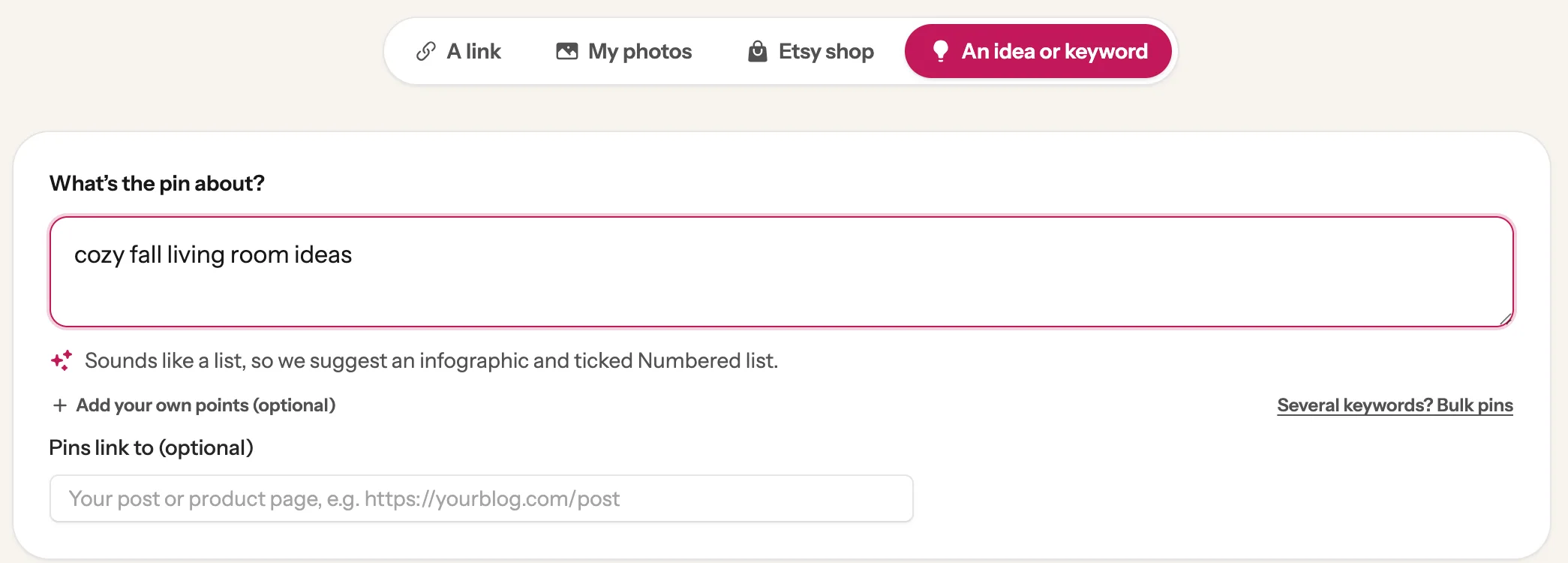
Type your keyword
Type what the pin is about, the way people search for it on Pinterest. A few words are enough. Here we use “cozy fall living room ideas”.
1Type your keyword in the box under “What’s the pin about?”.
2Optional: paste the page the pin should link to, like your blog post or shop page, in the “Pins link to (optional)” box.
12
3
Check what’s ticked, then click Make
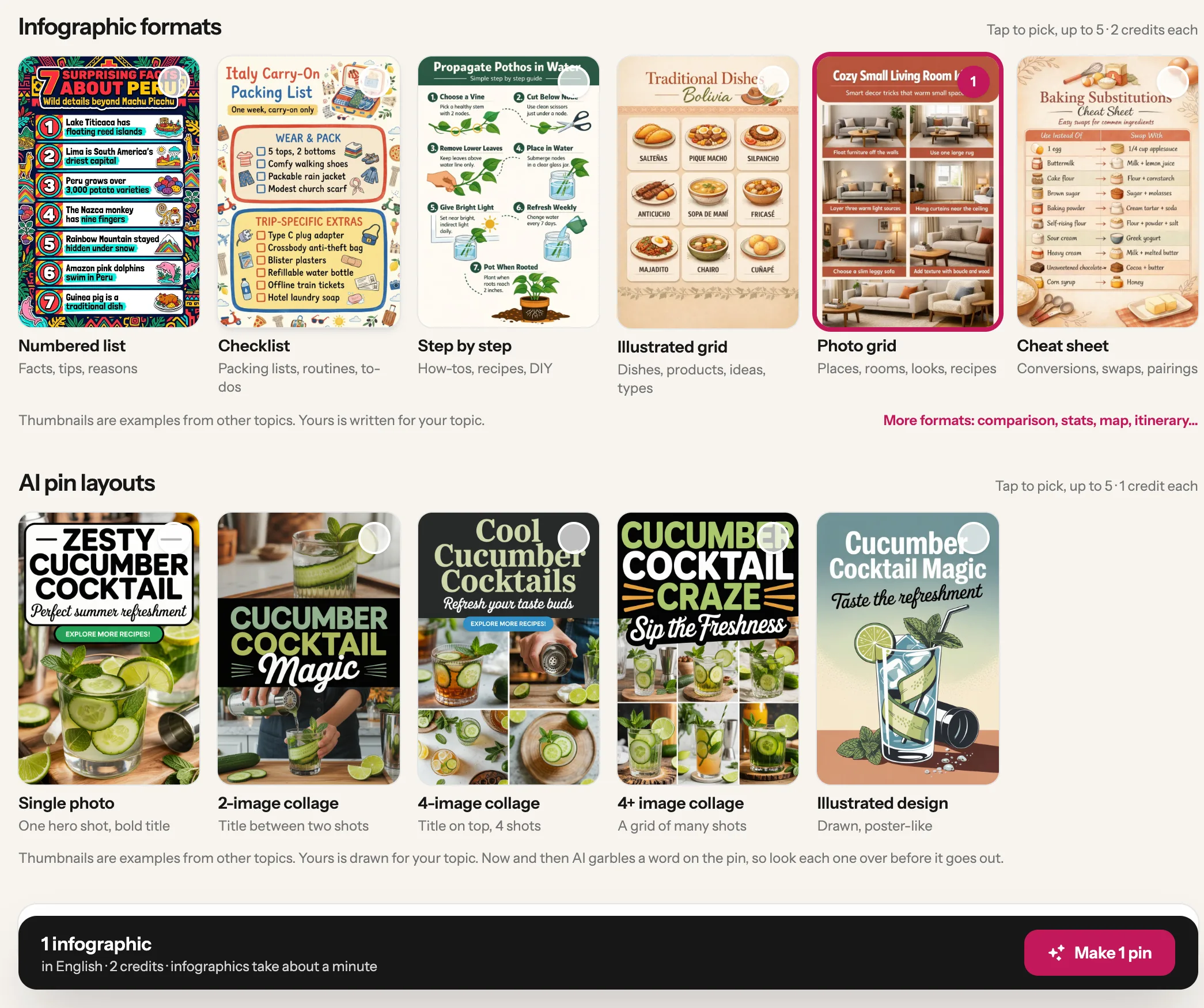
Below the box you see pin designs. There are two groups, Infographic formats and AI pin layouts. Made to Spark reads your words, shows the group that fits and ticks one design to start. Something that sounds like a list (with words like “ideas” or “tips”, or a number at the start) gets Numbered list, an infographic. Other keywords get Single photo, an AI pin. Each ticked design makes one pin. Our keyword has “ideas” in it, so Numbered list was ticked; here we unticked it and picked Photo grid instead.
1Tap a ticked design to untick it. Tap any other to add it. You can tick up to 5.
2To see the other group too, click Also show AI pin layouts (or Also show infographic formats) under the designs. We did that here, so the picture shows both.
3Click Make 1 pin at the bottom. The bar next to it shows how many credits your pins use. Not enough credits? The button turns into one to get more.
Tap a designClick Make
Tip: Picked an AI pin? A box shows the words it will carry before anything is made. You can change them, and the Make button waits until they’re written. Click Options (just above the Make button) to choose the text on AI pins, the infographic look, the language, and whether your logo goes in the corner.
4
Check every word on your pin
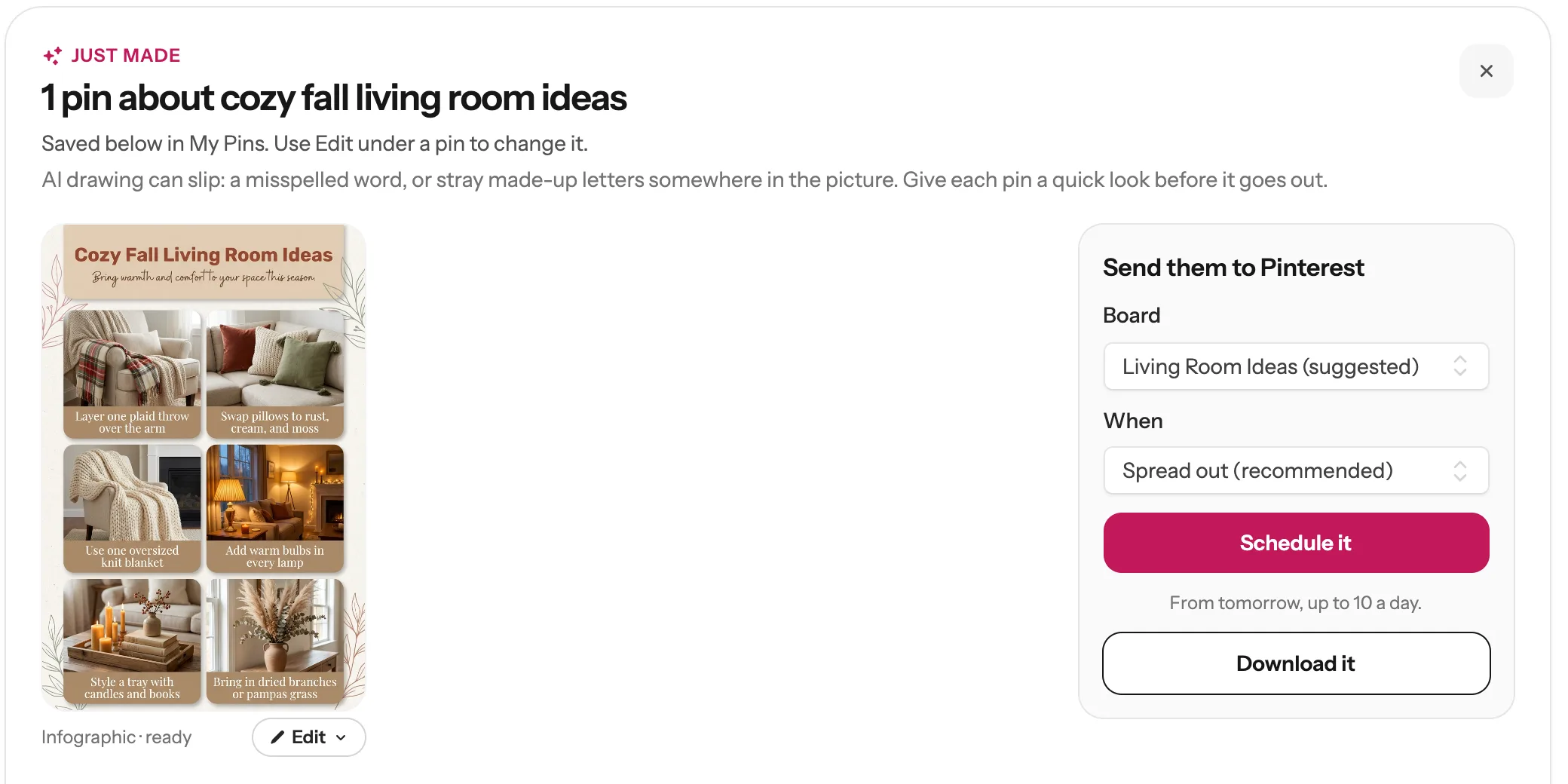
You land on My Pins, where the “Just made” panel at the top shows your pin being drawn. After about a minute it’s ready. AI draws the words right into the picture, and now and then it gets one wrong: a misspelled word, or a few made-up letters that mean nothing, often in the small text. So read every word on the pin before you send it to Pinterest.
Tip: Found a wrong word? Click Edit under the pin and choose Edit with AI. Type the fix with the exact words in double quotes, for example: Change “Swap pilows” to “Swap pillows”. You get a corrected copy as a new pin, and the original stays as it is. On an infographic you can also choose Same words, new look to have it drawn again. The menu shows what each one costs.
5
Send it to Pinterest
On the right of your pin:
1Pick a board. Made to Spark picks the one that fits best and marks it (suggested). If you pinned the same link before, it picks that board again. You can always choose another one.
2Leave When on Spread out (recommended), or choose Pick dates myself.
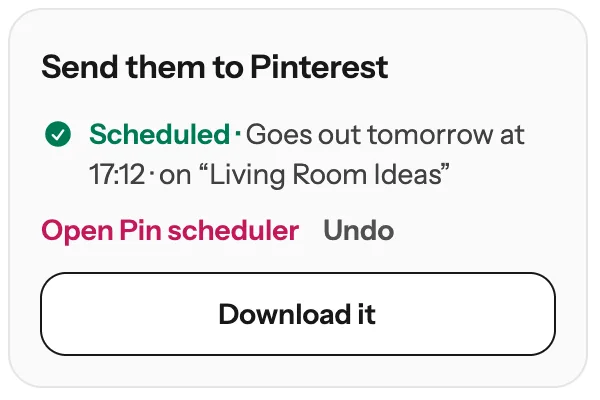
3Click Schedule it. You see when it goes out and on which board. Changed your mind? Click Undo.
123
Tip: No board picker? If you see Connect Pinterest, click it. You only do it once, and it brings you straight back to your pin. If you see See plans with the scheduler instead, scheduling isn’t in your account yet (it comes with every subscription plan): click Download it and upload the picture to Pinterest yourself.
Done! Here’s the pin from this guide
One keyword, one infographic format, one pin on its way to Pinterest.
It depends on what you tick. Each AI pin uses 1 credit. Infographics can cost more: the cost shows next to the Infographic formats heading, and the bar next to the Make button shows the total before you click. If you don’t have enough credits, the Make button turns into a button to get more, and the bar shows how many you have.
Why did it tick an infographic, or an AI pin, for me?
Made to Spark reads your words. Something that sounds like a list, with words like ideas, tips or how to, or a number at the start, gets an infographic with Numbered list ticked. Other keywords get an AI pin with Single photo ticked. It’s only a starting point: untick it and pick any design you like.
Why does my pin have a misspelled or made-up word?
AI draws the text as part of the picture, and sometimes it slips a letter or adds letters that mean nothing. Always read the pin before it goes out. Edit with AI fixes a word when you give the exact words in double quotes. On an infographic, Same words, new look draws it again. The Edit menu shows what each one costs.
Does the pin need a link?
No. The link is optional. If you add one, people who click your pin on Pinterest go to that page.
Can I make pins for many keywords at once?
Yes, on plans with Bulk Pins: click Several keywords? Bulk pins under the keyword box.
What if something goes wrong?
If a pin doesn’t work, the Just made panel says why, and nothing is charged for it. When you see Try again under it, click it. On an AI pin, if the words can’t be written before you click Make, a note says so and the AI writes them while drawing, so read the finished pin closely.
Stuck on a step? Just reply to any email from us, or use the chat button at the bottom right.