WordPress to Pinterest Auto Post: Plugins, IFTTT or a Pin Generator?
 Paul
Read in: English Español Français Deutsch
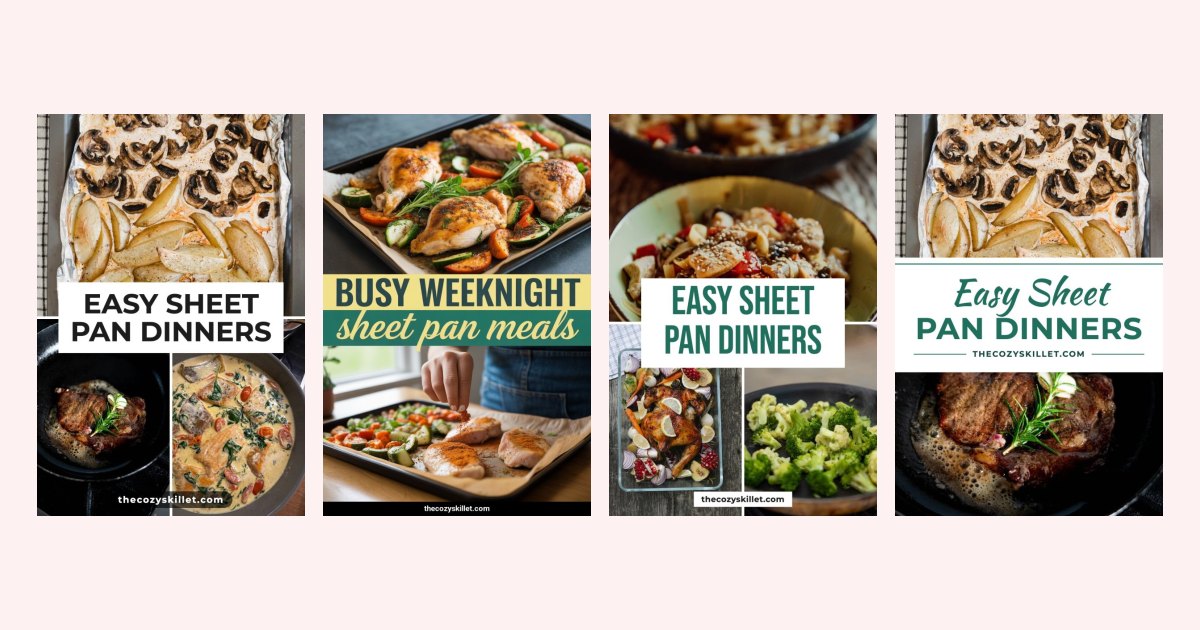
Most "WordPress to Pinterest auto post" setups do one thing: when you hit Publish, they save your featured image to a board with the post title as the pin title. Set it up once, forget it. The trouble is that a featured image is usually landscape, the post title is written for Google, and one pin per post is one search covered out of the dozen it could reach.
This guide compares the three ways to do it, the plugin, the no-code recipe and a pin generator that reads your site, and ends with the setup that keeps a blog pinned all year without weekly design sessions.
Do this now (15 minutes)
- Open
yoursite.com/wp-sitemap.xml(or/sitemap.xmlif you use an SEO plugin). If it loads, every tool below can find your posts. - Run one post through the Rich Pins validator so pins from your site show your site name and title.
- Look at your last ten featured images. If they're all landscape, note that the plugin route will pin them as they are.
Option 1: a WordPress plugin
Plugins such as Pinterest Automatic, Social Networks Auto-Poster and FS Poster hook into Publish and send a pin to a board you chose. Most pin the featured image as it is; a few let you pick a different image, but you still design it yourself.
What you get: truly hands-off. Publish the post, the pin appears.
What you don't:
- The pin is your featured image, landscape and all, with no text on it. Pinterest is a vertical, text-on-image feed.
- The title is your post title, written to rank on Google, not to stop a scroll.
- One pin per post, to one board. The post never gets a second angle or a second search.
- The description is usually your excerpt or nothing.
- Some pin on every update as well as every publish. Check the settings before you fix a typo in an old post.
Good for: a site where the featured image is already a designed, vertical pin, you only want one pin per post, and you're happy for it to go out unseen.
Option 2: IFTTT, Zapier or Make
A recipe watches your RSS feed and creates a pin for each new item, through the Pinterest connection.
What you get: nothing to install on the site, works with WordPress.com too.
What you don't: the same featured-image, post-title, one-pin problem as a plugin, plus task limits on the cheaper tiers and a delay of up to an hour. You're building the plumbing yourself.
Good for: people who already run their social posting through one of these tools.
Option 3: a pin generator that reads your site
Instead of grabbing one image at publish time, the tool reads the post and makes pins from it.
In Made to Spark, on a plan, you connect WordPress or just paste your site address and it reads the sitemap. You tick the posts you want. For each one you get up to four different pins made from the photos in the post, in layouts that pick up your site's colors, with a title written for Pinterest search, a description, alt text, and a suggested board from your account. Approve the batch and it's scheduled over the next 30 days.
What you get: vertical pins with text, several per post, with the copy and boards done.
What you don't: publish-and-forget. Pins arrive as drafts and you approve them, so nothing goes to Pinterest you didn't see.
Good for: bloggers with a back catalog, and anyone who wants pins that look designed. The WordPress page shows real examples.
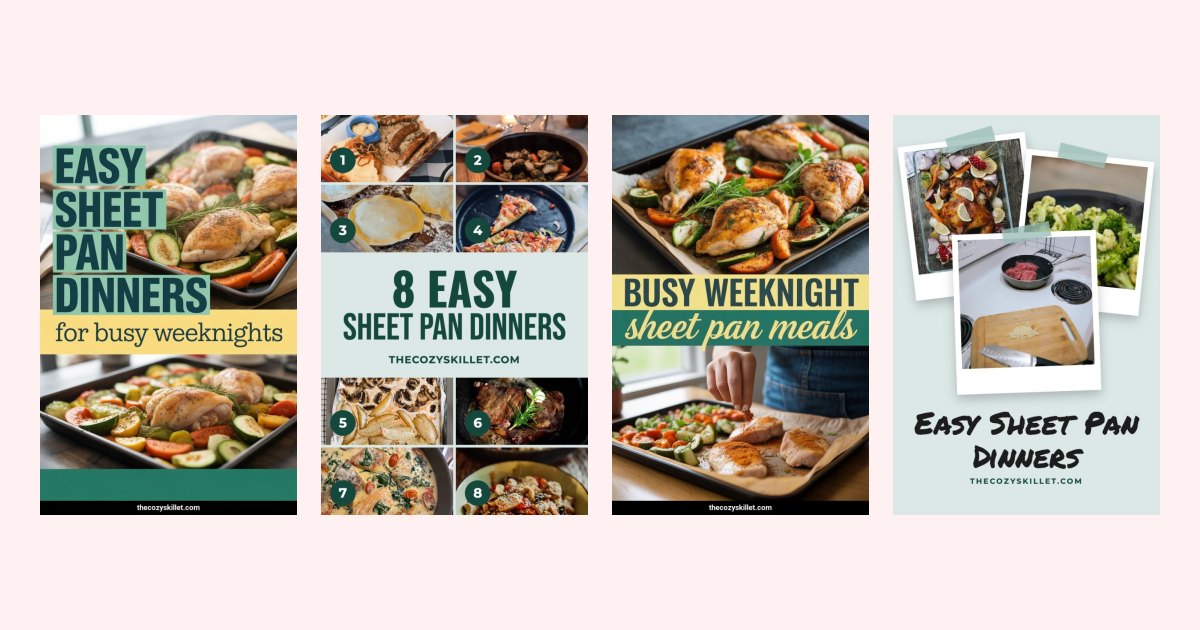
That's the difference in one picture: a plugin would have pinned this post's landscape featured image once, with the post title. These are four pins from the same post, each aimed at a different search.
Side by side
| Plugin | IFTTT / Zapier | Pin generator | |
|---|---|---|---|
| Image | Featured image as is | Featured image as is | Vertical pin designed from the post's photos |
| Title | Post title | Post title | Written for Pinterest search |
| Description | Excerpt or blank | Excerpt or blank | Written |
| Pins per post | 1 | 1 | Up to 4 |
| Board | One fixed board | One fixed board | Matched per pin |
| Old posts | No | No | Yes, up to 500 at a time |
| You review before posting | No | No | Yes |
| Install on the site | Yes | No | No |
In one line: if you only want a flag planted for each post, use a plugin. If you want pins that get clicked, use a generator and read the drafts.
What 3,700 pins say about one pin per post
A plugin's whole design is one pin per post. We looked at whether that's enough in our study of 3,700 pins: the top pins of 46 accounts, from Pinterest's official API, February to October 2026.
| Different pins for the post | Median outbound clicks |
|---|---|
| 1 | 0 |
| 2 | 4 |
| 3 | 7 |
| 4 | 10.5 |
| 5 or more | 16.5 |
Posts with two or more different pins were 27% of the posts and brought 74% of the clicks. One more number matters for the plugin route: six in ten 2026 clicks came from pins first posted in 2025 or earlier. Pins keep earning for years, so the posts you published before installing the plugin are worth pinning too, and a plugin that fires on Publish never touches them.
The honest limits: this is correlation, not cause (posts that earn clicks also tend to get more pins), and the accounts lean toward blogs and shops already using a pin tool. Still, a plugin is a reasonable first pin. It isn't the last one a post needs.
The setup that keeps a blog pinned all year
- Month one: the archive. Sort your old posts into pin now, pin in season, and leave. Run the first pile through in batches of 25 posts, three or four pins each, scheduled across the month. Pin your archive has the full method.
- Every week: new posts. Once a week, tick the posts you published since last time. Fifteen minutes.
- Every quarter: second angles. Go back to the posts that pulled clicks and give them new pins with a different title angle.
- Keep Rich Pins valid. One check after any theme or plugin change.
Whatever route you take, the pacing matters more than the tool: a few pins a day, every day, never the same image twice, and the same post at least a week apart. Pinterest automation: what's safe covers where the line is.
Questions people ask
Does Pinterest have an official WordPress plugin?
Pinterest's own WordPress plugin helps you claim your site, add Save buttons and set up Rich Pins. It doesn't pin your posts for you; for that you need one of the three routes above.
How do I automatically pin new WordPress posts?
Either a plugin or recipe that pins the featured image on publish, or a pin generator that reads your site and makes several designed pins per post for you to approve. The first is hands-off and basic; the second takes a weekly ten minutes and produces pins people click.
Do these tools need my Pinterest password?
No, and don't use one that asks. Approved tools send you to a Pinterest login page and never see your password. Made to Spark connects that way and you can disconnect it from Pinterest's settings any time.
Should I pin old WordPress posts too?
Yes, first. Old posts that still get Google traffic are proven, and a pin made today can send readers to a 2022 post for years. Pin your archive has the method.
Before you connect anything
- Sitemap loads; Rich Pins valid.
- Decide: one featured-image pin per post, or designed pins with several angles.
- If a plugin: vertical featured images, and "pin on update" switched off.
- If a generator: archive first, then a weekly pass for new posts.
- Pins reviewed before they publish.
- Paced across the month, same post a week apart.