How to Set Up Pinterest Rich Pins (and Fix Validator Errors)
 Paul
Paul
Rich Pins are the pins that show your headline, your author name, your ingredients, your price. They pull those details from your own page and update when the page changes.
Here's the annoying part. You no longer apply for them, you just need the right tags in your HTML, and Pinterest took away the tool that told you whether you had them. So most bloggers have no idea whether theirs work.
This guide fixes that: check a page in a minute, understand what each error means, and fix it on whatever platform you're on.
Do this now (10 minutes)
- Paste one blog post, recipe or product URL into the Rich Pins validator.
- Copy the suggested tag for every field marked missing and add it through your SEO plugin or theme.
- Run the same URL again. When every required field says found, you're done for that page type. Every other page built with the same template is fixed too.
What Rich Pins are, in 2026
A Rich Pin is a normal pin whose details come from your page's metadata rather than from whoever saved it. There are three kinds:
- Article: shows the headline, description and author.
- Recipe: shows ingredients, cook time and servings.
- Product: shows the price and availability.
Three things changed that trip people up. You no longer apply: Pinterest's help center says pages with the correct tags show as Rich Pins automatically, including pins that already link to them. Syncing can take up to 24 hours, so a fix doesn't show instantly. And Pinterest retired its own validator, so "how do I check?" is now the most common question.
Step 1: Check a page
Open the validator and paste the full URL of one public page. The tool fetches the HTML, works out whether the page is marked up as an Article, Recipe or Product, and gives one of three verdicts:
- Valid: every required field for that type was found.
- Partial: the type was detected, but at least one required field is missing. The report lists which.
- No type detected: the page has none of the tags Pinterest looks for. Start with the Article tags below.
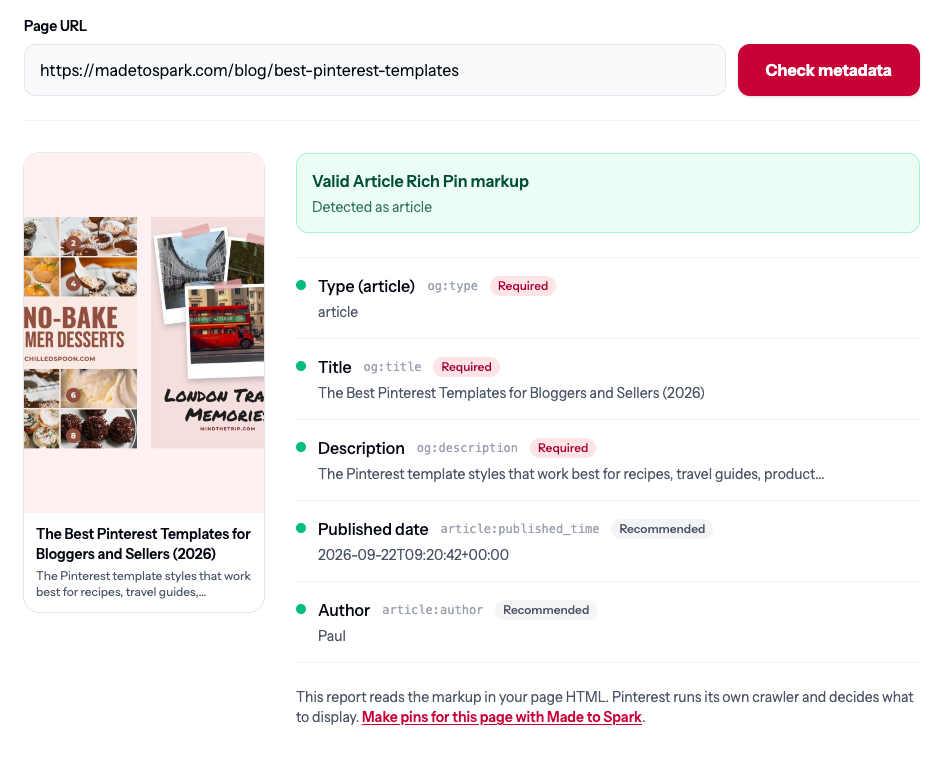
This is what a passing blog post looks like (it's one of ours). Every required field is found, the optional date and author are there too, and the preview on the left is what Pinterest can read from the page:
Check one page of each kind you publish: one post, one recipe, one product. Pages share templates, so fixing one fixes the rest.
Step 2: Read the report
These are the fields the validator checks. Required fields decide the verdict; optional ones are reported when present.
| Type | Required | Optional |
|---|---|---|
| Article | og:type = article, og:title, og:description | article:published_time, article:author |
| Recipe | name and recipeIngredient in Recipe JSON-LD | totalTime or cookTime, recipeYield |
| Product | product type, title, description, price, currency | availability |
For an Article, this is the complete set of tags. Each one is a meta tag in the page's head with the property on the left and your value on the right:
| Property | Example value |
|---|---|
og:type | article |
og:title | Easy Sheet Pan Dinners for Busy Weeknights |
og:description | Eight sheet pan dinners that go from fridge to table in 30 minutes. |
article:published_time | 2026-09-29T09:00:00+00:00 |
article:author | The Cozy Skillet |
You don't need to type these out: for every missing field, the validator shows the finished line with a Copy button.
Step 3: Fix what's missing, by platform
WordPress
Install an SEO plugin. It's the single biggest factor. In September 2026 we ran the newest post from 192 popular food, home, craft, travel, lifestyle and parenting blogs through the validator. Of the sites running Yoast, Rank Math or All in One SEO, 168 of 169 passed. Of the 23 sites with no SEO plugin, 6 had no Open Graph tags at all, which means no Rich Pins.
With a plugin, you almost never write these tags by hand. Yoast SEO adds them when Yoast SEO → Settings → Site features → Social sharing → Open Graph data is on, which it is by default. Rank Math adds them automatically; if a field is missing, check the post's Social tab in the editor and the defaults under Rank Math → Titles & Meta. Recipe plugins such as WP Recipe Maker and Tasty Recipes output the Recipe JSON-LD, including ingredients and times, as long as the recipe card is in the post.
Shopify
Shopify themes output og:type product plus the price and currency tags on product pages out of the box. In Dawn and other current themes they live in snippets/meta-tags.liquid; older themes call the file social-meta-tags.liquid. If the validator marks them missing, that snippet has been edited or removed. Restore it from the theme's original version or add the product tags back there.
Squarespace and Wix
Both builders add basic Open Graph tags to blog posts for you, so you can't edit the tags directly, but you control what goes into them. If the validator reports a missing description, fill in the post's SEO description (or excerpt), because that is where og:description comes from. Then run the check again.
Step 4: The errors you'll see, and what each one means
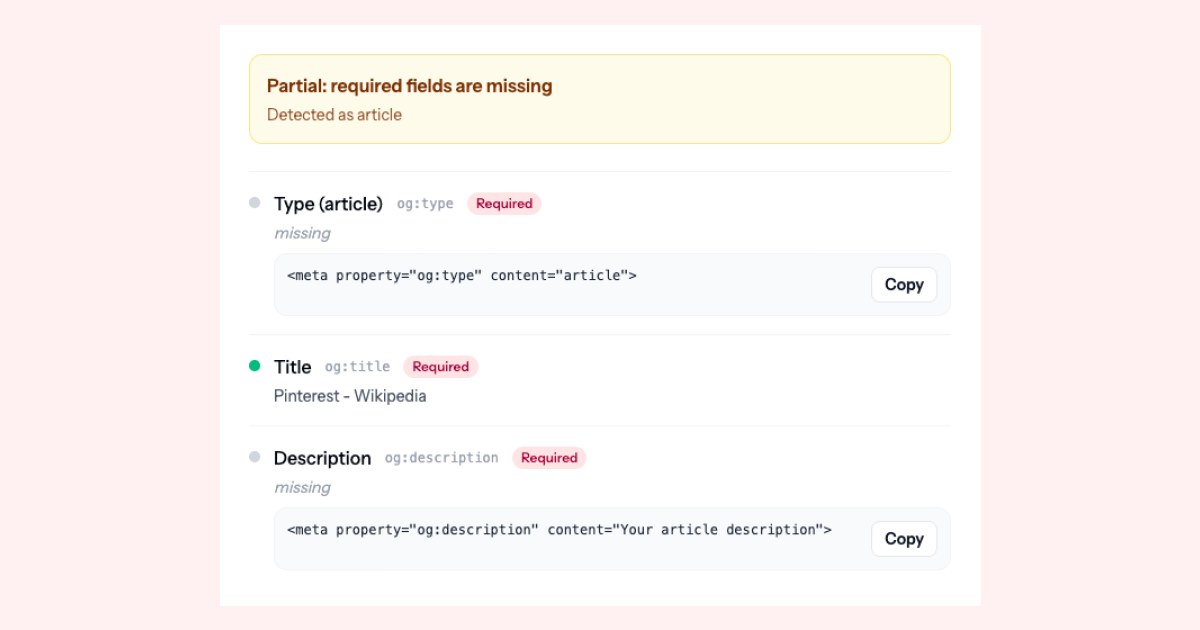
A partial report looks like this, for Wikipedia's article about Pinterest. The page is recognised as an article from its structured data and has a title, but og:type and og:description are missing, and the validator hands you the exact line to add for each:
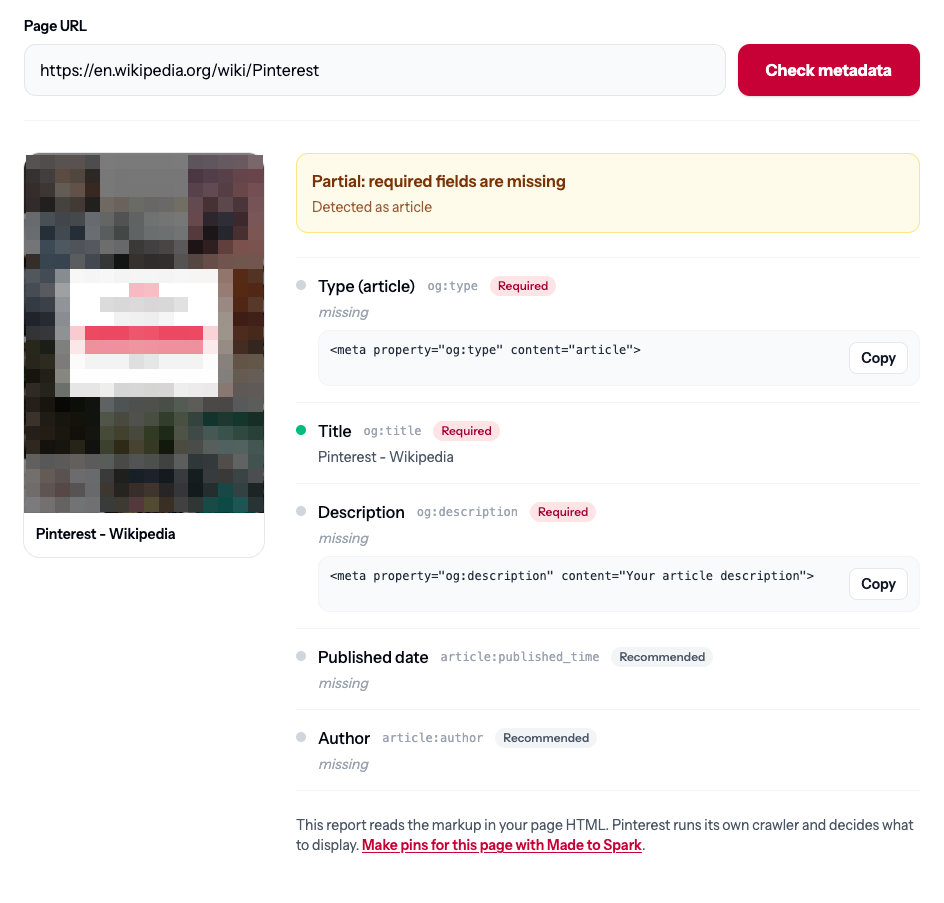
- Type (article) missing. The page has no
og:type, or it's set towebsite. Set it toarticleon posts. Many themes setwebsitesite-wide, which is right for the homepage and wrong for posts. - Description missing. Your SEO plugin has no meta description for this post. Write one; the plugin fills
og:descriptionfrom it. - Ingredients missing on a recipe. The page has a Recipe block without
recipeIngredient. Add the ingredients to the recipe card, not only to the post body. - The markup is not valid JSON. Your recipe or product data is on the page but broken, usually by a line break or tab pasted into a recipe note or description. Pinterest and Google may skip it entirely. Re-save the recipe card after cleaning up that field, or update the plugin, then check again. In our study, one of the best-known recipe blogs had exactly this problem on its newest recipe.
- Price or currency missing on a product. The product tags aren't in the HTML, or the price is only in JSON-LD without
priceCurrency. Add both. - The page couldn't be fetched. The URL redirects, isn't public, or your firewall blocks bots. Check the page opens in a private browser window, and allow the check through any bot-blocking plugin.
- Valid, but Pinterest still shows a plain pin. Give it 24 hours, since Pinterest syncs page details on its own schedule. If it still doesn't show after that, it's an eligibility or rendering decision on Pinterest's side, which no tool outside Pinterest can inspect.
Step 5: Check again, then fix the pin itself
One thing worth saying plainly: Rich Pins are table stakes, not a growth strategy. They make your pin look more trustworthy and they keep its title in step with your page. They will not rescue a pin nobody wants to click. If your Pinterest traffic is flat, fix this once, then go and spend your time on images and volume, which is where the difference actually comes from.
Run the URL through the validator after your change. Then look at the image. Rich Pins add details under a pin; they don't rescue a landscape screenshot. Every page you want pinned needs at least one tall image at 2:3, such as 1000×1500 pixels.
If your posts don't have one, the blog post to pin generator makes one from the page's own photos and title. For a whole site, bulk pins reads your sitemap and makes several pins per page.
Before you publish anything else
- One post, one recipe and one product checked in the validator.
- Every required field says found; the page type matches what the page is.
- Meta descriptions written on posts you want pinned.
- Recipe cards include ingredients and times.
- Product pages output price and currency.
- Bot-blocking plugins allow the page to be fetched.
- Each page has at least one 2:3 image worth pinning.